







Question: JAVA Project 2: Draw Curves from Straight Lines Carefully read this entire document before beginning your work. 1 Objective In this program, you will get
JAVA
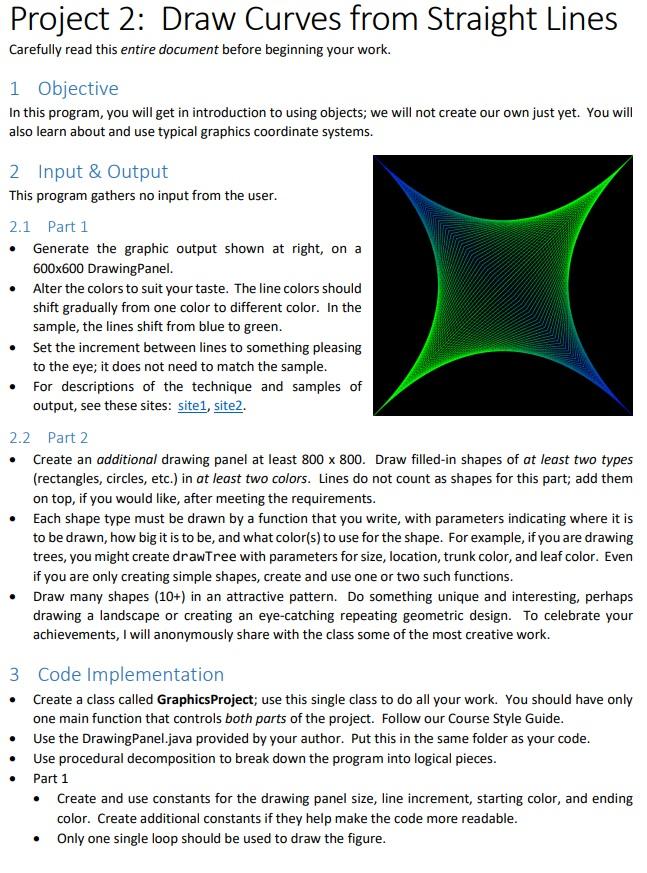
Project 2: Draw Curves from Straight Lines Carefully read this entire document before beginning your work. 1 Objective In this program, you will get in introduction to using objects; we will not create our own just yet. You will also learn about and use typical graphics coordinate systems. . 2 Input & Output This program gathers no input from the user. 2.1 Part 1 Generate the graphic output shown at right, on a 600x600 Drawing Panel. Alter the colors to suit your taste. The line colors should shift gradually from one color to different color. In the sample, the lines shift from blue to green. Set the increment between lines to something pleasing to the eye; it does not need to match the sample. For descriptions of the technique and samples of output, see these sites: site1, site2. 2.2 Part 2 Create an additional drawing panel at least 800 x 800. Draw filled-in shapes of at least two types (rectangles, circles, etc.) in at least two colors. Lines do not count as shapes for this part; add them on top, if you would like, after meeting the requirements. Each shape type must be drawn by a function that you write, with parameters indicating where it is to be drawn, how big it is to be, and what color(s) to use for the shape. For example, if you are drawing trees, you might create drawTree with parameters for size, location, trunk color, and leaf color. Even if you are only creating simple shapes, create and use one or two such functions. Draw many shapes (10+) in an attractive pattern. Do something unique and interesting, perhaps drawing a landscape or creating an eye-catching repeating geometric design. To celebrate your achievements, I will anonymously share with the class some of the most creative work. . 3 Code Implementation Create a class called GraphicsProject; use this single class to do all your work. You should have only one main function that controls both parts of the project. Follow our Course Style Guide. Use the Drawing Panel.java provided by your author. Put this in the same folder as your code. Use procedural decomposition to break down the program into logical pieces. Part 1 Create and use constants for the drawing panel size, line increment, starting color, and ending color. Create additional constants if they help make the code more readable. Only one single loop should be used to draw the figure. . 3.1 What You May Use Constants and variables; use the requested naming convention and declare them at the appropriate scope (i.e., use no global variables unless unavoidable, but global constants where they make sense). Definite loops. Drawing panel and graphics objects. Math methods like Math.round, plus trigonometry methods like Math.cos if you would like. 3.2 What You May Not Use Selection control structures (unless you are doing something special for Part 2). That means no if statements, switch statements, or ternary operators. . . 4 Submitting Your Work Submit your .java file; there is no need to submit the Drawing Panel.java code. 5 Hints Look over the supplied sample code that uses the DrawingPanel. Having a link to the online Java API reference will come in handy now and in the future. It is also linked from inside your Blue) UI. Do not duplicate code if you can avoid doing so, this is a good rule of thumb, now and always. If you would like to watch the figure being drawn, include a Drawing Panel sleep method call. Project 2: Draw Curves from Straight Lines Carefully read this entire document before beginning your work. 1 Objective In this program, you will get in introduction to using objects; we will not create our own just yet. You will also learn about and use typical graphics coordinate systems. . 2 Input & Output This program gathers no input from the user. 2.1 Part 1 Generate the graphic output shown at right, on a 600x600 Drawing Panel. Alter the colors to suit your taste. The line colors should shift gradually from one color to different color. In the sample, the lines shift from blue to green. Set the increment between lines to something pleasing to the eye; it does not need to match the sample. For descriptions of the technique and samples of output, see these sites: site1, site2. 2.2 Part 2 Create an additional drawing panel at least 800 x 800. Draw filled-in shapes of at least two types (rectangles, circles, etc.) in at least two colors. Lines do not count as shapes for this part; add them on top, if you would like, after meeting the requirements. Each shape type must be drawn by a function that you write, with parameters indicating where it is to be drawn, how big it is to be, and what color(s) to use for the shape. For example, if you are drawing trees, you might create drawTree with parameters for size, location, trunk color, and leaf color. Even if you are only creating simple shapes, create and use one or two such functions. Draw many shapes (10+) in an attractive pattern. Do something unique and interesting, perhaps drawing a landscape or creating an eye-catching repeating geometric design. To celebrate your achievements, I will anonymously share with the class some of the most creative work. . 3 Code Implementation Create a class called GraphicsProject; use this single class to do all your work. You should have only one main function that controls both parts of the project. Follow our Course Style Guide. Use the Drawing Panel.java provided by your author. Put this in the same folder as your code. Use procedural decomposition to break down the program into logical pieces. Part 1 Create and use constants for the drawing panel size, line increment, starting color, and ending color. Create additional constants if they help make the code more readable. Only one single loop should be used to draw the figure. . 3.1 What You May Use Constants and variables; use the requested naming convention and declare them at the appropriate scope (i.e., use no global variables unless unavoidable, but global constants where they make sense). Definite loops. Drawing panel and graphics objects. Math methods like Math.round, plus trigonometry methods like Math.cos if you would like. 3.2 What You May Not Use Selection control structures (unless you are doing something special for Part 2). That means no if statements, switch statements, or ternary operators. . . 4 Submitting Your Work Submit your .java file; there is no need to submit the Drawing Panel.java code. 5 Hints Look over the supplied sample code that uses the DrawingPanel. Having a link to the online Java API reference will come in handy now and in the future. It is also linked from inside your Blue) UI. Do not duplicate code if you can avoid doing so, this is a good rule of thumb, now and always. If you would like to watch the figure being drawn, include a Drawing Panel sleep method call
Step by Step Solution
There are 3 Steps involved in it

Get step-by-step solutions from verified subject matter experts
 Study Help