







Question: JAVA QUESTION: please help! Hello, please MODIFY the following code so that the buttons are displayed like the picture and there is a black border
JAVA QUESTION: please help!
Hello,
please MODIFY the following code so that the buttons are displayed like the picture and there is a black border surrounding it. Please DO NOT give me the solution from the textbook because this code will not work for me. PLEASE Do not use the textbook solutions code, as it will not work for me and you will not get a thumbs up. When I use the solution from the book, all of the buttons disapear and the border does not display, which is why i cannot use it. Thank you for the help!!!!
THE CODES TO MODIFY:
import javax.swing.JFrame; public class QuoteOptionsModified { //creates and presents program frame public static void main(String[] args) { JFrame frame = new JFrame("Quote Options"); frame.setDefaultCloseOperation(JFrame.EXIT_ON_CLOSE); QuoteOptionsPanelModified panel = new QuoteOptionsPanelModified(); frame.getContentPane().add(panel); frame.pack(); frame.setVisible(true); } }
---------------------------------------
import javax.swing.*; import java.awt.*; import java.awt.event.*; public class QuoteOptionsPanelModified extends JPanel { private JLabel quote; private JRadioButton comedy, philosophy, carpentry; private String comedyQuote, philosophyQuote, carpentryQuote; //----------------------------------------------------------------- // Sets up a panel with a label and a set of radio buttons // that control its text. //----------------------------------------------------------------- public QuoteOptionsPanelModified() { comedyQuote = "Take my wife, please."; philosophyQuote = "I think, therefore I am."; carpentryQuote = "Measure twice. Cut once."; quote = new JLabel(comedyQuote); quote.setFont(new Font("Helvetica", Font.BOLD, 24)); comedy = new JRadioButton("Comedy", true); comedy.setBackground(Color.green); philosophy = new JRadioButton("Philosophy"); philosophy.setBackground(Color.green); carpentry = new JRadioButton("Carpentry"); carpentry.setBackground(Color.green); ButtonGroup group = new ButtonGroup(); group.add(comedy); group.add(philosophy); group.add(carpentry); QuoteListener listener = new QuoteListener(); comedy.addActionListener(listener); philosophy.addActionListener(listener); carpentry.addActionListener(listener); add(quote); add(comedy); add(philosophy); add(carpentry); setBackground(Color.green); setPreferredSize(new Dimension(380, 100)); } //***************************************************************** // Represents the listener for all radio buttons //***************************************************************** private class QuoteListener implements ActionListener { //-------------------------------------------------------------- // Sets the text of the label depending on which radio // button was pressed. //-------------------------------------------------------------- public void actionPerformed(ActionEvent event) { Object source = event.getSource(); if (source == comedy) quote.setText(comedyQuote); else if (source == philosophy) quote.setText(philosophyQuote); else quote.setText(carpentryQuote); } } }
PICTURE AND QUESTION OF REFERENCE: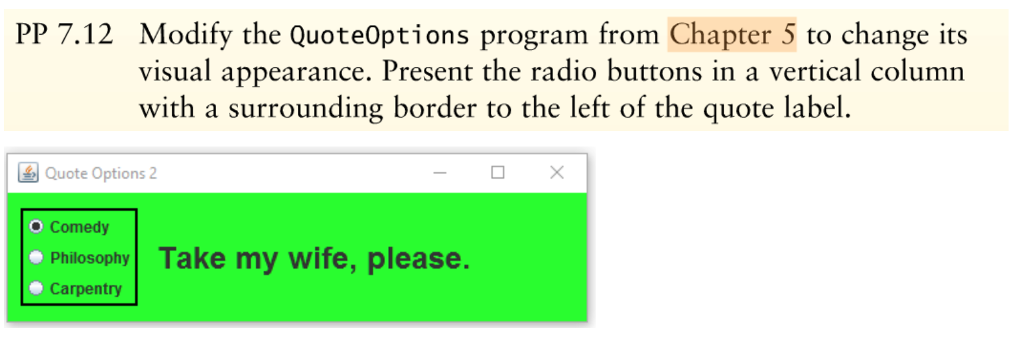
PP 7.12 Modify the QuoteOptions program from Chapter 5 to change its visual appearance. Present the radio buttons in a vertical column with a surrounding border to the left of the quote label Quote Options 2 O Comedy Philosophy Take my wife, please Carpentry
Step by Step Solution
There are 3 Steps involved in it

Get step-by-step solutions from verified subject matter experts
 Study Help