







Question: L Excel Chapter 4 Assignment 1 Ex104_SA1 Recycling To complete this project, you will need the following file: Ex104_SA1 Recycling You will save your workbook
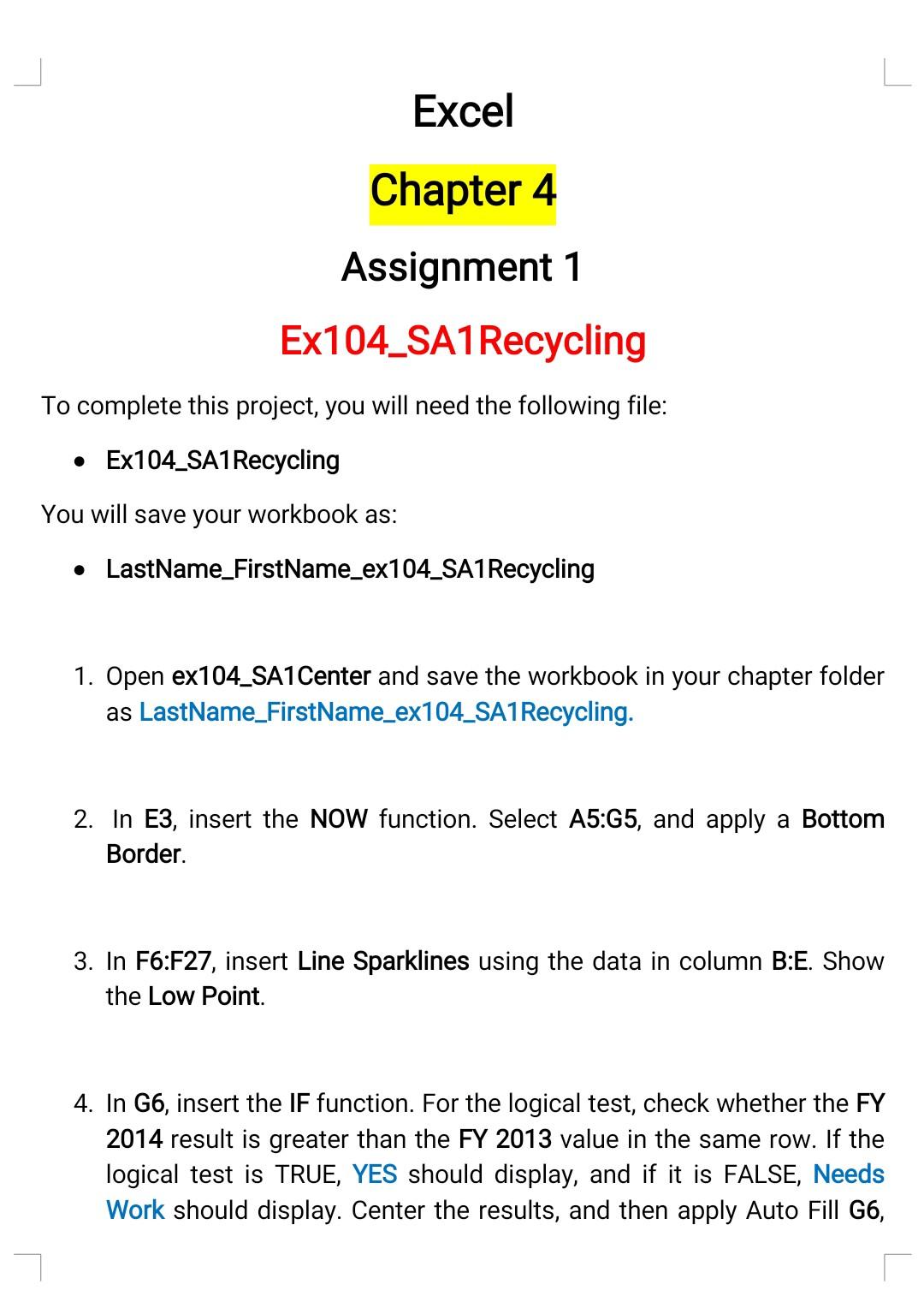
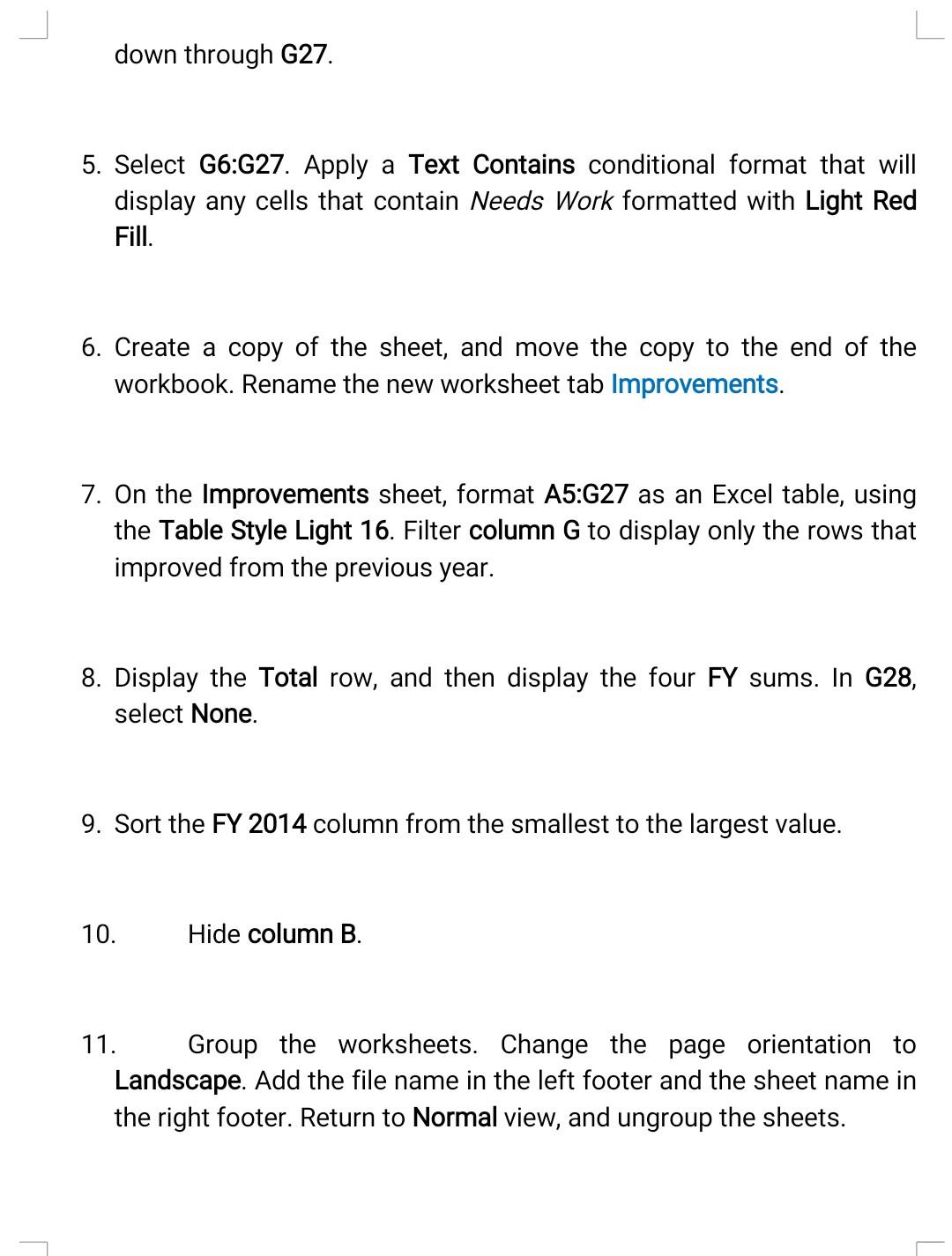
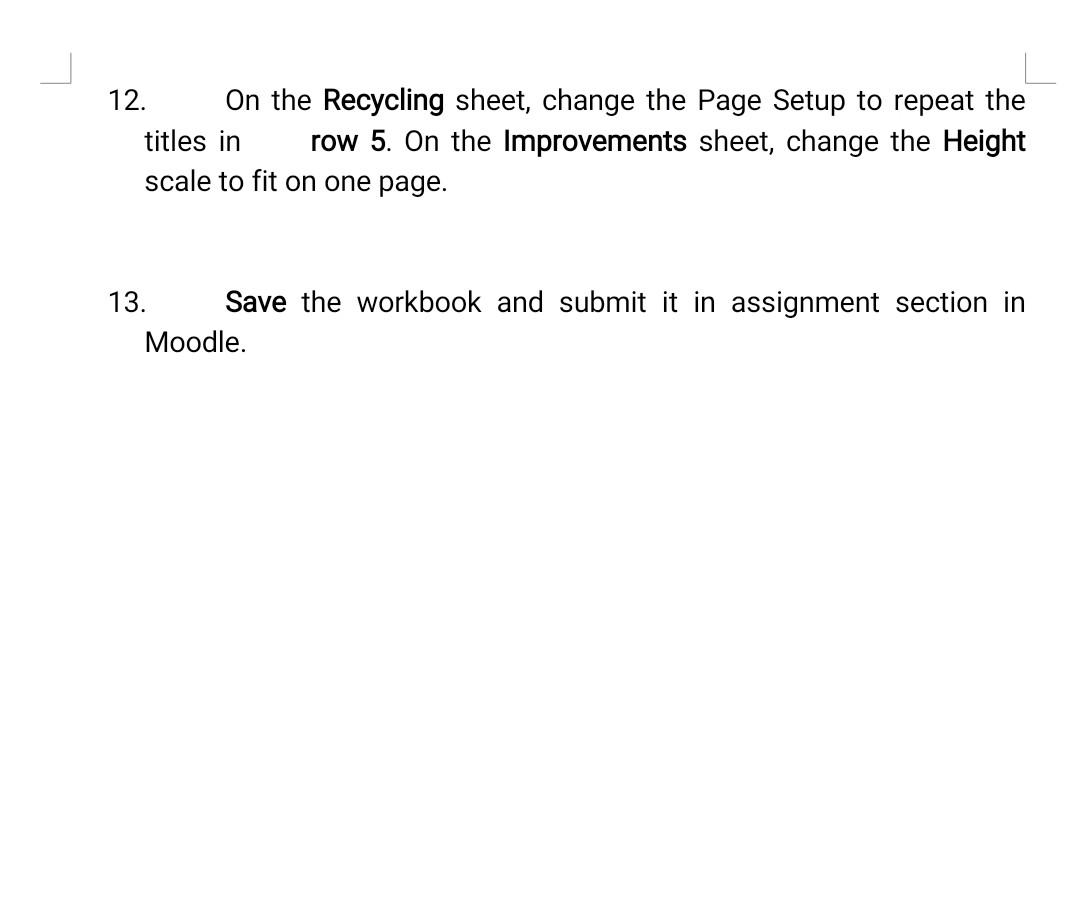
L Excel Chapter 4 Assignment 1 Ex104_SA1 Recycling To complete this project, you will need the following file: Ex104_SA1 Recycling You will save your workbook as: LastName_FirstName_ex104_SA1 Recycling 1. Open ex104_SA1 Center and save the workbook in your chapter folder as LastName_FirstName_ex104_SA1 Recycling. 2. In E3, insert the NOW function. Select A5:45, and apply a Bottom Border 3. In F6:F27, insert Line Sparklines using the data in column B:E. Show the Low Point. 4. In G6, insert the IF function. For the logical test, check whether the FY 2014 result is greater than the FY 2013 value in the same row. If the logical test is TRUE, YES should display, and if it is FALSE, Needs Work should display. Center the results, and then apply Auto Fill G6, down through G27. 5. Select G6:27. Apply a Text Contains conditional format that will display any cells that contain Needs Work formatted with Light Red Fill. 6. Create a copy of the sheet, and move the copy to the end of the workbook. Rename the new worksheet tab Improvements. 7. On the Improvements sheet, format A5:G27 as an Excel table, using the Table Style Light 16. Filter column G to display only the rows that improved from the previous year. 8. Display the Total row, and then display the four FY sums. In G28, select None. 9. Sort the FY 2014 column from the smallest to the largest value. 10. Hide column B. 11. Group the worksheets. Change the page orientation to Landscape. Add the file name in the left footer and the sheet name in the right footer. Return to Normal view, and ungroup the sheets. 12. On the Recycling sheet, change the Page Setup to repeat the titles in row 5. On the Improvements sheet, change the Height scale to fit on one page. 13. Save the workbook and submit it in assignment section in Moodle
Step by Step Solution
There are 3 Steps involved in it
1 Expert Approved Answer
Step: 1 Unlock

Question Has Been Solved by an Expert!
Get step-by-step solutions from verified subject matter experts
Step: 2 Unlock
Step: 3 Unlock
 Study Help