







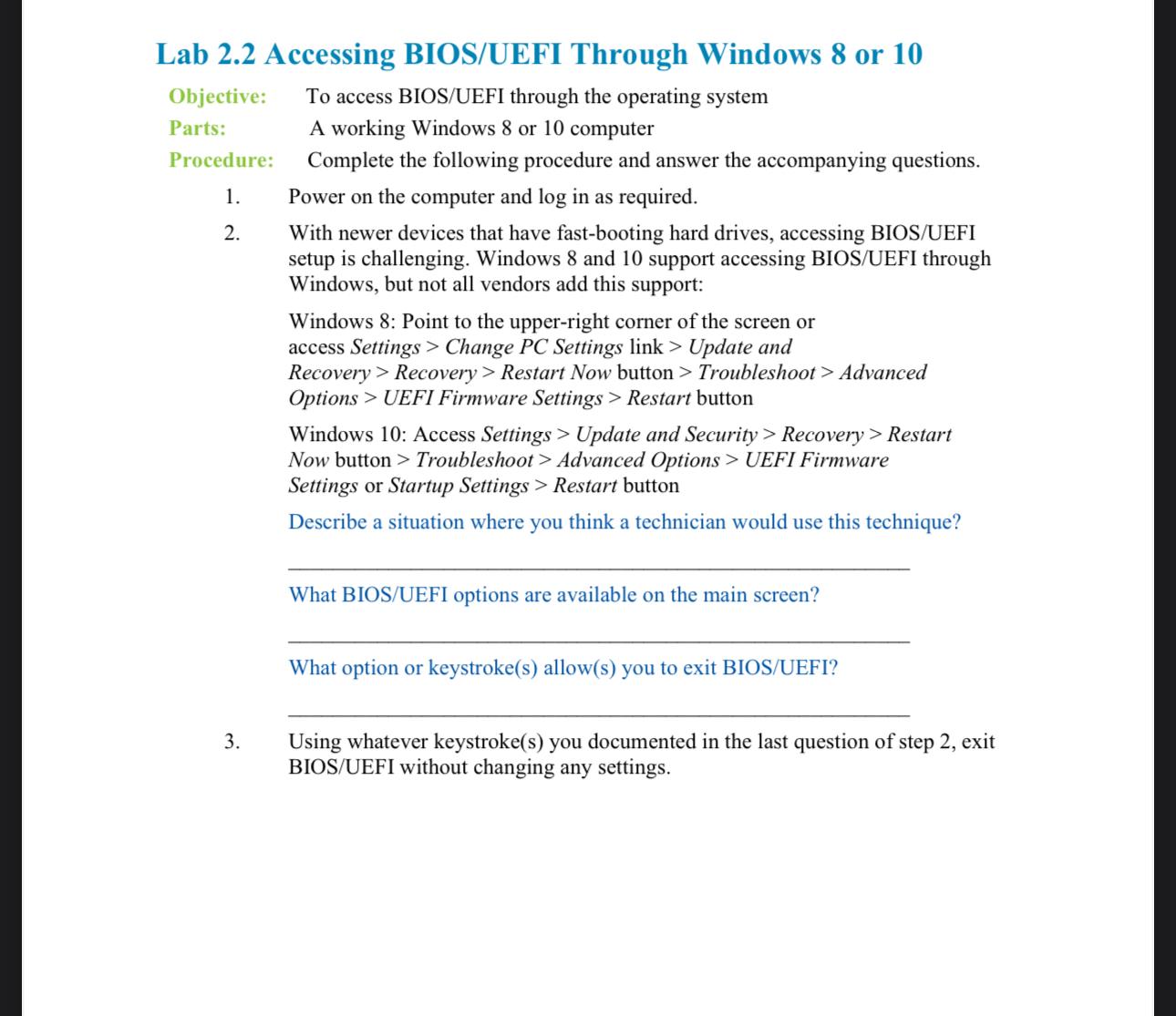
Question: Lab 2 . 2 Accessing BIOS / UEFI Through Windows 8 or 1 0 Objective: To access BIOS / UEFI through the operating system Parts:
Lab Accessing BIOSUEFI Through Windows or
Objective: To access BIOSUEFI through the operating system
Parts: A working Windows or computer
Procedure: Complete the following procedure and answer the accompanying questions.
Power on the computer and in as required.
With newer devices that have fastbooting hard drives, accessing BIOSUEFI setup is challenging. Windows and support accessing BIOSUEFI through Windows, but not all vendors add this support:
Windows : Point to the upperright corner of the screen or access Settings Change PC Settings link Update and Recovery Recovery Restart Now button Troubleshoot Advanced Options UEFI Firmware Settings Restart button
Windows : Access Settings Update and Security Recovery Restart Now button Troubleshoot Advanced Options UEFI Firmware Settings or Startup Settings Restart button
Describe a situation where you think a technician would use this technique?
What BIOSUEFI options are available on the main screen?
What option or keystrokes allows you to exit BIOSUEFI
Using whatever keystrokes you documented in the last question of step exit BIOSUEFI without changing any settings.
Step by Step Solution
There are 3 Steps involved in it
1 Expert Approved Answer
Step: 1 Unlock

Question Has Been Solved by an Expert!
Get step-by-step solutions from verified subject matter experts
Step: 2 Unlock
Step: 3 Unlock
 Study Help