







Question: Lab 3 Users may use a web-based vulnerability scanner if they want to do a simple scan for potential vulnerabilities on their own personal computers.
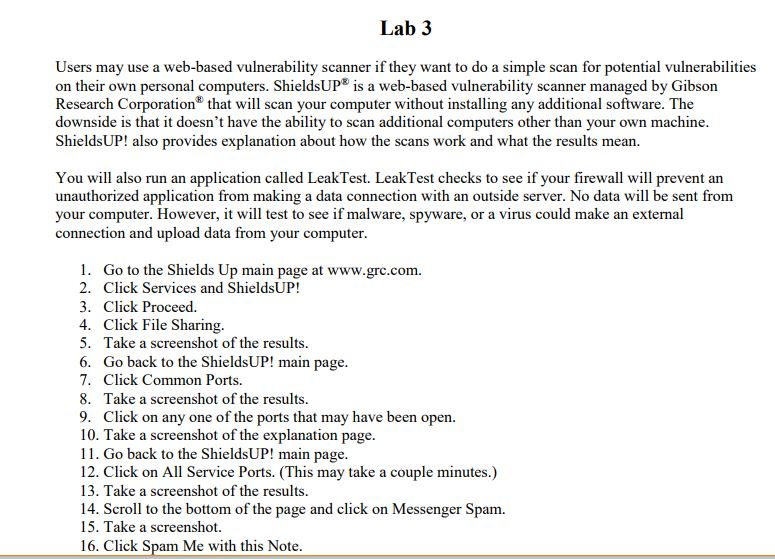
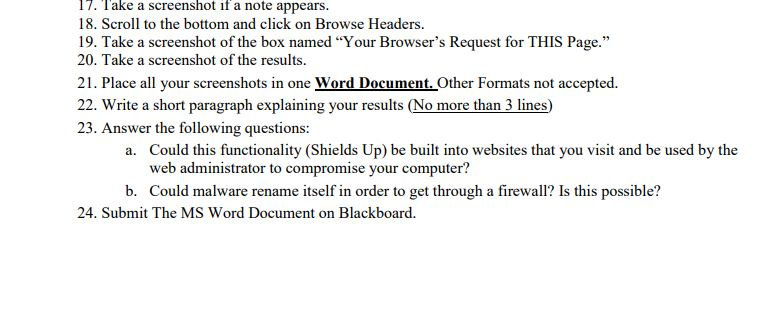
Lab 3 Users may use a web-based vulnerability scanner if they want to do a simple scan for potential vulnerabilities on their own personal computers. ShieldsUP is a web-based vulnerability scanner managed by Gibson Research Corporation that wil scan your computer without installing any additional software. The downside is that it doesn't have the ability to scan additional computers other than your own machine ShieldsUP! also provides explanation about how the scans work and what the results mean. You will also run an application called LeakTest. LeakTest checks to see if your firewall will prevent arn unauthorized application from making a data connection with an outside server. No data will be sent from your computer. However, it will test to see if malware, spyware, or a virus could make an external connection and upload data from your computer 1. Go to the Shields Up main page at www.grc.com. 2. Click Services and ShieldsUP! 3. Click Proceed. 4. Click File Sharing. 5. Take a screenshot of the results 6. Go back to the ShieldsUP! main page 7. Click Common Ports. 8. Take a screenshot of the results 9. Click on any one of the ports that may have been open. 10. Take a screenshot of the explanation page 11. Go back to the ShieldsUP! main page 12. Click on All Service Ports. (This may take a couple minutes.) 13. Take a screenshot of the results. 14. Scroll to the bottom of the page and click on Messenger Spam. 15. Take a screenshot 16. Click Spam Me with this Note Lab 3 Users may use a web-based vulnerability scanner if they want to do a simple scan for potential vulnerabilities on their own personal computers. ShieldsUP is a web-based vulnerability scanner managed by Gibson Research Corporation that wil scan your computer without installing any additional software. The downside is that it doesn't have the ability to scan additional computers other than your own machine ShieldsUP! also provides explanation about how the scans work and what the results mean. You will also run an application called LeakTest. LeakTest checks to see if your firewall will prevent arn unauthorized application from making a data connection with an outside server. No data will be sent from your computer. However, it will test to see if malware, spyware, or a virus could make an external connection and upload data from your computer 1. Go to the Shields Up main page at www.grc.com. 2. Click Services and ShieldsUP! 3. Click Proceed. 4. Click File Sharing. 5. Take a screenshot of the results 6. Go back to the ShieldsUP! main page 7. Click Common Ports. 8. Take a screenshot of the results 9. Click on any one of the ports that may have been open. 10. Take a screenshot of the explanation page 11. Go back to the ShieldsUP! main page 12. Click on All Service Ports. (This may take a couple minutes.) 13. Take a screenshot of the results. 14. Scroll to the bottom of the page and click on Messenger Spam. 15. Take a screenshot 16. Click Spam Me with this
Step by Step Solution
There are 3 Steps involved in it

Get step-by-step solutions from verified subject matter experts
 Study Help