







Question: Lab Insight: Complete the Alt Lab by using steps similar to original Lab 4-3 in the text. Continue Working data file (Lab 4-3 Data). Add
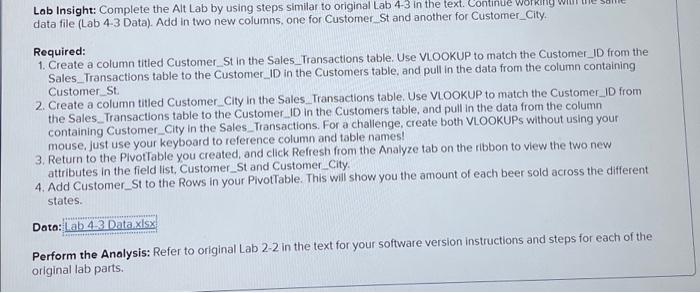
Lab Insight: Complete the Alt Lab by using steps similar to original Lab 43 in the data file (Lab 4-3 Data). Add in two new columns, one for Customer_St and another for Customer_City. Required: 1. Create a column titled Customer_St in the Sales_Transactions table. Use ViOOKUP to match the Customer_ID from the Sales_Transactions table to the Customer_ID in the Customers table, and pull in the data from the column containing Customer St. 2. Create a column titled Customer_City in the Sales_Transactions table. Use VLOOKUP to match the Customer_ID from the Sales_.Transactions table to the Customer_ID in the Customers table, and pull in the data from the column containing Customer_City in the Sales_Transactions. For a challenge, create both VLOOKUPs without using your mouse, just use your keyboard to reference column and table names! 3. Return to the PlvotTable you created, and click Refresh from the Analyze tab on the ribbon to view the two new attributes in the field list, Customer_St and Customer_City. 4. Add Customer_St to the Rows in your PivotTable. This will show you the amount of each beer sold across the different states. Data: Perform the Analysis: Refer to original Lab 22 in the text for your software version instructions and steps for each of the original lab parts
Step by Step Solution
There are 3 Steps involved in it

Get step-by-step solutions from verified subject matter experts
 Study Help