







Question: Lab-Use Interface Builder The objective of this lab is to use Interface Builder and the assistant editor to create a basic view. Step 1 Create
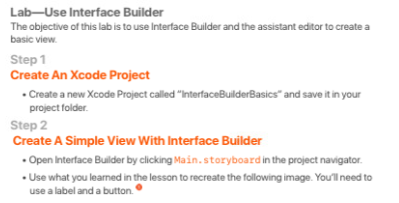
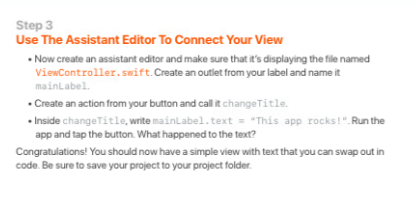
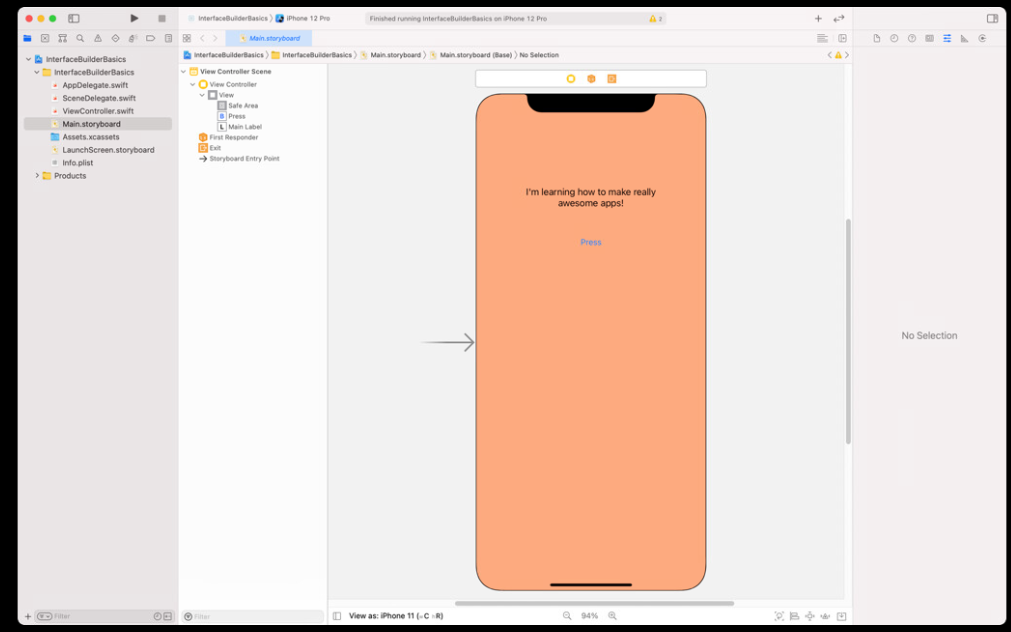
Lab-Use Interface Builder The objective of this lab is to use Interface Builder and the assistant editor to create a basic view. Step 1 Create An Xcode Project - Create a new Xcode Project called "InterfaceBuilderBasics" and save it in your project folder. Step 2 Create A Simple View With Interface Builder - Open Interface Builder by clicking Main. storyboard in the project navigator. - Use what you learned in the lesson to recreate the following image. Youll need to use a label and a button. Step 3 Use The Assistant Editor To Connect Your View - Now create an assistant editor and make sure that it's displaying the file named ViewController. swift. Create an outlet from your label and name it mainLabel. - Create an action from your button and call it change Title. - Inside changeTitle, write mainLabel. text = "This app rocks! ". Run the app and tap the button. What happened to the text? Congratulations! You should now have a simple view with text that you can swap out in code. Be sure to save your project to your project folder. A InterfacebuilderBasics InterfaceBuilderBasics - AppDelegate.swift - SceneDelegate.swift - ViewController.swift Main.storyboard Assets.xcassets LaunchScreen.storyboard Info plist Products
Step by Step Solution
There are 3 Steps involved in it

Get step-by-step solutions from verified subject matter experts
 Study Help