







Question: Language= python Give screenshot if possible The red one: stop_sign.jpg The blue one: modified_stop_sign.jpg Thank you! In this task, you will write a function editImage(img)
Language= python
Give screenshot if possible
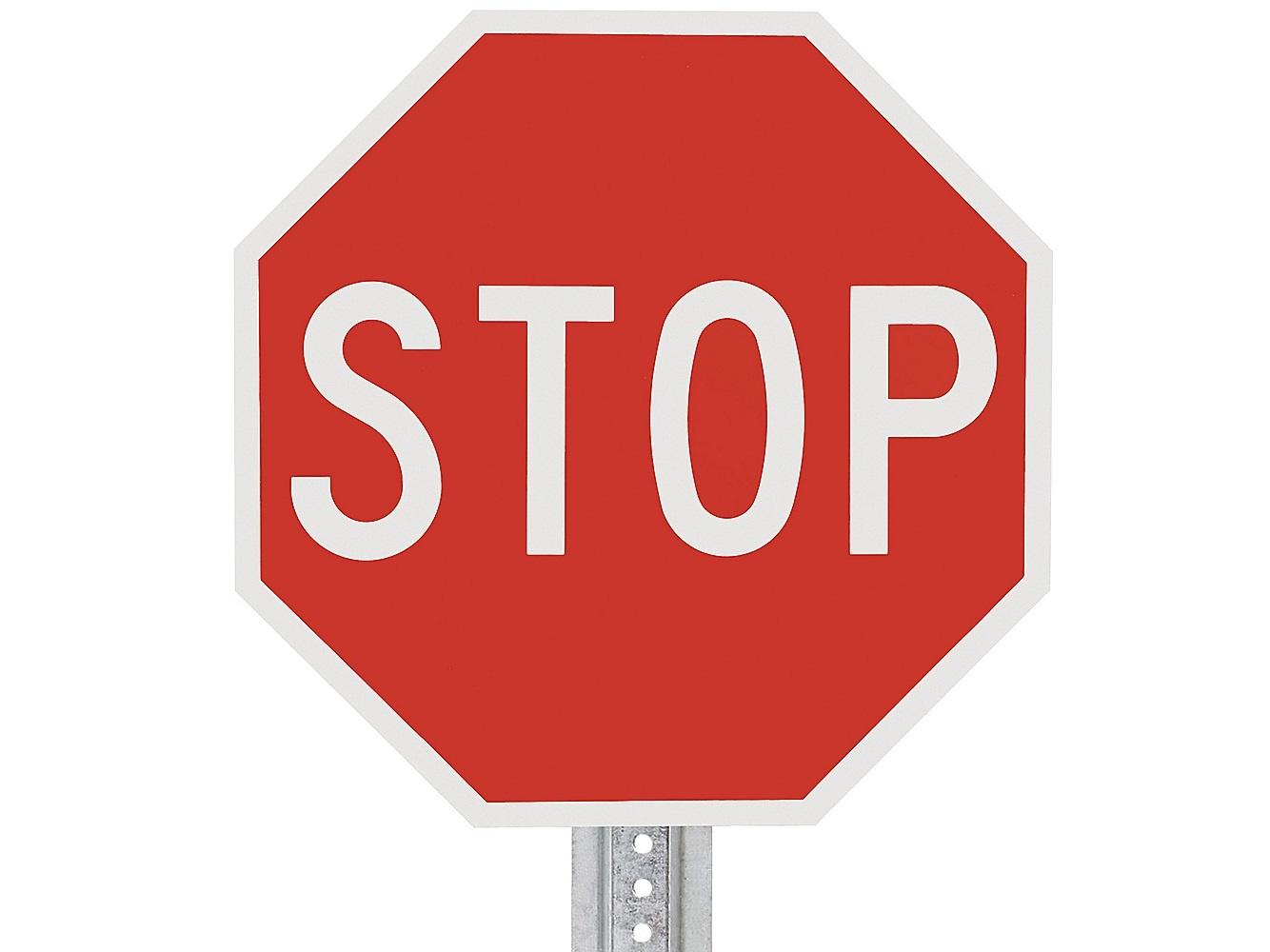
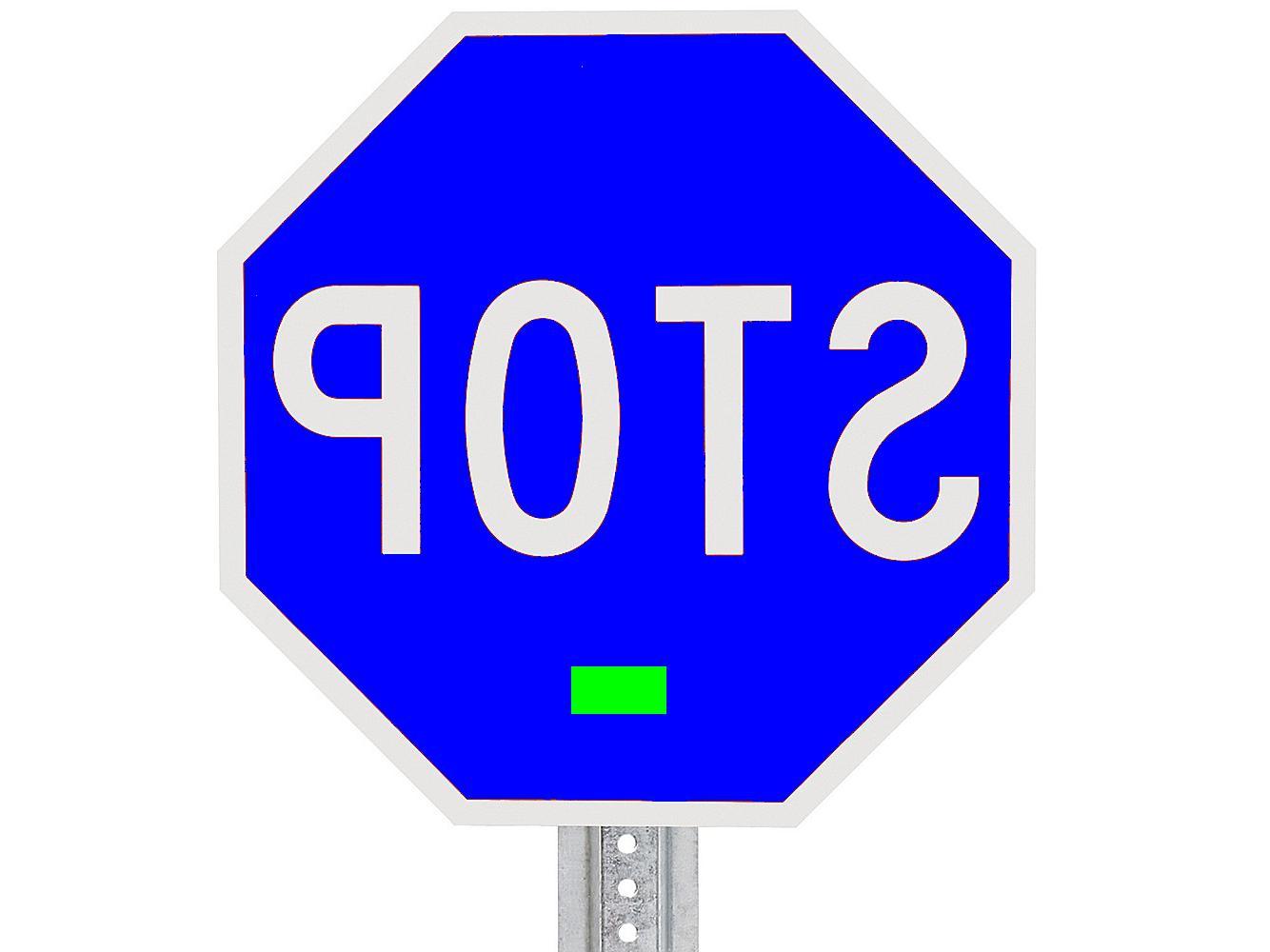 The red one: stop_sign.jpg The blue one: modified_stop_sign.jpg
Thank you!
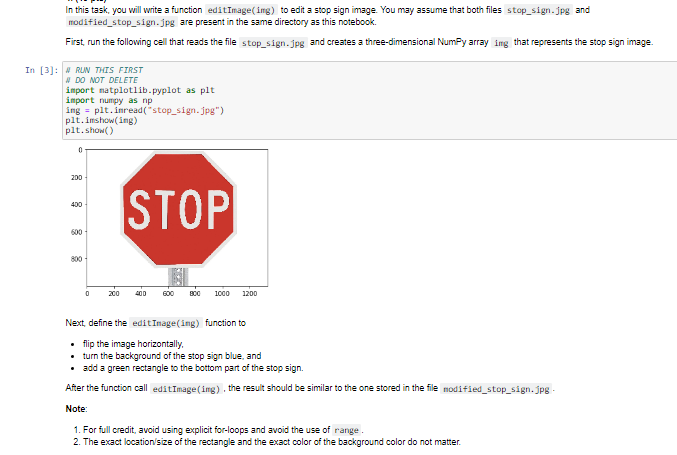
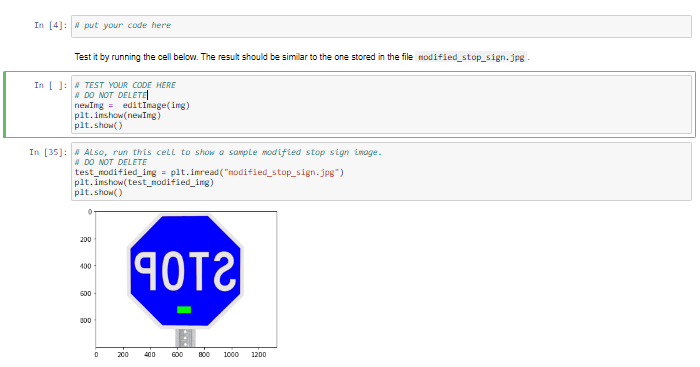
In this task, you will write a function editImage(img) to edit a stop sign image. You may assume that both files stop_sign.jpg and modified_stop_sign.jpg are present in the same directory as this notebook. First run the following cell that reads the file stop_sign.jpg and creates a three-dimensional Numpy array ing that represents the stop sign image In [3]: RUN THIS FIRST # DO NOT DELETE import matplotlib.pyplot as plt import numpy as np ing = plt.inread("stop_sign.jpg") plt.imshowing) plt.show() 0 200 400 STOP 600 800 0 200 600 800 1000 1200 Next, define the edit Inage(ing) function to flip the image horizontally, turn the background of the stop sign blue, and add a green rectangle to the bottom part of the stop sign. After the function call editImage (img), the result should be similar to the one stored in the file modified_stop_sign.jpg Note 1. For full credit, avoid using explicit for-loops and avoid the use of range 2. The exact location size of the rectangle and the exact color of the background color do not matter. In [4]: put your code here Test it by running the cell below. The result should be similar to the one stored in the file modified_stop_sign.jpg In [ ]: TEST YOUR CODE HERE DO NOT DELETE newImg = editImage(img) plt.imshow(newImg) plt.show() In [35]: Also, run this cell to show a sample modified stop sign image. # DO NOT DELETE test_modified_img = plt.imread("modified_stop_sign.jpg) plt.imshow(test_modified_img) plt.show() 200 400 9012 500 300 0 200 600 800 1000 1200 STOP 210
Step by Step Solution
There are 3 Steps involved in it

Get step-by-step solutions from verified subject matter experts
 Study Help