







Question: Magenta Chroma Key Start with example 1 . 1 . 2 . Modify the program my reading in angryFigurineMagenta. mat, rather than angryFigurine.mat. Adjust the
Magenta Chroma Key
Start with example
Modify the program my reading in angryFigurineMagenta. mat, rather than angryFigurine.mat.
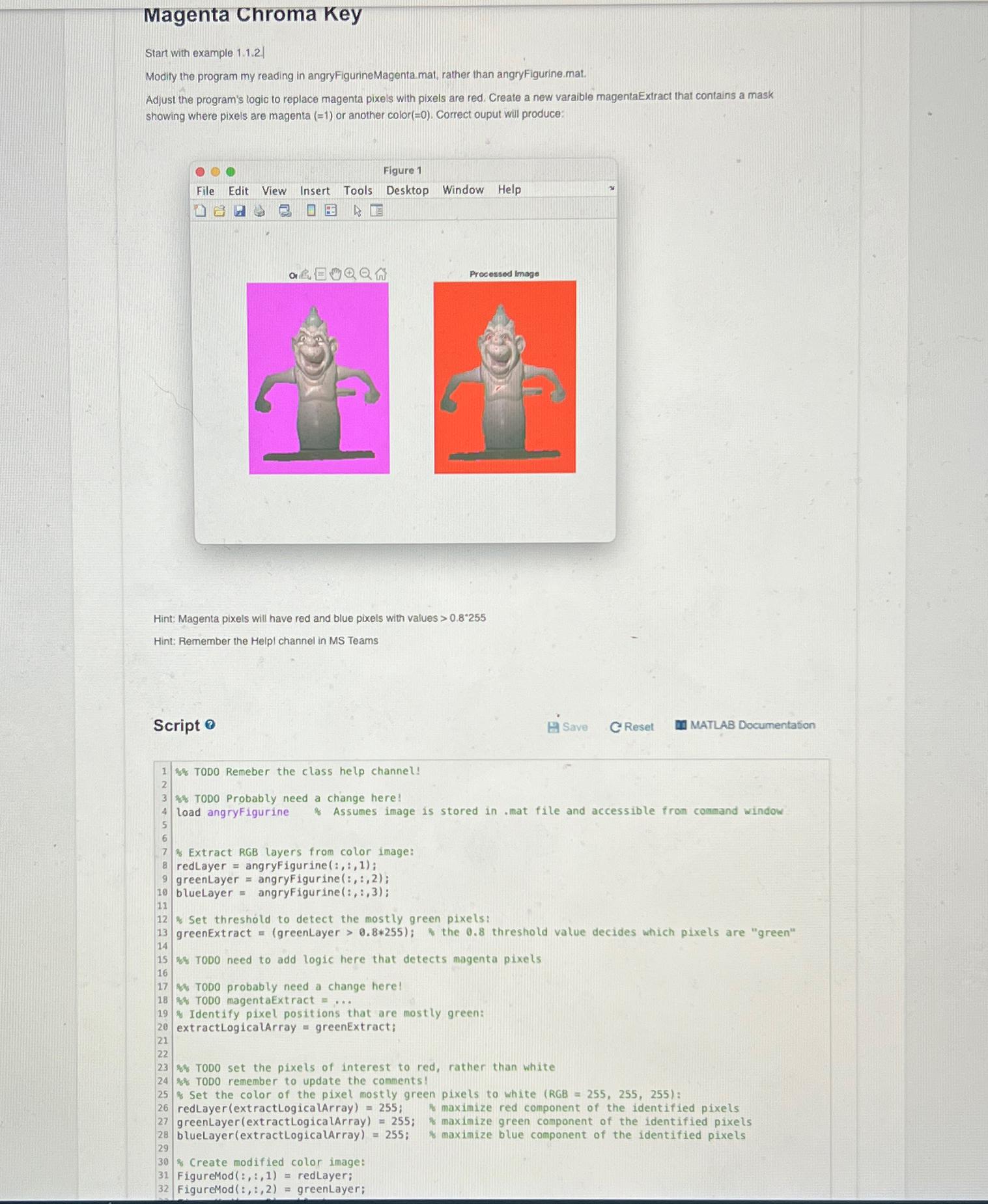
Adjust the program's logic to replace magenta pixels with pixels are red. Create a new varaible magentaExtract that contains a mask showing where pixels are magenta or another color Correct ouput will produce:
tableFigure File Edit View Insert Tools Desktop Window Help
Hint: Magenta pixels will have red and blue pixels with values
Hint: Remember the Helpl channel in MS Teams
Script
Save
Reset
MATLAB Documentation
TODO Remeber the class help channel!
TODO Probably need a change here!
load angryfigurine Assumes image is stored in mat file and accessible from command window
Extract RGB layers from color image:
redLayer angryFigurine :: :
greenLayer angryFigurine ::;
blueLayer angryFigurine ::;
Set threshold to detect the mostly green pixels:
greenExtract greenLayer the threshold value decides which pixels are "green"
S TODO need to add logic here that detects magenta pixels
TODO probably need a change herel
TODO magentaExtract dots
Identify pixel positions that are mostly green:
extractLogicaLArray greenExtract;
TODO set the pixels of interest to red, rather than white
TODO remember to update the comments!
is Set the color of the pixel mostly green pixels to white :
redLayerextractLogicaLArray; & maximize red component of the identified pixels
greenLayerextractLogicalArray; maximize green component of the identified pixels
blueLayerextractLogicalArray; s maximize blue component of the identified pixels
Create modified color image:
FigureMod :: redLayer:
FigureMod : greenLayer;
Step by Step Solution
There are 3 Steps involved in it
1 Expert Approved Answer
Step: 1 Unlock

To modify the program as directed youll need to make some changes to detec... View full answer
Question Has Been Solved by an Expert!
Get step-by-step solutions from verified subject matter experts
Step: 2 Unlock
Step: 3 Unlock
 Study Help