







Question: Make a program Problem1.java, based on techniques from JukeBox2.java, that works as a voting machine. Note that JukeBox2.java is nearly identical to JukeBox.java, which is
Make a program Problem1.java, based on techniques from JukeBox2.java, that works as a voting machine. Note that JukeBox2.java is nearly identical to JukeBox.java, which is discussed in the textbook. Your new program should have the following features:
a. The array of names will be items to be voted on. Declare the array of names as an instance variable, before the start() method. This will be necessary in order to use the array in other methods.
b. Declare an integer array as an instance variable to store the number of votes for each item on the ballot. In the start() method, create the array using new with a size that is equal to the length of the names array. In this way, the array of vote counts will always be the same size as the names array.
c. Provide a method that is executed when a button is pressed to add a vote. It should increment the appropriate vote count for the item in the ChoiceBox. Note that you can actually use this method to replace the processChoice method that exists in JukeBox2.java. The voting machine should not do anything when the ChoiceBox selection is changed. This means you will no longer need to call setOnAction() for the ChoiceBox. However, you will need to call setOnAction() for the button to have this alternative method executed. (In JukeBox2.java, both buttons execute the same method.)
d. Provide a method that is executed when a button is pressed to determine a winner. Use a for loop to determine which item or items have the maximum vote count, and print the name(s) of the winner(s) on the console (not the GUI). If there is a tie, print all of the winners names. There are several ways to do this, but the simplest is to keep a String with all of the winners names. If a new maximum is found, replace the String with the correct name. When a tie is found, concatenate the names.
Below is an example using 4 items on the ballot. The ChoiceBox has also been moved to be in the HBox with the buttons (this is optional). You may use any names and layout you wish. In this example, the following user actions occur in a particular order:
Selects Oscar and presses Vote twice.
Selects Elmo and presses Vote twice.
Presses Results.
Example of GUI:
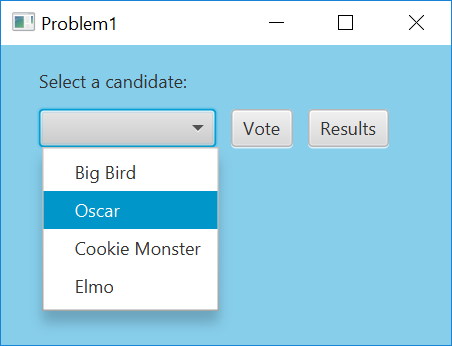
Example of console output after voting for Oscar and Elmo twice (a tie):
Oscar, Elmo (2 votes)
JukeBox2.java (Do not worry about the audio files, classical.wav and hitchcock.wav. You can replace those with other files of your choice.)
// Modified version from textbook that only uses two required audio files: // classical.wav and hitchcock.wav import java.io.File; import javafx.application.Application; import javafx.event.ActionEvent; import javafx.geometry.Insets; import javafx.geometry.Pos; import javafx.scene.Scene; import javafx.scene.control.Button; import javafx.scene.control.ChoiceBox; import javafx.scene.control.Label; import javafx.scene.layout.HBox; import javafx.scene.layout.VBox; import javafx.scene.media.AudioClip; import javafx.stage.Stage;
//************************************************************************ // JukeBox.java Author: Lewis/Loftus // // Demonstrates the use of a combo box and audio clips. //************************************************************************
public class JukeBox2 extends Application { private ChoiceBox
//-------------------------------------------------------------------- // Presents an interface that allows the user to select and play // a tune from a drop down box. //-------------------------------------------------------------------- public void start(Stage primaryStage) { String[] names = {"Classical Melody", "Alfred Hitchcock's Theme"};
File[] audioFiles = {new File("classical.wav"), new File("hitchcock.wav")}; tunes = new AudioClip[audioFiles.length]; for (int i = 0; i (); choice.getItems().addAll(names); // choice.getSelectionModel().selectFirst(); choice.setOnAction(this::processChoice); playButton = new Button("Play"); stopButton = new Button("Stop"); HBox buttons = new HBox(playButton, stopButton); buttons.setSpacing(10); buttons.setPadding(new Insets(15, 0, 0, 0)); buttons.setAlignment(Pos.CENTER); playButton.setOnAction(this::processButtonPush); stopButton.setOnAction(this::processButtonPush); VBox root = new VBox(label, choice, buttons); root.setPadding(new Insets(15, 15, 15, 25)); root.setSpacing(10); root.setStyle("-fx-background-color: skyblue"); Scene scene = new Scene(root, 300, 150); primaryStage.setTitle("Java Juke Box"); primaryStage.setScene(scene); primaryStage.show(); } //-------------------------------------------------------------------- // When a choice box selection is made, stops the current clip (if // one was playing) and sets the current tune. //-------------------------------------------------------------------- public void processChoice(ActionEvent event) { current.stop(); current = tunes[choice.getSelectionModel().getSelectedIndex()]; }
//-------------------------------------------------------------------- // Handles the play and stop buttons. Stops the current clip in // either case. If the play button was pressed, (re)starts the // current clip. //-------------------------------------------------------------------- public void processButtonPush(ActionEvent event) { current.stop(); if (event.getSource() == playButton) current.play(); } public static void main(String[] args) { launch(args); } }
Problem Select a candidate: Vote Results Bicj Birc Oscar Cookie Monster Elmo
Step by Step Solution
There are 3 Steps involved in it

Get step-by-step solutions from verified subject matter experts
 Study Help