







Question: Microsoft access https://drive.google.com/file/d/1d5BsUQJb9kSFrwbBk7xAlQogq_2jRVtE/view?usp=sharing I already did the first step Querying Database Access Module 2 AC2:53 Apply Your Knowledge Reinforce the skills and apply the concepts
Microsoft access
https://drive.google.com/file/d/1d5BsUQJb9kSFrwbBk7xAlQogq_2jRVtE/view?usp=sharing
I already did the first step 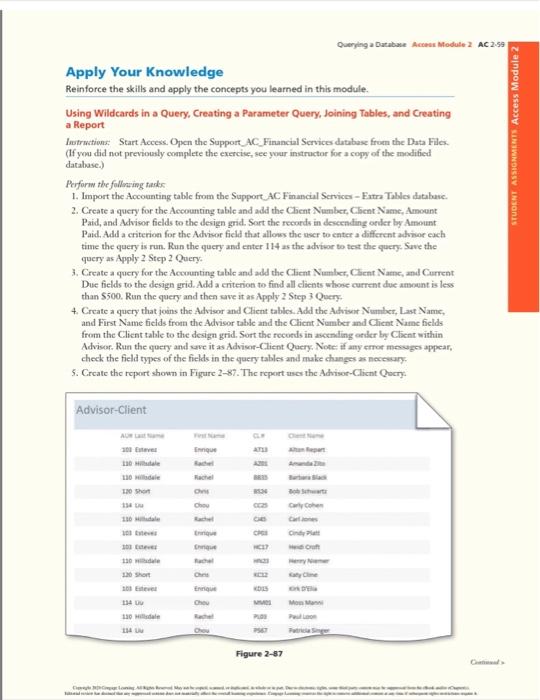
Querying Database Access Module 2 AC2:53 Apply Your Knowledge Reinforce the skills and apply the concepts you learned in this module. Using Wildcards in a Query, Creating a Parameter Query, Joining Tables, and Creating a Report Instructions: Start Access. Open the Support_AC_Financial Services database from the Data File (If you did not previously complete the exercise. see your instructor for a copy of the modified database.) Perform the following tasks 1. Import the Accounting table from the Support AC Financial Services - Extra Table database 2. Create a query for the Accounting table and add the Client Number, Chent Name, Amount Paid, and Advisor fields to the design grid. Sort the records in descending order by Amount Paid. Add a criterion for the Advisor field that allows the user to enter a different adsor cach time the query is run. Run the query and enter 114 as the advisor to test the query. See the query as Apply 2 Step 2 Query 3. Create a query for the Accounting table and add the Client Number, Client Name, and Current Due fields to the design grid. Add a criterion to find all clients whose current due amount is less than $500. Run the query and then save it as Apply 2 Step 3 Query, 4. Create a query that joins the Advisor and Client tables. Add the Adviset Number Last Name, and First Name fields from the Advisor table and the Client Number and Client Name fields from the Client table to the design grid. Sort the records in ascending order by Client within Advisor. Run the query and save it as Advisor-Client Query. Note: if any error messages appear, check the field types of the fields in the query tables and make changes as necessary 5. Create the report shown in Figure 2-87. The report uses the Advisee-Client Query STUDENT ASSIGNMENTS Access Module 2 Advisor-Client 38 h Enque Roche table to locale Chow Cry Cohen 30 de 1.20 Short 10 134 10 de En Figure 2-87 Querying Database Access Module 2 AC2:53 Apply Your Knowledge Reinforce the skills and apply the concepts you learned in this module. Using Wildcards in a Query, Creating a Parameter Query, Joining Tables, and Creating a Report Instructions: Start Access. Open the Support_AC_Financial Services database from the Data File (If you did not previously complete the exercise. see your instructor for a copy of the modified database.) Perform the following tasks 1. Import the Accounting table from the Support AC Financial Services - Extra Table database 2. Create a query for the Accounting table and add the Client Number, Chent Name, Amount Paid, and Advisor fields to the design grid. Sort the records in descending order by Amount Paid. Add a criterion for the Advisor field that allows the user to enter a different adsor cach time the query is run. Run the query and enter 114 as the advisor to test the query. See the query as Apply 2 Step 2 Query 3. Create a query for the Accounting table and add the Client Number, Client Name, and Current Due fields to the design grid. Add a criterion to find all clients whose current due amount is less than $500. Run the query and then save it as Apply 2 Step 3 Query, 4. Create a query that joins the Advisor and Client tables. Add the Adviset Number Last Name, and First Name fields from the Advisor table and the Client Number and Client Name fields from the Client table to the design grid. Sort the records in ascending order by Client within Advisor. Run the query and save it as Advisor-Client Query. Note: if any error messages appear, check the field types of the fields in the query tables and make changes as necessary 5. Create the report shown in Figure 2-87. The report uses the Advisee-Client Query STUDENT ASSIGNMENTS Access Module 2 Advisor-Client 38 h Enque Roche table to locale Chow Cry Cohen 30 de 1.20 Short 10 134 10 de En Figure 2-87
Step by Step Solution
There are 3 Steps involved in it

Get step-by-step solutions from verified subject matter experts
 Study Help