







Question: MOST OF THE CODE HAS BEEN GIVEN TO YOU JAVASCRIPT SORRY, WORDS TURNED OUT SMALL. YOU CAN ZOOM IN YOUR BROWSER. HTML and CSS CODES
MOST OF THE CODE HAS BEEN GIVEN TO YOU
JAVASCRIPT
SORRY, WORDS TURNED OUT SMALL. YOU CAN ZOOM IN YOUR BROWSER.
HTML and CSS CODES ARE PROVIDED BELOW
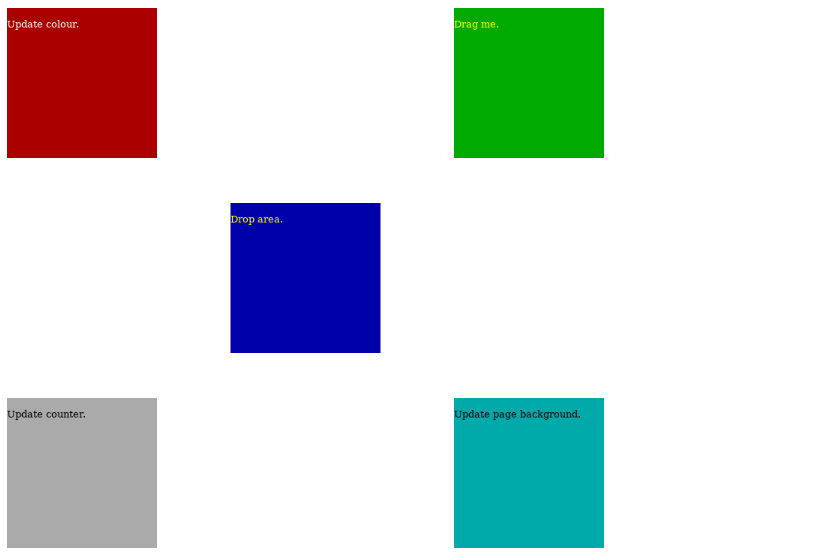
HTML
Update colour.
Drag me.
Update counter.
Update page background.
Drop area.
CSS
:root { box-sizing: border-box; background-color: #FFF; color: #000; }
*, ::before, ::after { box-sizing: inherit; }
#box1 { background-color: #A00; color: #FFF; margin: 0; padding: 0;
position: absolute; left: 0; top: 0; width: 200px; height: 200px; }
#box2 { background-color: #0A0; color: #FF0; margin: 0; padding: 0;
position: absolute; right: 0; top: 0; width: 200px; height: 200px; }
#box3 { background-color: #AAA; color: #000; margin: 0; padding: 0;
position: absolute; left: 0; bottom: 0; width: 200px; height: 200px; }
#box4 { background-color: #0AA; color: #000; margin: 0; padding: 0;
position: absolute; right: 0; bottom: 0; width: 200px; height: 200px; }
#box5 { background-color: #00A; color: #FF0; padding: 0;
position: absolute; top: 50%; left: 50%; width: 200px; height: 200px; margin: -100px 0 0 -100px; }
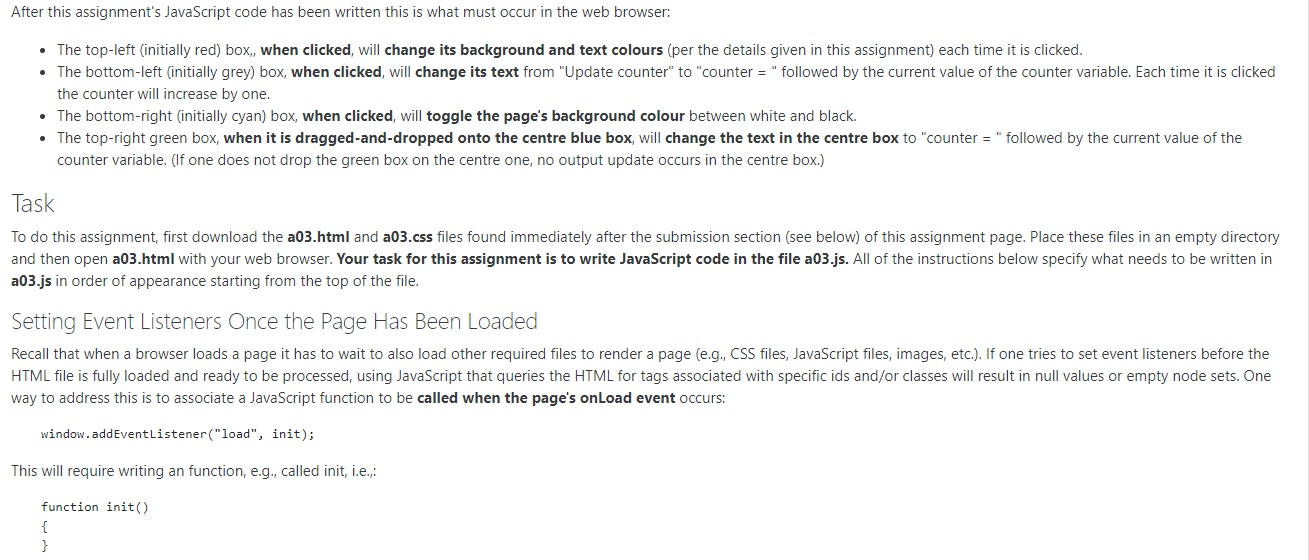
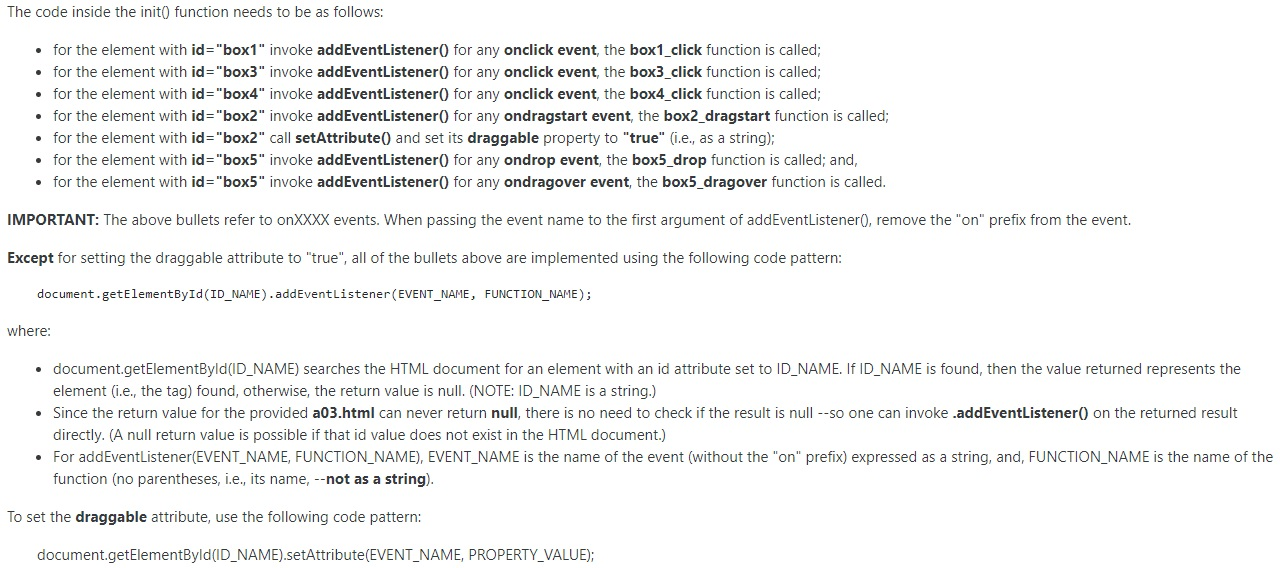
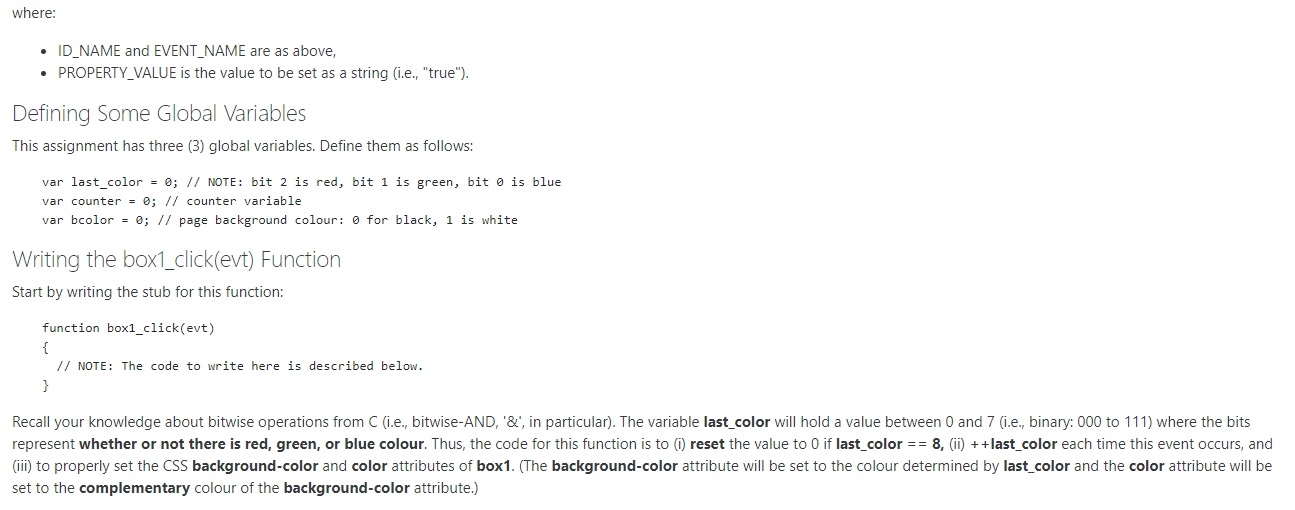
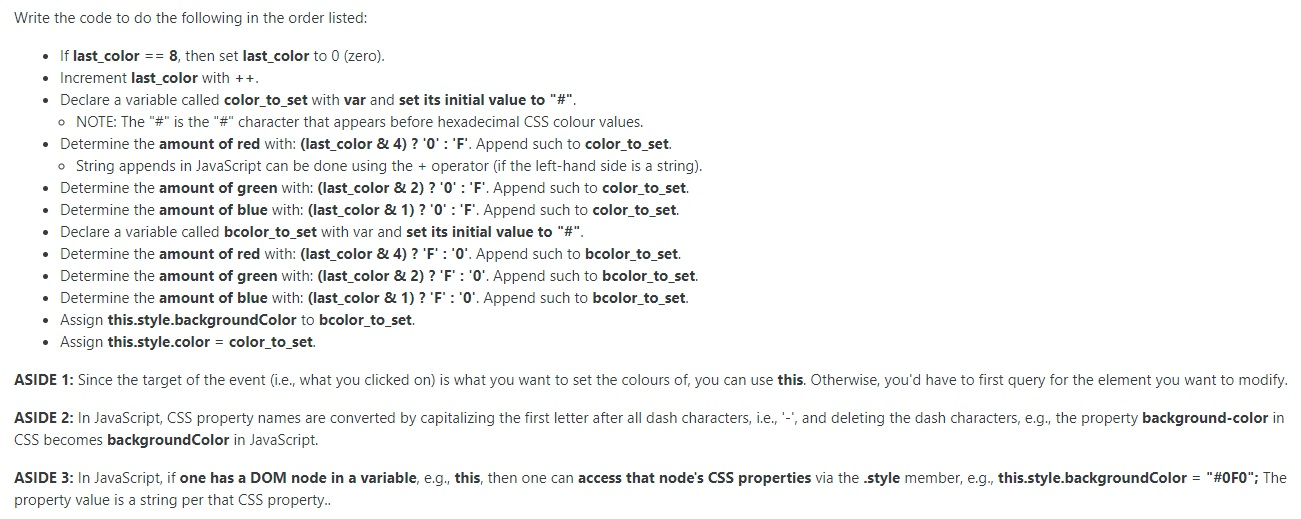
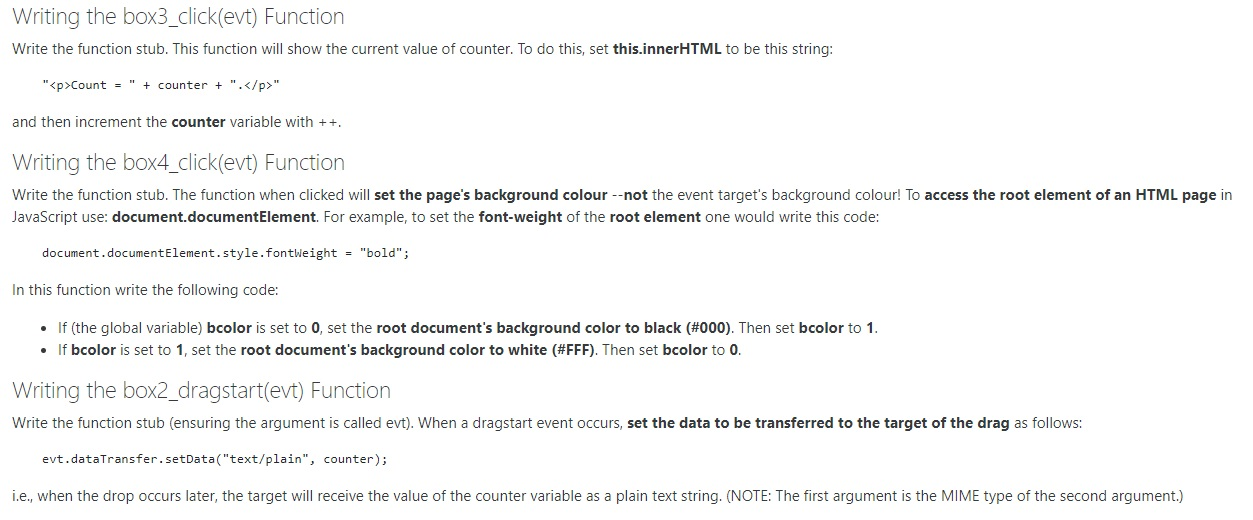
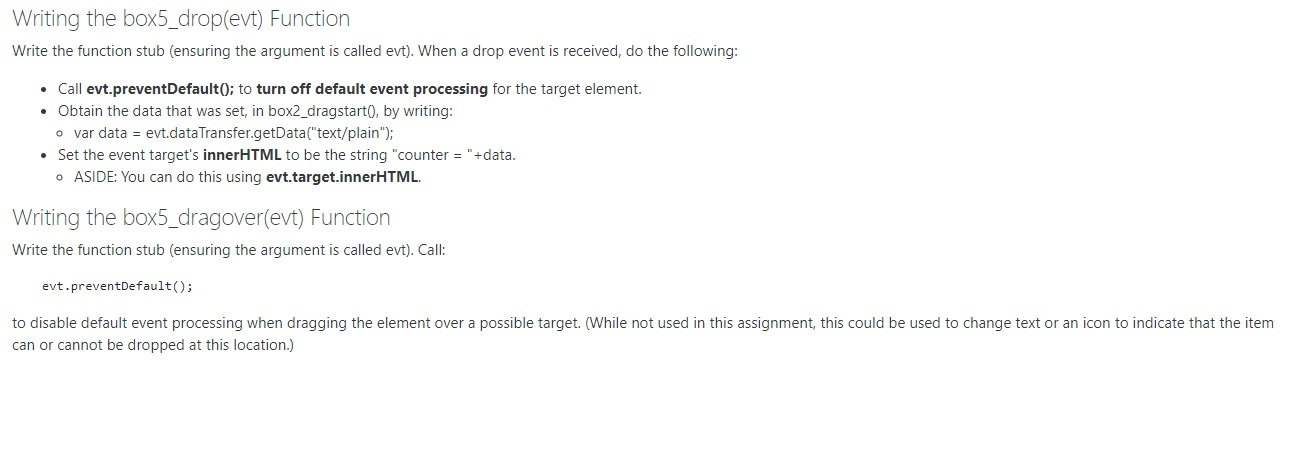
Update colour. Drag me. Drop area. Update counter. Update page background. After this assignment's JavaScript code has been written this is what must occur in the web browser: The top-left (initially red) box,, when clicked, will change its background and text colours (per the details given in this assignment) each time it is clicked. The bottom-left (initially grey) box, when clicked, will change its text from "Update counter" to "counter = " followed by the current value of the counter variable. Each time it is clicked the counter will increase by one. The bottom-right (initially cyan) box, when clicked, will toggle the page's background colour between white and black The top-right green box, when it is dragged-and-dropped onto the centre blue box, will change the text in the centre box to "counter = " followed by the current value of the counter variable. (If one does not drop the green box on the centre one, no output update occurs in the centre box.) Task To do this assignment, first download the a03.html and a03.css files found immediately after the submission section (see below) of this assignment page. Place these files in an empty directory and then open a03.html with your web browser. Your task for this assignment is to write JavaScript code in the file a03.js. All of the instructions below specify what needs to be written in a03.js in order of appearance starting from the top of the file. Setting Event Listeners Once the Page Has Been Loaded Recall that when a browser loads a page it has to wait to also load other required files to render a page (e.g., CSS files, JavaScript files, images, etc.). If one tries to set event listeners before the HTML file is fully loaded and ready to be processed, using JavaScript that queries the HTML for tags associated with specific ids and/or classes will result in null values or empty node sets. One way to address this is to associate a JavaScript function to be called when the page's onLoad event occurs: window.addEventListener("load", init); This will require writing an function, e.g., called init, i.e.,: function init() The code inside the init() function needs to be as follows: for the element with id="box1" invoke addEventListener() for any onclick event, the box1_click function is called; for the element with id="box3" invoke addEventListener() for any onclick event, the box3_click function is called; for the element with id="box4" invoke addEventListener() for any onclick event, the box4_click function is called; for the element with id="box2" invoke addEventListener() for any ondragstart event, the box2_dragstart function is called; for the element with id="box2" call setAttribute() and set its draggable property to "true" (i.e., as a string); for the element with id="box5" invoke addEventListener() for any ondrop event, the box5_drop function is called; and, . for the element with id="box5" invoke addEventListener() for any ondragover event, the box5_dragover function is called. IMPORTANT: The above bullets refer to onXXXX events. When passing the event name to the first argument of addEventListener(), remove the "on" prefix from the event. Except for setting the draggable attribute to "true", all of the bullets above are implemented using the following code pattern: document.getElementById(ID_NAME).addEventListener(EVENT_NAME, FUNCTION_NAME); where: document.getElementById(ID_NAME) searches the HTML document for an element with an id attribute set to ID_NAME. If ID_NAME is found, then the value returned represents the element i.e., the tag) found, otherwise, the return value is null. (NOTE: ID_NAME is a string.) Since the return value for the provided a03.html can never return null, there is no need to check if the result is null --so one can invoke .addEventListener() on the returned result directly. (A null return value is possible if that id value does not exist in the HTML document.) For addEventListener(EVENT_NAME, FUNCTION_NAME), EVENT_NAME is the name of the event (without the "on" prefix) expressed as a string, and, FUNCTION_NAME is the name of the function (no parentheses, i.e., its name, --not as a string). To set the draggable attribute, use the following code pattern: document.getElementByld(ID_NAME).setAttribute(EVENT_NAME, PROPERTY_VALUE); where: ID_NAME and EVENT_NAME are as above, PROPERTY_VALUE is the value to be set as a string (i.e., "true"). Defining Some Global Variables This assignment has three (3) global variables. Define them as follows: var last_color = 0; // NOTE: bit 2 is red, bit 1 is green, bit is blue var counter = 0; // counter variable var bcolor = 0; // page background colour: @ for black, 1 is white Writing the box1_click(evt) Function Start by writing the stub for this function: function box1_click(evt) // NOTE: The code to write here is described below. Recall your knowledge about bitwise operations from C i.e., bitwise-AND, '&', in particular). The variable last_color will hold a value between 0 and 7 i.e., binary: 000 to 111) where the bits represent whether or not there is red, green, or blue colour. Thus, the code for this function is to reset the value to 0 if last_color == 8, () + +last_color each time this event occurs, and (iii) to properly set the CSS background-color and color attributes of box1. (The background-color attribute will be set to the colour determined by last_color and the color attribute will be set to the complementary colour of the background-color attribute.) Write the code to do the following in the order listed: If last_color == 8, then set last_color to 0 (zero). Increment last_color with ++. Declare a variable called color_to_set with var and set its initial value to "#". o NOTE: The "#" is the "#" character that appears before hexadecimal CSS colour values. Determine the amount of red with: (last_color & 4)? '0':'F'. Append such to color_to_set. o String appends in JavaScript can be done using the + operator (if the left-hand side is a string). Determine the amount of green with: (last_color & 2)? '0':'F'. Append such to color_to_set. Determine the amount of blue with: (last_color & 1)? '0':'F'. Append such to color_to_set. Declare a variable called bcolor_to_set with var and set its initial value to "#". Determine the amount of red with: (last_color & 4)? 'F':'0'. Append such to bcolor_to_set. Determine the amount of green with: (last_color & 2)? 'F':'0'. Append such to bcolor_to_set. Determine the amount of blue with: (last_color & 1)? 'F':'0'. Append such to bcolor_to_set. Assign this.style.backgroundColor to bcolor_to_set. Assign this.style.color = color_to_set. ASIDE 1: Since the target of the event (i.e., what you clicked on) is what you want to set the colours of, you can use this. Otherwise, you'd have to first query for the element you want to modify. ASIDE 2: In JavaScript, CSS property names are converted by capitalizing the first letter after all dash characters, i.e., -, and deleting the dash characters, e.g., the property background-color in CSS becomes backgroundColor in JavaScript. ASIDE 3: In JavaScript, if one has a DOM node in a variable, e.g., this, then one can access that node's CSS properties via the style member, e.g., this.style.backgroundColor = "#0F0"; The property value is a string per that CSS property.. Writing the box3_click(evt) Function Write the function stub. This function will show the current value of counter. To do this, set this.innerHTML to be this string: "
Count = " + counter + ".
" and then increment the counter variable with ++, Writing the box4_click(evt) Function Write the function stub. The function when clicked will set the page's background colour --not the event target's background colour! To access the root element of an HTML page in JavaScript use: document.documentElement. For example, to set the font-weight of the root element one would write this code: document.documentElement.style.fontWeight = "bold"; In this function write the following code: If (the global variable) bcolor is set to 0, set the root document's background color to black (#000). Then set bcolor to 1. If bcolor is set to 1, set the root document's background color to white (#FFF). Then set bcolor to 0. Writing the box2_dragstart(evt) Function Write the function stub (ensuring the argument is called evt). When a dragstart event occurs, set the data to be transferred to the target of the drag as follows: evt.dataTransfer.setData("text/plain", counter); i.e., when the drop occurs later, the target will receive the value of the counter variable as a plain text string. (NOTE: The first argument is the MIME type of the second argument.) Writing the box5_drop(evt) Function Write the function stub (ensuring the argument is called evt). When a drop event is received, do the following: Call evt.preventDefault(); to turn off default event processing for the target element. Obtain the data that was set in box2_dragstart(), by writing: o var data = evt.data Transfer.getData("text/plain"); Set the event target's innerHTML to be the string "counter = "+data. ASIDE: You can do this using evt.target.innerHTML, Writing the box5_dragover(evt) Function Write the function stub (ensuring the argument is called evt). Call: evt.preventDefault(); to disable default event processing when dragging the element over a possible target. (While not used in this assignment, this could be used to change text or an icon to indicate that the item can or cannot be dropped at this location.) Update colour. Drag me. Drop area. Update counter. Update page background. After this assignment's JavaScript code has been written this is what must occur in the web browser: The top-left (initially red) box,, when clicked, will change its background and text colours (per the details given in this assignment) each time it is clicked. The bottom-left (initially grey) box, when clicked, will change its text from "Update counter" to "counter = " followed by the current value of the counter variable. Each time it is clicked the counter will increase by one. The bottom-right (initially cyan) box, when clicked, will toggle the page's background colour between white and black The top-right green box, when it is dragged-and-dropped onto the centre blue box, will change the text in the centre box to "counter = " followed by the current value of the counter variable. (If one does not drop the green box on the centre one, no output update occurs in the centre box.) Task To do this assignment, first download the a03.html and a03.css files found immediately after the submission section (see below) of this assignment page. Place these files in an empty directory and then open a03.html with your web browser. Your task for this assignment is to write JavaScript code in the file a03.js. All of the instructions below specify what needs to be written in a03.js in order of appearance starting from the top of the file. Setting Event Listeners Once the Page Has Been Loaded Recall that when a browser loads a page it has to wait to also load other required files to render a page (e.g., CSS files, JavaScript files, images, etc.). If one tries to set event listeners before the HTML file is fully loaded and ready to be processed, using JavaScript that queries the HTML for tags associated with specific ids and/or classes will result in null values or empty node sets. One way to address this is to associate a JavaScript function to be called when the page's onLoad event occurs: window.addEventListener("load", init); This will require writing an function, e.g., called init, i.e.,: function init() The code inside the init() function needs to be as follows: for the element with id="box1" invoke addEventListener() for any onclick event, the box1_click function is called; for the element with id="box3" invoke addEventListener() for any onclick event, the box3_click function is called; for the element with id="box4" invoke addEventListener() for any onclick event, the box4_click function is called; for the element with id="box2" invoke addEventListener() for any ondragstart event, the box2_dragstart function is called; for the element with id="box2" call setAttribute() and set its draggable property to "true" (i.e., as a string); for the element with id="box5" invoke addEventListener() for any ondrop event, the box5_drop function is called; and, . for the element with id="box5" invoke addEventListener() for any ondragover event, the box5_dragover function is called. IMPORTANT: The above bullets refer to onXXXX events. When passing the event name to the first argument of addEventListener(), remove the "on" prefix from the event. Except for setting the draggable attribute to "true", all of the bullets above are implemented using the following code pattern: document.getElementById(ID_NAME).addEventListener(EVENT_NAME, FUNCTION_NAME); where: document.getElementById(ID_NAME) searches the HTML document for an element with an id attribute set to ID_NAME. If ID_NAME is found, then the value returned represents the element i.e., the tag) found, otherwise, the return value is null. (NOTE: ID_NAME is a string.) Since the return value for the provided a03.html can never return null, there is no need to check if the result is null --so one can invoke .addEventListener() on the returned result directly. (A null return value is possible if that id value does not exist in the HTML document.) For addEventListener(EVENT_NAME, FUNCTION_NAME), EVENT_NAME is the name of the event (without the "on" prefix) expressed as a string, and, FUNCTION_NAME is the name of the function (no parentheses, i.e., its name, --not as a string). To set the draggable attribute, use the following code pattern: document.getElementByld(ID_NAME).setAttribute(EVENT_NAME, PROPERTY_VALUE); where: ID_NAME and EVENT_NAME are as above, PROPERTY_VALUE is the value to be set as a string (i.e., "true"). Defining Some Global Variables This assignment has three (3) global variables. Define them as follows: var last_color = 0; // NOTE: bit 2 is red, bit 1 is green, bit is blue var counter = 0; // counter variable var bcolor = 0; // page background colour: @ for black, 1 is white Writing the box1_click(evt) Function Start by writing the stub for this function: function box1_click(evt) // NOTE: The code to write here is described below. Recall your knowledge about bitwise operations from C i.e., bitwise-AND, '&', in particular). The variable last_color will hold a value between 0 and 7 i.e., binary: 000 to 111) where the bits represent whether or not there is red, green, or blue colour. Thus, the code for this function is to reset the value to 0 if last_color == 8, () + +last_color each time this event occurs, and (iii) to properly set the CSS background-color and color attributes of box1. (The background-color attribute will be set to the colour determined by last_color and the color attribute will be set to the complementary colour of the background-color attribute.) Write the code to do the following in the order listed: If last_color == 8, then set last_color to 0 (zero). Increment last_color with ++. Declare a variable called color_to_set with var and set its initial value to "#". o NOTE: The "#" is the "#" character that appears before hexadecimal CSS colour values. Determine the amount of red with: (last_color & 4)? '0':'F'. Append such to color_to_set. o String appends in JavaScript can be done using the + operator (if the left-hand side is a string). Determine the amount of green with: (last_color & 2)? '0':'F'. Append such to color_to_set. Determine the amount of blue with: (last_color & 1)? '0':'F'. Append such to color_to_set. Declare a variable called bcolor_to_set with var and set its initial value to "#". Determine the amount of red with: (last_color & 4)? 'F':'0'. Append such to bcolor_to_set. Determine the amount of green with: (last_color & 2)? 'F':'0'. Append such to bcolor_to_set. Determine the amount of blue with: (last_color & 1)? 'F':'0'. Append such to bcolor_to_set. Assign this.style.backgroundColor to bcolor_to_set. Assign this.style.color = color_to_set. ASIDE 1: Since the target of the event (i.e., what you clicked on) is what you want to set the colours of, you can use this. Otherwise, you'd have to first query for the element you want to modify. ASIDE 2: In JavaScript, CSS property names are converted by capitalizing the first letter after all dash characters, i.e., -, and deleting the dash characters, e.g., the property background-color in CSS becomes backgroundColor in JavaScript. ASIDE 3: In JavaScript, if one has a DOM node in a variable, e.g., this, then one can access that node's CSS properties via the style member, e.g., this.style.backgroundColor = "#0F0"; The property value is a string per that CSS property.. Writing the box3_click(evt) Function Write the function stub. This function will show the current value of counter. To do this, set this.innerHTML to be this string: "
Count = " + counter + ".
" and then increment the counter variable with ++, Writing the box4_click(evt) Function Write the function stub. The function when clicked will set the page's background colour --not the event target's background colour! To access the root element of an HTML page in JavaScript use: document.documentElement. For example, to set the font-weight of the root element one would write this code: document.documentElement.style.fontWeight = "bold"; In this function write the following code: If (the global variable) bcolor is set to 0, set the root document's background color to black (#000). Then set bcolor to 1. If bcolor is set to 1, set the root document's background color to white (#FFF). Then set bcolor to 0. Writing the box2_dragstart(evt) Function Write the function stub (ensuring the argument is called evt). When a dragstart event occurs, set the data to be transferred to the target of the drag as follows: evt.dataTransfer.setData("text/plain", counter); i.e., when the drop occurs later, the target will receive the value of the counter variable as a plain text string. (NOTE: The first argument is the MIME type of the second argument.) Writing the box5_drop(evt) Function Write the function stub (ensuring the argument is called evt). When a drop event is received, do the following: Call evt.preventDefault(); to turn off default event processing for the target element. Obtain the data that was set in box2_dragstart(), by writing: o var data = evt.data Transfer.getData("text/plain"); Set the event target's innerHTML to be the string "counter = "+data. ASIDE: You can do this using evt.target.innerHTML, Writing the box5_dragover(evt) Function Write the function stub (ensuring the argument is called evt). Call: evt.preventDefault(); to disable default event processing when dragging the element over a possible target. (While not used in this assignment, this could be used to change text or an icon to indicate that the item can or cannot be dropped at this location.)
Step by Step Solution
There are 3 Steps involved in it

Get step-by-step solutions from verified subject matter experts
 Study Help