







Question: mplement Code In Pyhton3 Assignment Overview You are tasked with creating an application that uses a GUI that simulates a simple banking interface similar to
mplement Code In Pyhton3
Assignment Overview You are tasked with creating an application that uses a GUI that simulates a simple banking interface similar to an ATM / online banking using the Python 3 programming language. The assignment is broken up into five main components: 1.) The ability to provide an account number and a PIN (Personal Identification Number) to sign into a bank account, 2.) The ability to view the balance of the bank account and to deposit and withdraw virtual money into and out from the account, 3.) The ability to save transactions via file storage so that you can log in, deposit some money and then log out and when you log back in that money is still there, and finally 4.) The ability to display a graph of projected earnings on the bank account via the compound interest accrued over a variable amount of time. 5.) A Test Case that ensures your BankAccount's deposit and withdraw functionality operates correctly. Your submission should consist of three Python scripts that implement this application as described in the following pages: bankaccount.py, main.py along with a testbankaccount.py which contains a small test case with a few simple unit tests than ensure that your bank accounts deposit_funds and withdraw_funds methods operate correctly. You are provided with a 'stub' of each of these files which contain all the function declarations and comments which describe the role of the function and how it can be put together, but you will have to write the code for vast majority of the functions yourself. You are also provided with a stub of the bankaccounttestcase.py file. Your final submission should be a zipped archive (i.e. zip file) containing your completed Python scripts. There is no word processed component to this second assignment.
Bank Account Class Design
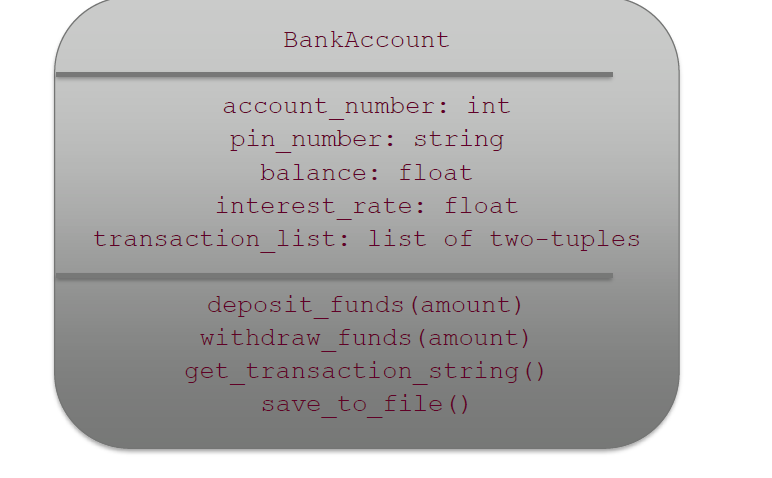
As you might imagine, the deposit_funds(amount) function adds that money to the current balance of the account, and the withdraw_funds(amount) function removes (i.e. subtracts) money from the current balance of the account. Each transaction in the transaction_list is a tuple containing either the word Deposit or the word Withdrawal followed by an amount, for example: ("Deposit", 300.0) or ("Withdrawal", 100.0). The bank accounts in our program do not have an overdraft facility so the user cannot withdraw money they do not have that is, if they had $200 in their account and they tried to withdraw more than $200 then the operation should fail and the withdraw_funds function should raise an Exception with a suitable error message which is caught and displayed in the main.py file where the operation was attempted. All error messages such as those from exceptions should be displayed in a pop-up messagebox. The get_transaction_string method should loop over all the transactions in the transaction_list creating a string version (with newline characters) of all the transactions associated with the account. The save_to_file function should save the account_number, pin_number, balance, and interest_rate in that order to a file called .txt followed by the transaction list string generated from the get_transaction_string() method. The name of the account file is NOT '.txt' - the name of the file is the ACTUAL ACCOUNT NUMBER followed by ".txt", so for an account with account_number 123456 the name of the account file would be 123456.txt. A full walk-through video demonstrating the completed application and how it operates will be provided along with this assignment document.
Calculating Interest To make it worthwhile for you to keep your money with a bank, the bank offers you an interest rate on your savings. Interest will be applied to the balance of an account once per month. Lets do an example suppose you had $10,000 in a bank account and the bank paid you monthly interest at a rate of 3% per year. That would mean the bank pays you 3% of your balance divided by 12 (because there are 12 months in a year) per month. If we start our example on January and run it for a few months (and we dont deposit or withdraw any money throughout the year) then we end up with our bank balance changing like this: Note: 3% divided by 12 is 0.25% per month so well multiply our balance by 1.0025 to get the new balance.

Whats happening here is that the interest is compounding which just means that we get that 0.25% applied not only to our principle balance (i.e. the $10,000 we started with), but it also gets applied to the interest we earnt. Although 3% interest is very low (but in line with the best rates youd get in Australia at the moment because interest rates are very low), over time this compounding makes a serious difference! Because FedUni Bank is the greatest bank of all time, it offers all accounts an interest rate of 33%. The Main Python Script Our main.py script will contain all the main logic for our program. It will allow us to: - Enter an account number via an Entry field by using the keyboard, - Enter a PIN number via an Entry widget (we can use the keyboard OR a series of buttons to enter the PIN), - Once we are logged in we must be able to: o See the balance of our account, o Deposit funds into our account, o Withdraw funds from our account (only up to the amount we have available), o Display a plot of our projected interest over the next 12 months as outlined above, and finally o Log out of our account. Every time a successful deposit or withdrawal is made then a new transaction should be added to the account's transaction list. When we log out then the account file is overwritten with the new account details including our new balance and any transactions if any have been made. The format of the account text file is as follows (each value on separate lines): account_number account_pin balance interest_rate
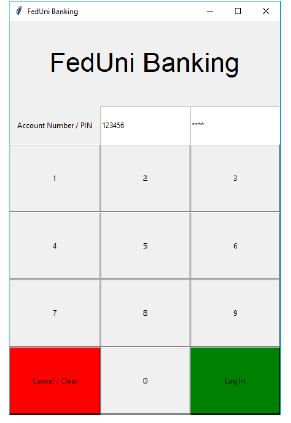
For example, account number 123456 with PIN 7890 and a balance of $800 with an interest rate of 33% would look like this: 123456 7890 800.00 0.33 After these first four lines we may have a number of transactions, each of which is specified as two lines. A deposit is indicated by the word Deposit on one line and then the amount on the next like. For example a deposit of $500 would look like this: Deposit 500.00 Similarly, a withdrawal is also specified as two lines first the word Withdrawal and then on the next line the amount, for example a withdrawal of $200 would look like this: Withdrawal 200.00 You are provided with an example bank account file called 12345678.txt this file along with others will be used to mark your assessment, so you should make sure that your final submission can use bank accounts in this format successfully. You are also provided with a video demonstration of the completed assignment along with this document. Your application should match this user interface and function in the same way. Login Screen When the application is first launched, it should open a window that is "440x640" pixels in size (use the window objects geometry function to set this). Set the title of the window to "FedUni Banking" using the top-level window object's winfo_toplevel().title() function. The window uses the GridManager layout manager for placing GUI elements (e.g. 'widgets'), it contains a Label that spans the top of the window saying "FedUni Banking" (font size is 32). On the next line is a label saying "Account Number" and then an Entry widget for the user to type in their account number and an Entry for the PIN number. It then has a series of buttons from 0 through 9, along with a Log In button and a Clear/Cancel button. Each time a number is pressed it is added to a string - for example, if the user pushed the 4 button then the 3 button then the 2 button and then the 1 button then the string should contain the text "4321". By using the show="*" attribute you can 'mask' the input so that anyone looking over your shoulder cannot see the exact pin number, they'll just see "****" instead. When the Clear/Cancel button is pressed, or when a user "logs out" then this PIN string should be reset to an empty string. When the Log In button is pressed then the program should attempt to open the file with the account number followed by ".txt" - so in the example below, because the account number entered was "123456", the program will attempt to open the file "123456.txt".
If that file could not be opened then a messagebox should display a suitable error message such as "Invalid account number - please try again!". You will have to "try/catch" this risky functionality to avoid the program crashing - see the week 7 lecture materials if you need a recap. If the account exists, then a BankAccount object should be created and the fields of the BankAccount object should be set (e.g. account_number, pin_number, balance, interest_rate, and the transaction_list). Because you don't know how many transactions are stored for this bank account, after reading the first four lines you will need to attempt to read two lines and if they exist create a tuple of the transaction (i.e. it's type and amount) and then add it to the BankAccount object's transaction_list - for example you may do the following in a loop: # Try to read a line, break if we've hit the end of the file line = read_line_from_account_file() if not line: break else: # read another line, create a tuple from both lines and append the # tuple to the the BankAccount object's transaction_list
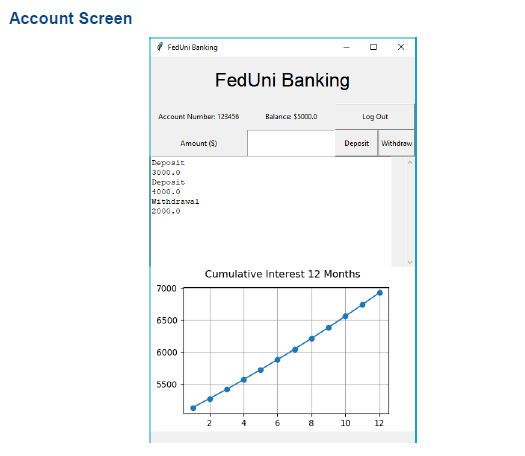
The account screen has: - A large "FedUni Banking" label at the top that spans 5 columns (font size is 24), - A label with the account number followed by the actual account number displayed, - A label with the current balance followed by the actual balance, - A log out button which saves the bank account file (overwriting it) and causes all widgets to be removed from the screen and the log in screen displayed again, - An "Amount" label followed by an amount Entry widget where you can type in how much to deposit or withdraw, - Deposit and Withdraw buttons that deposit or withdraw funds using the BankAccount classes methods to do so, - A Text widget (i.e. multi-line text) that shows all the transactions associated with the account. The height of this widget is 10 lines and the width of the widget is 48 characters. - To the right of the Text widget this is a scrollbar which can be used to scroll the Text widget (it is not really showing in the above screenshot because the Text widget does not have more than 10 lines worth of content), and finally - A small graph of the projected cumulative interest over the next 12 months.
Bank Account Test Case The final thing to do is to add a small test case consisting of five unit tests that ensure that the BankAccount class' deposit_funds and withdraw_funds methods operate correctly. You are provided with a stub of a testbankaccount.py test case that already has the definitions of the five unit tests that you will write and a description of what they are testing. Your job is to write suitable assert statements into each of these unit tests so that they ensure the BankAccount classs' deposit and withdraw functions do operate as they should. You should be able to accomplish each unit test in a maximum of two lines of code per unit test. Two things to remember: 1.) The setUp method is automatically executed before each unit test, so the balance gets reset to 1000.0 before each test, and 2.) If your unit test fails (and the test is correct) then you should modify your code so that it passes the test, not the test so that it matches up with what your code is doing!
main.py
import tkinter as tk from tkinter import messagebox
from pylab import plot, show, xlabel, ylabel from matplotlib.backends.backend_tkagg import FigureCanvasTkAgg from matplotlib.figure import Figure
from bankaccount import BankAccount
win = tk.Tk() # Set window size here to '440x640' pixels # Set window title here to 'FedUni Banking'
# The account number entry and associated variable account_number_var = tk.StringVar() account_number_entry = tk.Entry(win, textvariable=account_number_var) account_number_entry.focus_set()
# The pin number entry and associated variable. # Note: Modify this to 'show' PIN numbers as asterisks (i.e. **** not 1234) pin_number_var = tk.StringVar() account_pin_entry = tk.Entry(win, text='PIN Number', textvariable=pin_number_var)
# The balance label and associated variable balance_var = tk.StringVar() balance_var.set('Balance: $0.00') balance_label = tk.Label(win, textvariable=balance_var)
# The Entry widget to accept a numerical value to deposit or withdraw amount_entry = tk.Entry(win)
# The transaction text widget holds text of the accounts transactions transaction_text_widget = tk.Text(win, height=10, width=48)
# The bank account object we will work with account = BankAccount()
# ---------- Button Handlers for Login Screen ----------
def clear_pin_entry(event): '''Function to clear the PIN number entry when the Clear / Cancel button is clicked.''' # Clear the pin number entry here
def handle_pin_button(event): '''Function to add the number of the button clicked to the PIN number entry via its associated variable.'''
# Limit to 4 chars in length
# Set the new pin number on the pin_number_var
def log_in(event): '''Function to log in to the banking system using a known account number and PIN.''' global account global pin_number_var global account_num_entry
# Create the filename from the entered account number with '.txt' on the end
# Try to open the account file for reading # Open the account file for reading
# First line is account number
# Second line is PIN number, raise exceptionk if the PIN entered doesn't match account PIN read
# Read third and fourth lines (balance and interest rate) # Section to read account transactions from file - start an infinite 'do-while' loop here
# Attempt to read a line from the account file, break if we've hit the end of the file. If we # read a line then it's the transaction type, so read the next line which will be the transaction amount. # and then create a tuple from both lines and add it to the account's transaction_list
# Close the file now we're finished with it # Catch exception if we couldn't open the file or PIN entered did not match account PIN # Show error messagebox and & reset BankAccount object to default...
# ...also clear PIN entry and change focus to account number entry
# Got here without raising an exception? Then we can log in - so remove the widgets and display the account screen
# ---------- Button Handlers for Account Screen ----------
def save_and_log_out(): '''Function to overwrite the account file with the current state of the account object (i.e. including any new transactions), remove all widgets and display the login screen.''' global account
# Save the account with any new transactions # Reset the bank acount object
# Reset the account number and pin to blank
# Remove all widgets and display the login screen again
def perform_deposit(): '''Function to add a deposit for the amount in the amount entry to the account's transaction list.''' global account global amount_entry global balance_label global balance_var
# Try to increase the account balance and append the deposit to the account file # Get the cash amount to deposit. Note: We check legality inside account's deposit method
# Deposit funds # Update the transaction widget with the new transaction by calling account.get_transaction_string() # Note: Configure the text widget to be state='normal' first, then delete contents, then instert new # contents, and finally configure back to state='disabled' so it cannot be user edited.
# Change the balance label to reflect the new balance
# Clear the amount entry
# Update the interest graph with our new balance
# Catch and display exception as a 'showerror' messagebox with a title of 'Transaction Error' and the text of the exception def perform_withdrawal(): '''Function to withdraw the amount in the amount entry from the account balance and add an entry to the transaction list.''' global account global amount_entry global balance_label global balance_var
# Try to increase the account balance and append the deposit to the account file # Get the cash amount to deposit. Note: We check legality inside account's withdraw_funds method # Withdraw funds
# Update the transaction widget with the new transaction by calling account.get_transaction_string() # Note: Configure the text widget to be state='normal' first, then delete contents, then instert new # contents, and finally configure back to state='disabled' so it cannot be user edited.
# Change the balance label to reflect the new balance
# Clear the amount entry
# Update the interest graph with our new balance
# Catch and display any returned exception as a messagebox 'showerror'
# ---------- Utility functions ----------
def remove_all_widgets(): '''Function to remove all the widgets from the window.''' global win for widget in win.winfo_children(): widget.grid_remove()
def read_line_from_account_file(): '''Function to read a line from the accounts file but not the last newline character. Note: The account_file must be open to read from for this function to succeed.''' global account_file return account_file.readline()[0:-1]
def plot_interest_graph(): '''Function to plot the cumulative interest for the next 12 months here.'''
# YOUR CODE to generate the x and y lists here which will be plotted # This code to add the plots to the window is a little bit fiddly so you are provided with it. # Just make sure you generate a list called 'x' and a list called 'y' and the graph will be plotted correctly. figure = Figure(figsize=(5,2), dpi=100) figure.suptitle('Cumulative Interest 12 Months') a = figure.add_subplot(111) a.plot(x, y, marker='o') a.grid() canvas = FigureCanvasTkAgg(figure, master=win) canvas.draw() graph_widget = canvas.get_tk_widget() graph_widget.grid(row=4, column=0, columnspan=5, sticky='nsew')
# ---------- UI Screen Drawing Functions ----------
def create_login_screen(): '''Function to create the login screen.''' # ----- Row 0 -----
# 'FedUni Banking' label here. Font size is 32.
# ----- Row 1 -----
# Acount Number / Pin label here
# Account number entry here
# Account pin entry here
# ----- Row 2 -----
# Buttons 1, 2 and 3 here. Buttons are bound to 'handle_pin_button' function via '
# ----- Row 3 -----
# Buttons 4, 5 and 6 here. Buttons are bound to 'handle_pin_button' function via '
# ----- Row 4 -----
# Buttons 7, 8 and 9 here. Buttons are bound to 'handle_pin_button' function via '
# ----- Row 5 -----
# Cancel/Clear button here. 'bg' and 'activebackground' should be 'red'. But calls 'clear_pin_entry' function. # Button 0 here
# Login button here. 'bg' and 'activebackground' should be 'green'). Button calls 'log_in' function.
# ----- Set column & row weights -----
# Set column and row weights. There are 5 columns and 6 rows (0..4 and 0..5 respectively)
def create_account_screen(): '''Function to create the account screen.''' global amount_text global amount_label global transaction_text_widget global balance_var # ----- Row 0 -----
# FedUni Banking label here. Font size should be 24.
# ----- Row 1 -----
# Account number label here
# Balance label here
# Log out button here
# ----- Row 2 -----
# Amount label here
# Amount entry here
# Deposit button here
# Withdraw button here
# NOTE: Bind Deposit and Withdraw buttons via the command attribute to the relevant deposit and withdraw # functions in this file. If we "BIND" these buttons then the button being pressed keeps looking as # if it is still pressed if an exception is raised during the deposit or withdraw operation, which is # offputting. # ----- Row 3 -----
# Declare scrollbar (text_scrollbar) here (BEFORE transaction text widget) # Add transaction Text widget and configure to be in 'disabled' mode so it cannot be edited. # Note: Set the yscrollcommand to be 'text_scrollbar.set' here so that it actually scrolls the Text widget # Note: When updating the transaction text widget it must be set back to 'normal mode' (i.e. state='normal') for it to be edited
# Now add the scrollbar and set it to change with the yview of the text widget
# ----- Row 4 - Graph -----
# Call plot_interest_graph() here to display the graph
# ----- Set column & row weights -----
# Set column and row weights here - there are 5 rows and 5 columns (numbered 0 through 4 not 1 through 5!)
# ---------- Display Login Screen & Start Main loop ----------
create_login_screen() win.mainloop()
bankaccount.py
class BankAccount():
def __init__(self): '''Constructor to set account_number to '0', pin_number to an empty string, balance to 0.0, interest_rate to 0.0 and transaction_list to an empty list.'''
def deposit_funds(self, amount): '''Function to deposit an amount to the account balance. Raises an exception if it receives a value that cannot be cast to float.'''
def withdraw_funds(self, amount): '''Function to withdraw an amount from the account balance. Raises an exception if it receives a value that cannot be cast to float. Raises an exception if the amount to withdraw is greater than the available funds in the account.''' def get_transaction_string(self): '''Function to create and return a string of the transaction list. Each transaction consists of two lines - either the word "Deposit" or "Withdrawal" on the first line, and then the amount deposited or withdrawn on the next line.'''
def save_to_file(self): '''Function to overwrite the account text file with the current account details. Account number, pin number, balance and interest (in that precise order) are the first four lines - there are then two lines per transaction as outlined in the above 'get_transaction_string' function.'''
testbankaccount.py
import unittest
from bankaccount import BankAccount
class TestBankAcount(unittest.TestCase):
def setUp(self): # Create a test BankAccount object self.account = BankAccount()
# Provide it with some property values self.account.balance = 1000.0
def test_legal_deposit_works(self): # Your code here to test that depsositing money using the account's # 'deposit_funds' function adds the amount to the balance.
def test_illegal_deposit_raises_exception(self): # Your code here to test that depositing an illegal value (like 'bananas' # or such - something which is NOT a float) results in an exception being # raised.
def test_legal_withdrawal(self): # Your code here to test that withdrawing a legal amount subtracts the # funds from the balance.
def test_illegal_withdrawal(self): # Your code here to test that withdrawing an illegal amount (like 'bananas' # or such - something which is NOT a float) raises a suitable exception.
def test_insufficient_funds_withdrawal(self): # Your code here to test that you can only withdraw funds which are available. # For example, if you have a balance of 500.00 dollars then that is the maximum # that can be withdrawn. If you tried to withdraw 600.00 then a suitable exception # should be raised and the withdrawal should NOT be applied to the account balance # or the account's transaction list.
# Run the unit tests in the above test case unittest.main()
BankAccount account number: int pin number: string balance: float interest rate: float transaction list: list of two-tuples deposit funds (amount) withdraw funds (amount) get transaction string() save to file(
Step by Step Solution
There are 3 Steps involved in it

Get step-by-step solutions from verified subject matter experts
 Study Help