







Question: MS listed in Canvas Modules consum Name: Enter your full same here ab Chapter 9 Description: This needs to be at least a paragraph explanation
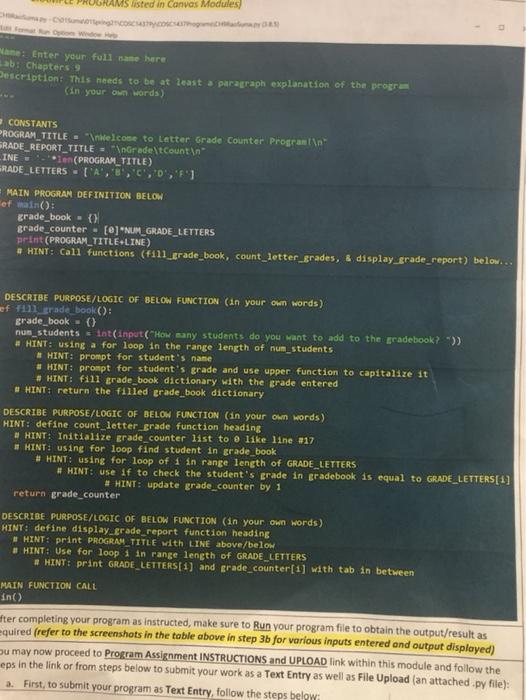
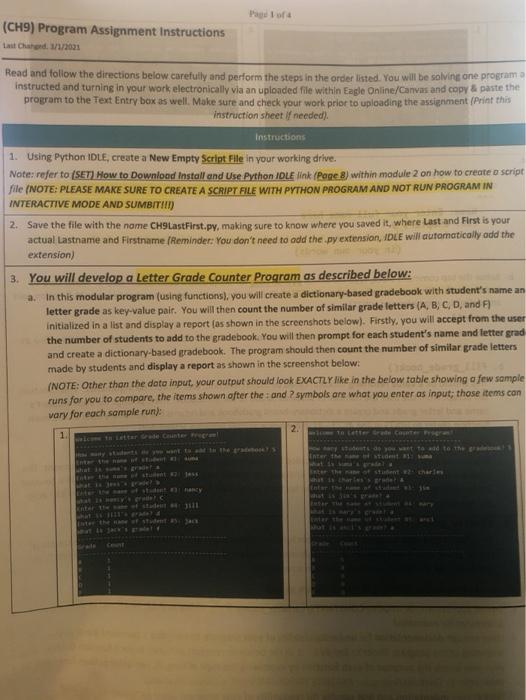
MS listed in Canvas Modules consum Name: Enter your full same here ab Chapter 9 Description: This needs to be at least a paragraph explanation of the program (in your own words) CONSTANTS PROGRAM_TITLE="Intelcome to Letter Grade Counter Programa SRADE_REPORT_TITLE="InGrade \tCount " INE - len(PROGRAM_TITLE) RADE_LETTERS - I'A','','C', 'D','f'] MAIN PROGRAM DEFINITION BELOW et main(): grade_book - () grade_counter - [@] "NUM GRADE_LETTERS print(PROGRAM_TITLE LINE) # HINT: Call functions (Fili_grade_book, count_letter_grades, & display_grade_report) below... DESCRIBE PURPOSE/LOGIC OF BELOW FUNCTION (in your own words ) ef gradebook(): grade_book - () num_students Int(input("How many students do you want to add to the gradebook? ")) # HINT: using a for loop in the range length of num_students # HINT: prompt for student's name # HINT: prompt for student's grade and use upper function to capitalize it # HINT: fill grade_book dictionary with the grade entered # HINT: return the filled grade_book dictionary DESCRIBE PURPOSE/LOGIC OF BELOW FUNCTION (in your own words) HINT: define count_letter_grade function heading # HINT: Initialize grade_counter list to like line 117 # HINT: using for loop find student in grade_book # HINT: using for loop of 1 in range length of GRADE_LETTERS # HINT: use if to check the student's grade in gradebook is equal to GRADE_LETTERS(1) # HINT: update grade_counter by 1 return grade_counter DESCRIBE PURPOSE/LOGIC OF BELOW FUNCTION (in your own words) HINT: define display_grade_report function heading HINT: print PROGRAM TITLE with LINE above/below # HINT: Use for loop 1 in range length of GRADE_LETTERS # HINT: print GRADE_LETTERS(1) and grade_counter(1) with tab in between MAIN FUNCTION CALL after completing your program as instructed, make sure to Run your program file to obtain the output/result as quired (refer to the screenshots in the table above in step 3b for various inputs entered and output displayed) Su may now proceed to Program Assignment INSTRUCTIONS and UPLOAD link within this module and follow the eps in the link or from steps below to submit your work as a Text Entry as well as File Upload (an attached .py file): a. First, to submit your program as Text Entry, follow the steps below Padlord (CH9) Program Assignment Instructions Last Chard. 1/1/2021 Read and follow the directions below.carefully and perform the steps in the order listed. You will be solving one programa instructed and turning in your work electronically via an uploaded file within Eagle Online/Canvas and copy paste the program to the Text Entry box as well. Make sure and check your work prior to uploading the assignment [Print this instruction sheet if needed). Instructions 1. Using Python IDLE, create a New Empty Script File in your working drive. Note: refer to (SET) How to Download Install and Use Python IOLE Ink (Page 8 within module 2 on how to create o script file (NOTE: PLEASE MAKE SURE TO CREATE A SCRIPT FILE WITH PYTHON PROGRAM AND NOT RUN PROGRAM IN INTERACTIVE MODE AND SUMBITIM 2. Save the file with the name CH9LastFirst.py, making sure to know where you saved it, where Last and First is your actual Lastname and Firstname Reminder: You don't need to add the .py extension, IDLE will automatically add the extension) 3. You will develop a Letter Grade Counter Program as described below: a. In this modular program (using functions), you will create a dictionary-based gradebook with student's name an letter grade as key-value pair. You will then count the number of similar grade letters (A, B, C, D, and F) Initialized in a list and display a report as shown in the screenshots below). Firstly, you will accept from the user the number of students to add to the gradebook. You will then prompt for each student's name and better grad and create a dictionary-based gradebook. The program should then count the number of similar grade letters made by students and display a report as shown in the screenshot below: (NOTE: Other than the doto input, your output should look EXACTLY Nike in the below table showing a few sample runs for you to compare the items shown ofter the and symbols are what you enter as input; those items can vary for each sample run): 2. 1 to the gre
Step by Step Solution
There are 3 Steps involved in it

Get step-by-step solutions from verified subject matter experts
 Study Help