







Question: My Accounting Analytics professor is asking us to create a Visualization with count of purchase orders for refunds, dollar total of purchase order refunds, dollar
My Accounting Analytics professor is asking us to create a Visualization with count of purchase orders for refunds, dollar total of purchase order refunds, dollar total of purchase orders for purchases by year by quarter by month with the ability to filter by year. We are working in Tableau and I have attached a screenshot of what I have come up with, I just wasn't sure if there was another way to rearrange it so it is easier to understand the chart. 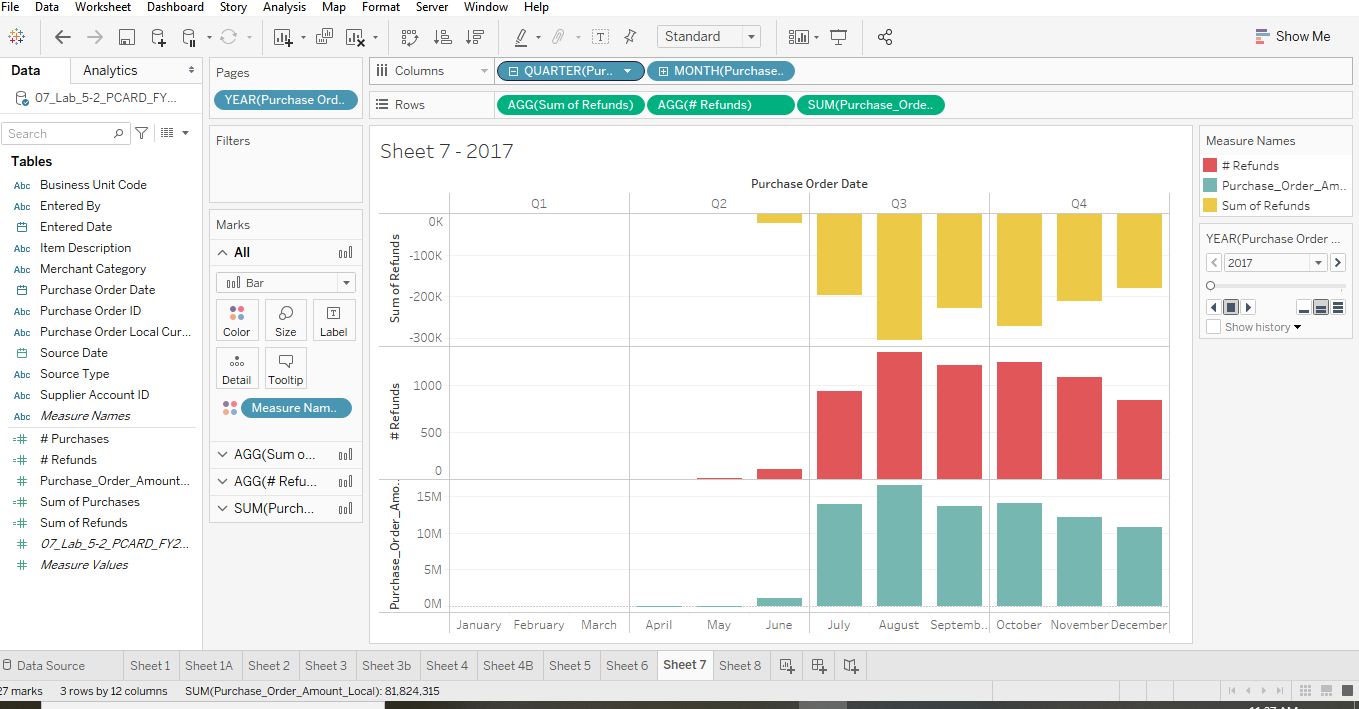
File Data Worksheet Dashboard Story Analysis Map Format Server Window Help A- TX - 13 DDD { - T Standard Show Me Pages iii Columns O QUARTER(Pur.. MONTH(Purchase. Data Analytics P07_Lab_5-2_PCARD_FY... YEAR(Purchase Ord.. Rows AGG(Sum of Refunds) AGG(# Refunds) SUM(Purchase_Orde.. Search . Y Filters Measure Names Sheet 7-2017 Tables Purchase Order Date #Refunds Purchase_Order_Am.. Sum of Refunds 01 02 03 04 Marks OK YEAR(Purchase Order ... 000 -100K Dol Bar Abc Business Unit Code Abc Entered By Entered Date Abc Item Description Abc Merchant Category Purchase Order Date Abc Purchase Order ID Abc Purchase Order Local Cur... Source Date Abc Source Type Abc Supplier Account ID Abc Measure Names Sum of Refunds O -200K . T Label Show history Color Size -300K ooo Detail Tooltip 1000 Measure Nam.. #Refunds 500 Dol AGG(Sum o... AGG(# Refu... 0 Dol 15M -# # Purchases --# #Refunds # Purchase_Order_Amount... -# Sum of Purchases -# Sum of Refunds # 07 Lab_5-2 PCARD FY2... # Measure Values SUM(Purch... Dol 10M Purchase_Order_Amo.. 5M OM January February March April May June July August Septemb.. October November December Data Source Sheet1 Sheet 1A Sheet 2 Sheet 3 Sheet 3b Sheet 4 Sheet 4B Sheet 5 Sheet 6 Sheet 7 Sheet 8 27 marks 3 rows by 12 columns SUM(Purchase_Order_Amount_Local): 81,824.315 >
Step by Step Solution
There are 3 Steps involved in it

Get step-by-step solutions from verified subject matter experts
 Study Help