







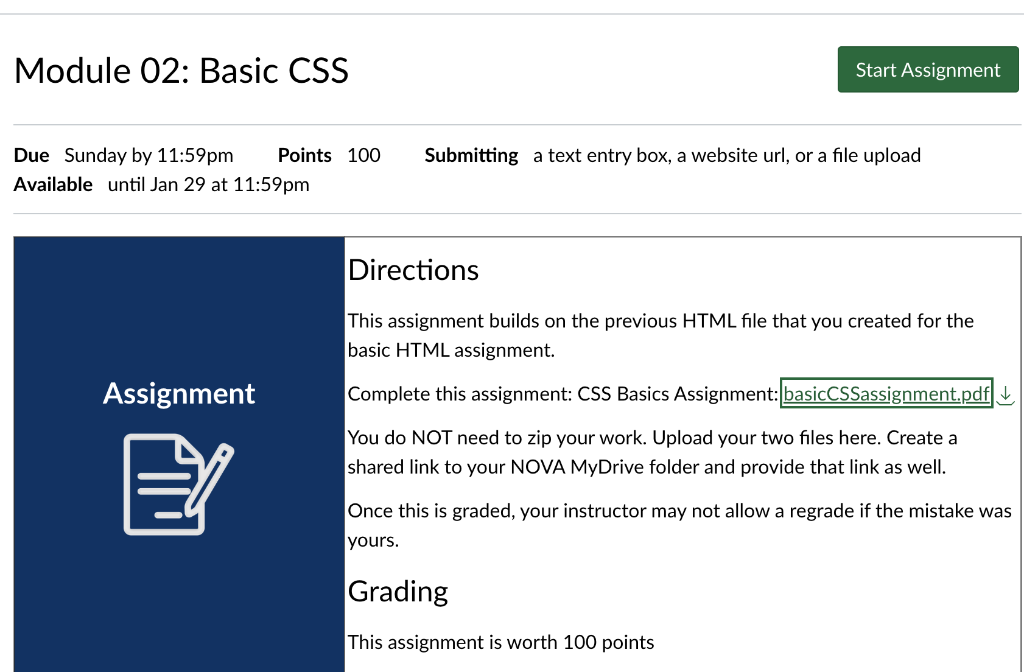
Question: My HTML Code: Module 02: Basic CSS Due Sunday by 11:59pm Points 100 Submitting a text entry box, a website url, or a file upload
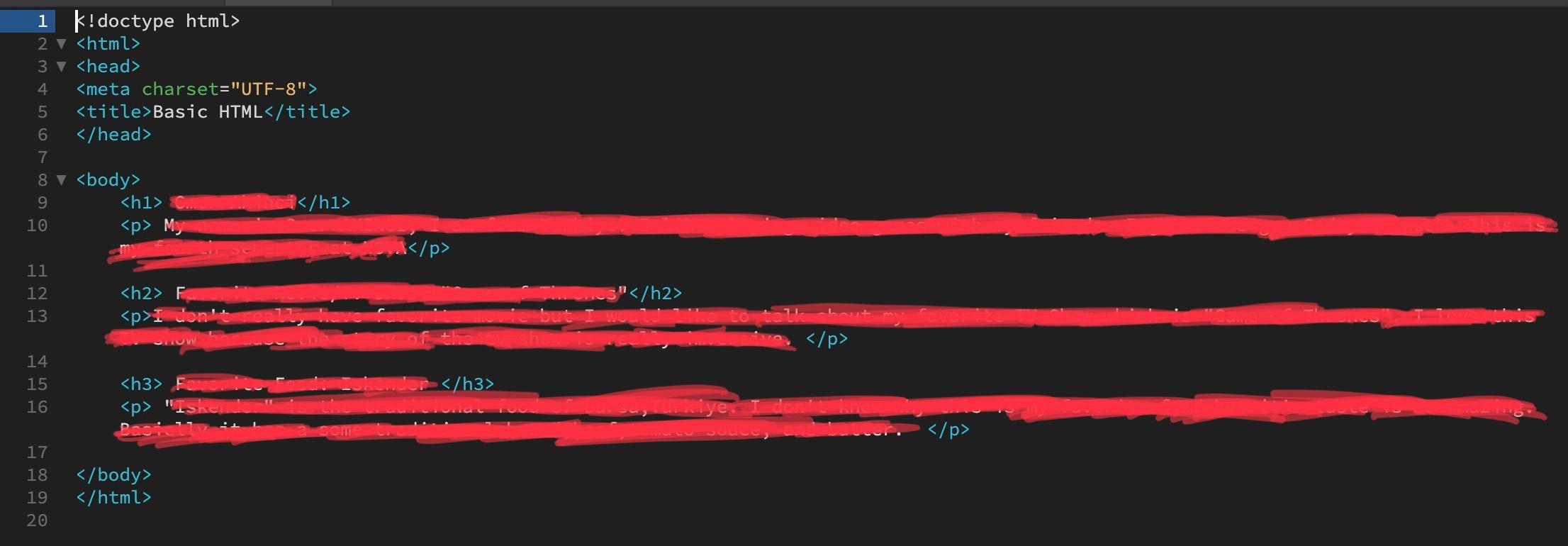
My HTML Code:
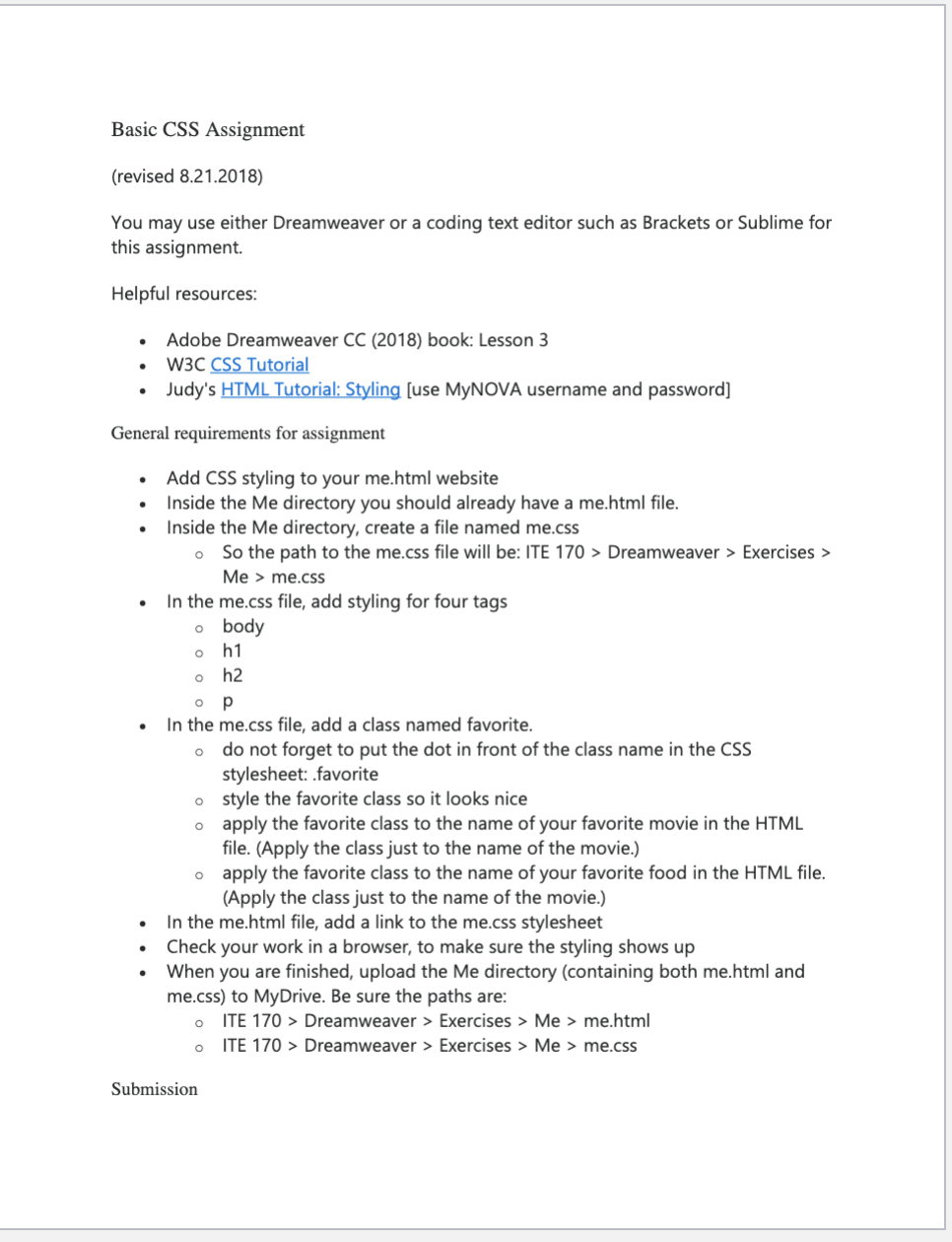
Module 02: Basic CSS Due Sunday by 11:59pm Points 100 Submitting a text entry box, a website url, or a file upload Available until Jan 29 at 11:59pm Directions This assignment builds on the previous HTML file that you created for the basic HTML assignment. Complete this assignment: CSS Basics Assignment: You do NOT need to zip your work. Upload your two files here. Create a shared link to your NOVA MyDrive folder and provide that link as well. Once this is graded, your instructor may not allow a regrade if the mistake was yours. Grading This assignment is worth 100 points Basic CSS Assignment (revised 8.21.2018) You may use either Dreamweaver or a coding text editor such as Brackets or Sublime for this assignment. Helpful resources: - Adobe Dreamweaver CC (2018) book: Lesson 3 - W3C CSS Tutorial - Judy's HTML Tutorial: Styling [use MyNOVA username and password] General requirements for assignment - Add CSS styling to your me.html website - Inside the Me directory you should already have a me.html file. - Inside the Me directory, create a file named me.css - So the path to the me.css file will be: ITE 170> Dreamweaver > Exercises > Me > me.css - In the me.css file, add styling for four tags - body - h1 - h2 - p - In the me.css file, add a class named favorite. - do not forget to put the dot in front of the class name in the CSS stylesheet: .favorite style the favorite class so it looks nice apply the favorite class to the name of your favorite movie in the HTML file. (Apply the class just to the name of the movie.) apply the favorite class to the name of your favorite food in the HTML file. (Apply the class just to the name of the movie.) - In the me.html file, add a link to the me.css stylesheet - Check your work in a browser, to make sure the styling shows up - When you are finished, upload the Me directory (containing both me.html and me.css) to MyDrive. Be sure the paths are: - ITE 170> Dreamweaver > Exercises > Me > me.html - ITE 170> Dreamweaver > Exercises > Me > me.css Submission
Step by Step Solution
There are 3 Steps involved in it

Get step-by-step solutions from verified subject matter experts
 Study Help