







Question: need help w the absolute value part as well as 9-13 in the initial problem, current code is found in the pictures, recommadations and tips
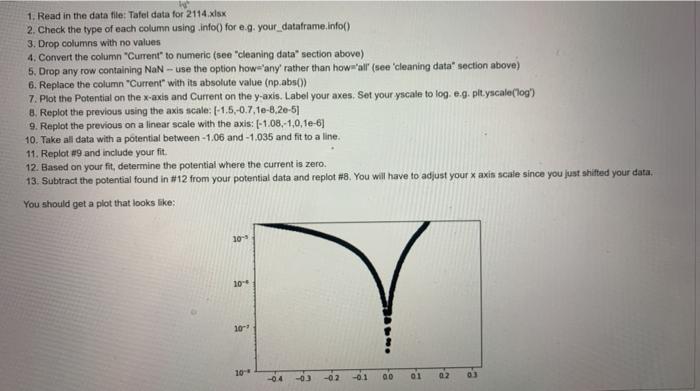
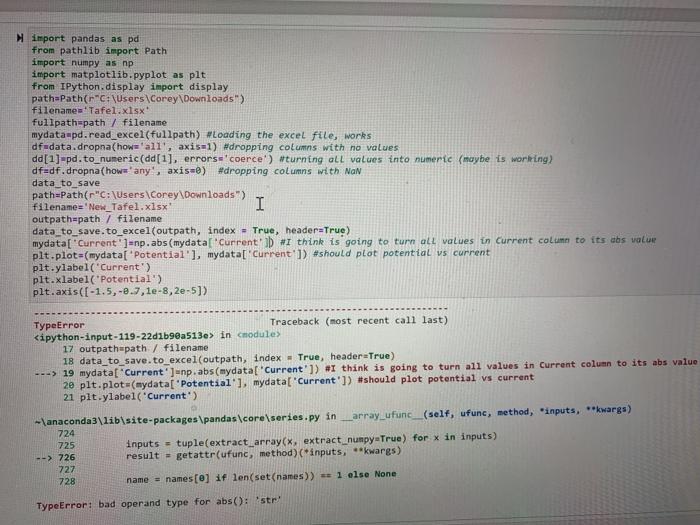
1. Read in the data file: Tafel data for 2114.xlsx 2. Check the type of each column using info() for e.. your_dataframe.info() 3. Drop columns with no values 4. Convert the column "Current" to numeric (see "cleaning data section above) 5. Drop any row containing NaN -- use the option how any rather than how'all' (see cleaning data section above) 6. Replace the column "Current with its absolute value (np.abs() 7. Plot the Potential on the x-axis and Current on the y-axis. Label your axes. Set your yscale to log.e.g. pityscale(log) 8. Replot the previous using the axis scale: 1-1,5,-0.7.1-8.20-5 9. Replot the previous on a linear scale with the axis: (-1.08,-1,0,1e-6] 10. Take all data with a potential between-1.06 and -1.035 and fit to a line. 11. Replot #9 and include your fit. 12. Based on your fit, determine the potential where the current is zero. 13. Subtract the potential found in #12 from your potential data and replot #8. You will have to adjust your x axin scale since you just shifted your data, You should get a plot that looks like: 30-1 10-4 10- 10-4 02 import pandas as pd from pathlib import Path import numpy as np import matplotlib.pyplot as plt from IPython display import display path=Path("C:\Users\Corey\Downloads) filename='Tafel.xlsx fullpath=path / filename mydata-pd.read_excel(fullpath) #Loading the excel file, works df-data.dropna(how='all', axis=1) #dropping columns with no values dd[1]=pd.to_numeric(dd[1], errors='coerce') #turning all values into numeric (maybe is working) df=df.dropna(how'any', axis-) #dropping columns with NaN data_to_save path=Path("C:\Users\Corey\Downloads) filename='New_Tafel.xlsx I outpathupath / filename data_to_save.to_excel(outpath, index - True, header=True) mydata['Current"]=np.abs(mydatal Current #1 think is going to turn all values in Current column to its abs value plt.plot(mydata("Potential'], mydata['Current']) #should plot potential vs current plt.ylabel('Current") plt.xlabel('Potential') plt.axis([-1.5, -0.7, le-8, 2e-5]) TypeError Traceback (most recent call last) Kipython-input-119-22d1b9ea513e> in modules 17 outpathupath / filename 18 data_to_save.to_excel(outpath, index - True, header=True) ---> 19 mydata['Current']=np.abs(mydata['Current']) #I think is going to turn all values in Current column to its abs value 2e plt.plot(mydata[ 'Potential'], mydata'Current']) #should plot potential vs current 21 plt.ylabel('Current") - anaconda3\lib\site-packages\pandas\core\series.py in array_ufunc_(self, ufund, method, "inputs, **kwargs) 724 725 inputs = tuple(extract_array(x, extract_numpy=True) for x in inputs) --> 726 result = getattr(func, method) (*inputs, **kwargs) 727 728 name = names[@] if len(set(names)) = 1 olse None TypeError: bad operand type for abs(): str 1. Read in the data file: Tafel data for 2114.xlsx 2. Check the type of each column using info() for e.. your_dataframe.info() 3. Drop columns with no values 4. Convert the column "Current" to numeric (see "cleaning data section above) 5. Drop any row containing NaN -- use the option how any rather than how'all' (see cleaning data section above) 6. Replace the column "Current with its absolute value (np.abs() 7. Plot the Potential on the x-axis and Current on the y-axis. Label your axes. Set your yscale to log.e.g. pityscale(log) 8. Replot the previous using the axis scale: 1-1,5,-0.7.1-8.20-5 9. Replot the previous on a linear scale with the axis: (-1.08,-1,0,1e-6] 10. Take all data with a potential between-1.06 and -1.035 and fit to a line. 11. Replot #9 and include your fit. 12. Based on your fit, determine the potential where the current is zero. 13. Subtract the potential found in #12 from your potential data and replot #8. You will have to adjust your x axin scale since you just shifted your data, You should get a plot that looks like: 30-1 10-4 10- 10-4 02 import pandas as pd from pathlib import Path import numpy as np import matplotlib.pyplot as plt from IPython display import display path=Path("C:\Users\Corey\Downloads) filename='Tafel.xlsx fullpath=path / filename mydata-pd.read_excel(fullpath) #Loading the excel file, works df-data.dropna(how='all', axis=1) #dropping columns with no values dd[1]=pd.to_numeric(dd[1], errors='coerce') #turning all values into numeric (maybe is working) df=df.dropna(how'any', axis-) #dropping columns with NaN data_to_save path=Path("C:\Users\Corey\Downloads) filename='New_Tafel.xlsx I outpathupath / filename data_to_save.to_excel(outpath, index - True, header=True) mydata['Current"]=np.abs(mydatal Current #1 think is going to turn all values in Current column to its abs value plt.plot(mydata("Potential'], mydata['Current']) #should plot potential vs current plt.ylabel('Current") plt.xlabel('Potential') plt.axis([-1.5, -0.7, le-8, 2e-5]) TypeError Traceback (most recent call last) Kipython-input-119-22d1b9ea513e> in modules 17 outpathupath / filename 18 data_to_save.to_excel(outpath, index - True, header=True) ---> 19 mydata['Current']=np.abs(mydata['Current']) #I think is going to turn all values in Current column to its abs value 2e plt.plot(mydata[ 'Potential'], mydata'Current']) #should plot potential vs current 21 plt.ylabel('Current") - anaconda3\lib\site-packages\pandas\core\series.py in array_ufunc_(self, ufund, method, "inputs, **kwargs) 724 725 inputs = tuple(extract_array(x, extract_numpy=True) for x in inputs) --> 726 result = getattr(func, method) (*inputs, **kwargs) 727 728 name = names[@] if len(set(names)) = 1 olse None TypeError: bad operand type for abs(): str
Step by Step Solution
There are 3 Steps involved in it

Get step-by-step solutions from verified subject matter experts
 Study Help