







Question: Need help with code in C#. In this exercise, you'll add code that parses an email address and formats the city, state, and zip code
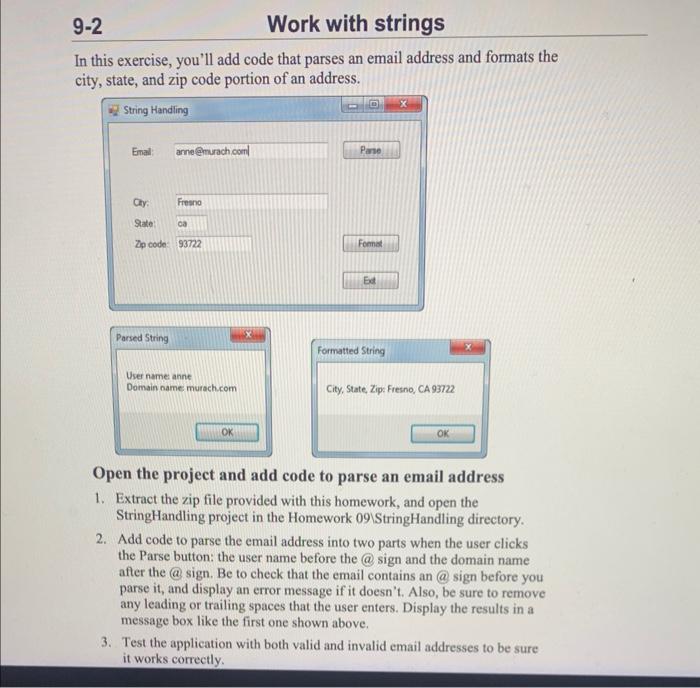
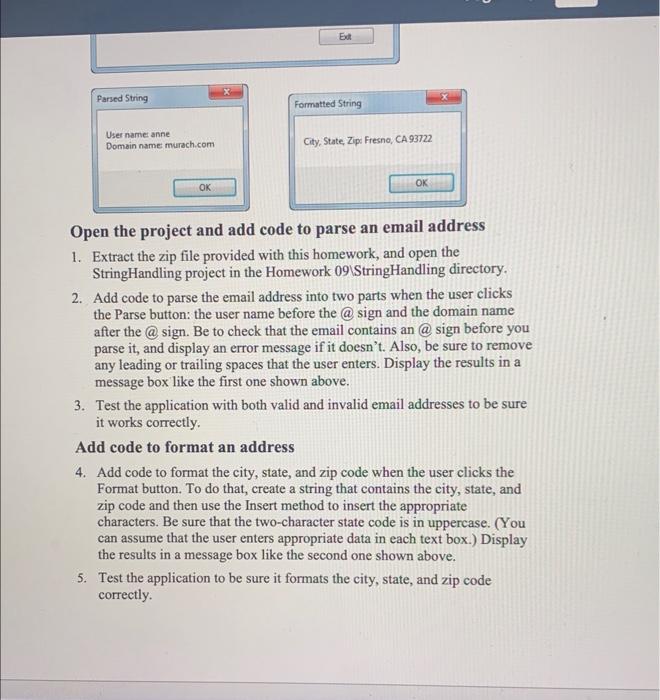
In this exercise, you'll add code that parses an email address and formats the city, state, and zip code portion of an address. Open the project and add code to parse an email address 1. Extract the zip file provided with this homework, and open the StringHandling project in the Homework 09StringHandlingdirectory. 2. Add code to parse the email address into two parts when the user clicks the Parse button: the user name before the @ sign and the domain name after the @.sign. Be to check that the email contains an @. sign before you parse it, and display an error message if it doesn't. Also, be sure to remove any leading or trailing spaces that the user enters. Display the results in a message box like the first one shown above. 3. Test the application with both valid and invalid email addresses to be sure it works correctly. User name anne Domain name murach.com Open the project and add code to parse an email address 1. Extract the zip file provided with this homework, and open the StringHandling project in the Homework 091StringHandling directory. 2. Add code to parse the email address into two parts when the user clicks the Parse button: the user name before the @ sign and the domain name after the @ sign. Be to check that the email contains an @ sign before you parse it, and display an error message if it doesn't. Also, be sure to remove any leading or trailing spaces that the user enters. Display the results in a message box like the first one shown above. 3. Test the application with both valid and invalid email addresses to be sure it works correctly. Add code to format an address 4. Add code to format the city, state, and zip code when the user clicks the Format button. To do that, create a string that contains the city, state, and zip code and then use the Insert method to insert the appropriate characters. Be sure that the two-character state code is in uppercase. (You can assume that the user enters appropriate data in each text box.) Display the results in a message box like the second one shown above. 5. Test the application to be sure it formats the city, state, and zip code correctly. In this exercise, you'll add code that parses an email address and formats the city, state, and zip code portion of an address. Open the project and add code to parse an email address 1. Extract the zip file provided with this homework, and open the StringHandling project in the Homework 09StringHandlingdirectory. 2. Add code to parse the email address into two parts when the user clicks the Parse button: the user name before the @ sign and the domain name after the @.sign. Be to check that the email contains an @. sign before you parse it, and display an error message if it doesn't. Also, be sure to remove any leading or trailing spaces that the user enters. Display the results in a message box like the first one shown above. 3. Test the application with both valid and invalid email addresses to be sure it works correctly. User name anne Domain name murach.com Open the project and add code to parse an email address 1. Extract the zip file provided with this homework, and open the StringHandling project in the Homework 091StringHandling directory. 2. Add code to parse the email address into two parts when the user clicks the Parse button: the user name before the @ sign and the domain name after the @ sign. Be to check that the email contains an @ sign before you parse it, and display an error message if it doesn't. Also, be sure to remove any leading or trailing spaces that the user enters. Display the results in a message box like the first one shown above. 3. Test the application with both valid and invalid email addresses to be sure it works correctly. Add code to format an address 4. Add code to format the city, state, and zip code when the user clicks the Format button. To do that, create a string that contains the city, state, and zip code and then use the Insert method to insert the appropriate characters. Be sure that the two-character state code is in uppercase. (You can assume that the user enters appropriate data in each text box.) Display the results in a message box like the second one shown above. 5. Test the application to be sure it formats the city, state, and zip code correctly
Step by Step Solution
There are 3 Steps involved in it

Get step-by-step solutions from verified subject matter experts
 Study Help