







Question: Need help with Install and initialize the database for AIDE: Performance Checklist 1 . From workstation using terminal, open a new tab that will provide
Need help with Install and initialize the database for AIDE:
Performance Checklist
From workstation using terminal, open a new tab that will provide a bash prompt.
Use the sudo su command to switch to root.
Switch to the root account and enter the password for student.
Type, sudo su
Installing AIDE
Install the AIDE package using Yum. Type yum install aide to install the software. Besides just the binaries, the package gives you a good baseline configuration file etcaideconf and a good example script you can add to cron for regular checks usrsharedocpackagesaideexamplesetccrondailyaidesh
At a minimum, AIDE should be configured to run a weekly scan. Mostly, AIDE should be run daily. For example, to schedule a daily execution of AIDE at : am using cron add the following line to etccrontab:
root usrsbinaide check
Now, initialize the database for a baseline:
aide configetcaideconf init
Note: This creates varlibaideaidedbnew.gz a database file that contains information about the filesystem, as instructed by etcaideconf.
To start using the database, remove the new substring from the initial database file name:
mv varlibaideaidedbnew.gz varlibaideaidedbgz
Note: This gives you a database to run your checks against. For additional security, store the database, configuration, and the usrsbinaide binary file in a secure location such as a readonly media!
Make a screen capture showing the results and paste it into your Lab Report file.
We need to have AIDE inspect our files for the first time as well, so execute these commands as root in the next section:
aide check
aide update
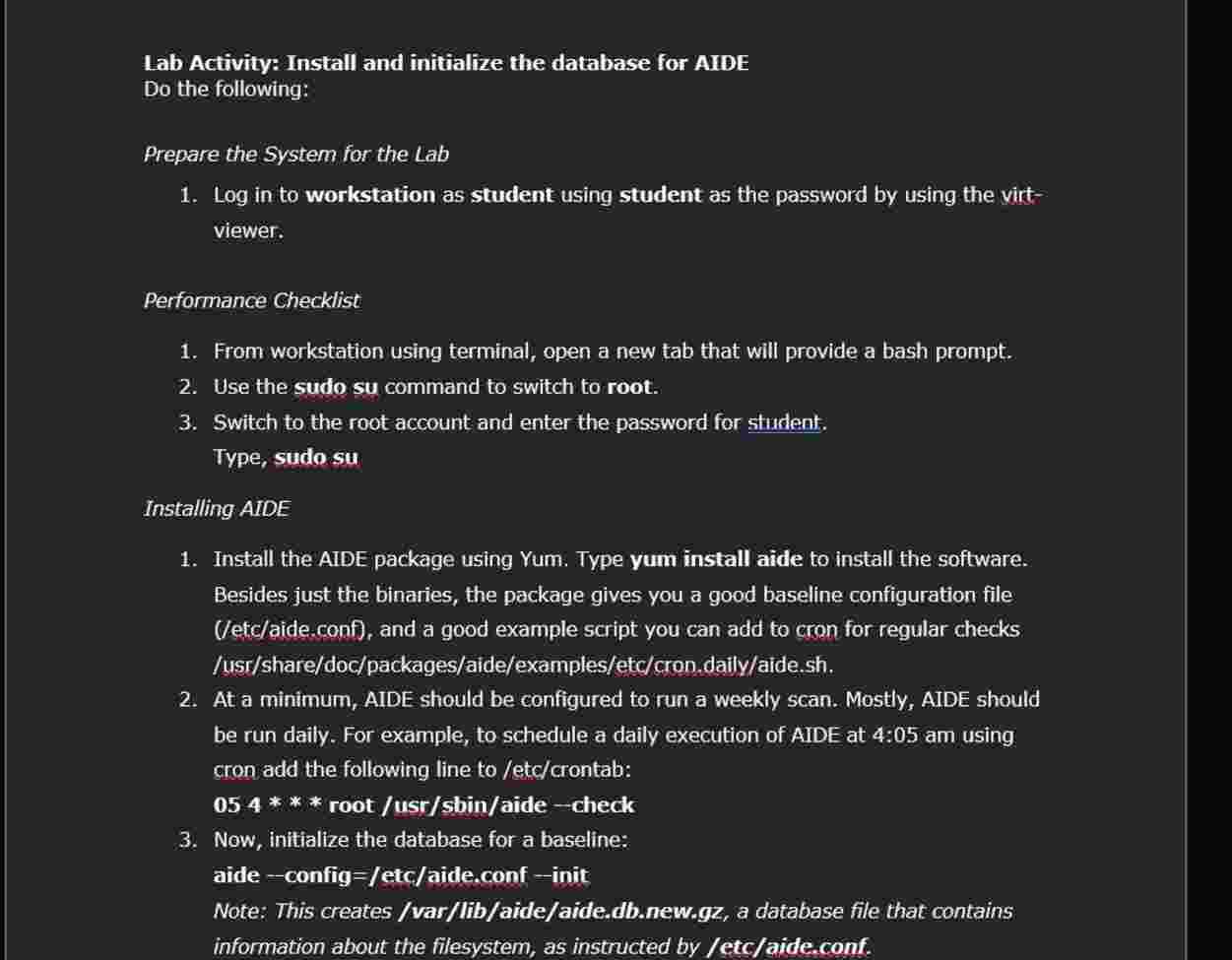
Checking and testing AIDE Lab Activity: Install and initialize the database for AIDE
Do the following:
Prepare the System for the Lab
Log in to workstation as student using student as the password by using the virtviewer.
Performance Checklist
From workstation using terminal, open a new tab that will provide a bash prompt.
Use the sudo su command to switch to root.
Switch to the root account and enter the password for student. Type, sudo su
Installing AIDE
Install the AIDE package using Yum. Type yum install aide to install the software. Besides just the binaries, the package gives you a good baseline configuration file etcaideconf and a good example script you can add to cron for regular checks uspsharedocpackagesaideexamplesetccrondailyaidesh
At a minimum, AIDE should be configured to run a weekly scan. Mostly, AIDE should be run daily. For example, to schedule a daily execution of AIDE at : am using cron add the following line to etccrontab:
rootusrsbinaide check
Now, initialize the database for a baseline:
aide configetcaideconf init
Note: This createsvarlibaideaidedbnew.gz a database file that contains information about the filesystem, as instructed by etcaideconf.
We need to have AIDE inspect our files for the first time as well, so execute these commands as root in the next section:
aide check
aide update
Checking and testing AIDE
Output is silent in the event of no detected changes.
Run a check and see results at the default verbose level in aide.conf It may take a loooonong time, so be patient...
aide configetcaideconf check
Note: The results should be something like this:
AIDE found differences between database and filesystem!! Summary:
Total number of files: quad
Added files:
Removed files: quad
Changed files:
Added files:
AddedrootIocalsharegnomeshellapplicationstate
Make a screen capture showing the results and paste it into your Lab Report file.
Ongoing maintenance with AIDE
You can tweak the aide.conf to your taste. After that, you can do an update: aide configetcaideconf update
The update command also does the same thing as check, but it also creates a new database; by this I mean it creates a new aide.dbnew.gz and during the update it compares it realtime with aide.dbgz
Note: This does not change, which is why it should be readonly!
Make a screen capture showing the results and paste it into your Lab Report file.
When changes are found, and you don't want to see those changes in future reports, you can simply reinitialize the static database aide.dbgz To do this, just rerun with init, then copy aide.dbnew.gz to aide.dbgz as described above. Again, make sure to keep a readonly copy of aide.dbgz off the system for later comparisons for security validations! To run a compare to compare your databases, you must add the following to your
aide.conf if you don't specify on the command line:
database newfile:varlibaideaidedbnew.gz
Note: the compare" does not examine the filesystem, it only compares the two
databases!
Make a screen capture showing the results and paste it into your Lab Report file.
ther use of AIDE
Run aide once each night with the update option. This way it makes a new aide.dbnew.gz and still tells you what ch
Step by Step Solution
There are 3 Steps involved in it
1 Expert Approved Answer
Step: 1 Unlock

Question Has Been Solved by an Expert!
Get step-by-step solutions from verified subject matter experts
Step: 2 Unlock
Step: 3 Unlock
 Study Help