







Question: need help with labs. WSX Lab Report (replace X with the weekset number) Then, repeat the format below for each HOP (Hands-On Project) lab report.
need help with labs.
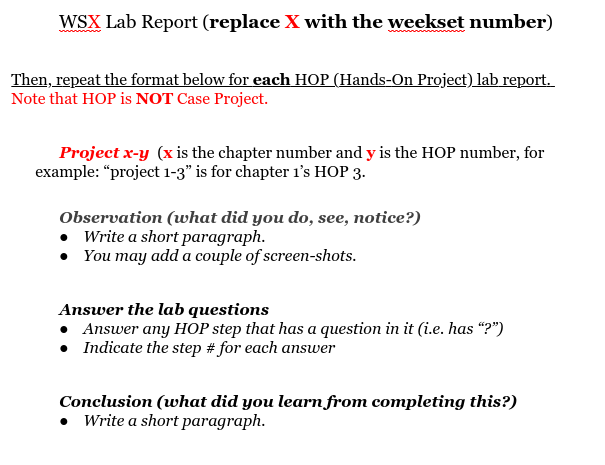
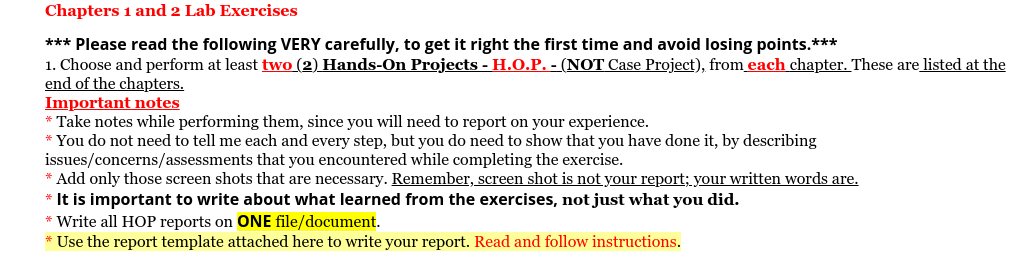
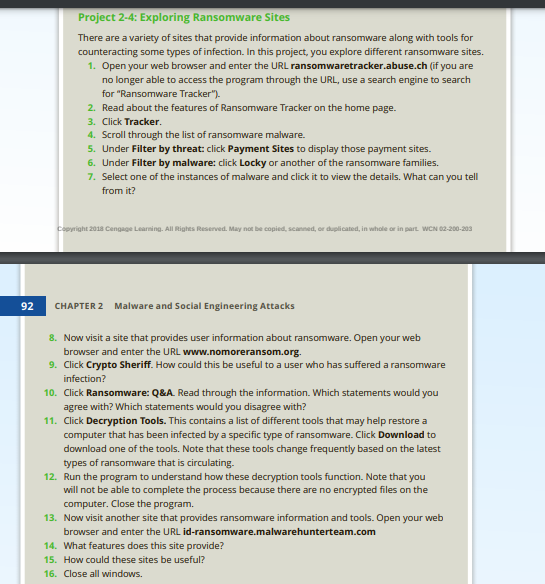
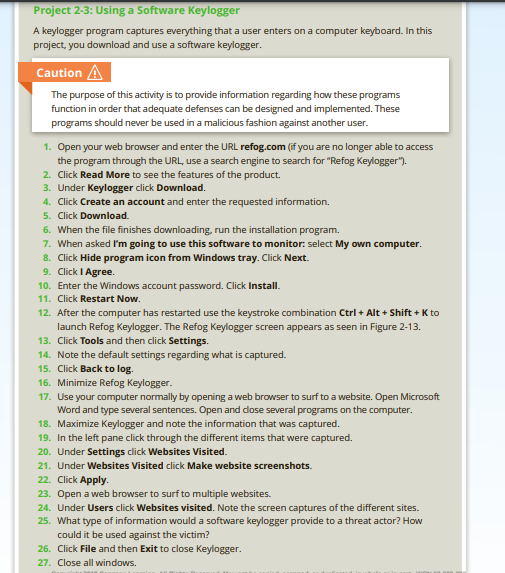
WSX Lab Report (replace X with the weekset number) Then, repeat the format below for each HOP (Hands-On Project) lab report. Note that HOP is NOT Case Project. Project x-y (x is the chapter number and y is the HOP number, for example: project 1-3" is for chapter is HOP 3. Observation (what did you do, see, notice?) Write a short paragraph. You may add a couple of screen-shots. Answer the lab questions Answer any HOP step that has a question in it (i.e. has "?") Indicate the step # for each answer Conclusion (what did you learn from completing this?) Write a short paragraph. Chapters 1 and 2 Lab Exercises *** Please read the following VERY carefully, to get it right the first time and avoid losing points.*** 1. Choose and perform at least two (2) Hands-On Projects - H.O.P. - (NOT Case Project), from each chapter. These are listed at the end of the chapters. Important notes * Take notes while performing them, since you will need to report on your experience. * You do not need to tell me each and every step, but you do need to show that you have done it, by describing issues/concerns/assessments that you encountered while completing the exercise. * Add only those screen shots that are necessary. Remember, screen shot is not your report; your written words are. * It is important to write about what learned from the exercises, not just what you did. * Write all HOP reports on ONE file/document. * Use the report template attached here to write your report. Read and follow instructions. Project 2-4: Exploring Ransomware Sites There are a variety of sites that provide information about ransomware along with tools for counteracting some types of infection. In this project, you explore different ransomware sites. 1. Open your web browser and enter the URL ransomwaretracker.abuse.ch (if you are no longer able to access the program through the URL, use a search engine to search for "Ransomware Tracker"). 2. Read about the features of Ransomware Tracker on the home page. 3. Click Tracker 4. Scroll through the list of ransomware malware. 5. Under Filter by threat: click Payment Sites to display those payment sites. 6. Under Filter by malware: click Locky or another of the ransomware families. 7. Select one of the instances of malware and click it to view the details. What can you tell from it? Copyright 2018 Cangage Learning. All Rights Reserved. May not be copied, scanned, or duplicated, in whole or in part WCN 02-200-203 92 CHAPTER 2 Malware and Social Engineering Attacks 8. Now visit a site that provides user information about ransomware. Open your web browser and enter the URL www.nomoreransom.org. 9. Click Crypto Sheriff. How could this be useful to a user who has suffered a ransomware infection? 10. Click Ransomware: Q&A. Read through the information. Which statements would you agree with? Which statements would you disagree with? 11. Click Decryption Tools. This contains a list of different tools that may help restore a computer that has been infected by a specific type of ransomware. Click Download to download one of the tools. Note that these tools change frequently based on the latest types of ransomware that is circulating. 12. Run the program to understand how these decryption tools function. Note that you will not be able to complete the process because there are no encrypted files on the computer. Close the program. 13. Now visit another site that provides ransomware information and tools. Open your web browser and enter the URL id-ransomware.malwarehunterteam.com 14. What features does this site provide? 15. How could these sites be useful? 16. Close all windows. Project 2-3: Using a Software Keylogger A keylogger program captures everything that a user enters on a computer keyboard. In this project, you download and use a software keylogger. Caution A The purpose of this activity is to provide information regarding how these programs function in order that adequate defenses can be designed and implemented. These programs should never be used in a malicious fashion against another user. 1. Open your web browser and enter the URL refog.com (if you are no longer able to access the program through the URL, use a search engine to search for "Refog Keylogger"). 2. Click Read More to see the features of the product. 3. Under Keylogger click Download. 4. Click Create an account and enter the requested information. 5. Click Download 6. When the file finishes downloading, run the installation program. 7. When asked I'm going to use this software to monitor: select My own computer. 8. Click Hide program icon from Windows tray. Click Next. 9. Click I Agree. 10. Enter the Windows account password. Click Install. 11. Click Restart Now. 12. After the computer has restarted use the keystroke combination Ctrl + Alt + Shift + K to launch Refog keylogger. The Refog keylogger screen appears as seen in Figure 2-13. 13. Click Tools and then click Settings. 14. Note the default settings regarding what is captured. 15. Click Back to log 16. Minimize Refog keylogger. 17. Use your computer normally by opening a web browser to surf to a website. Open Microsoft Word and type several sentences. Open and dose several programs on the computer. 18. Maximize Keylogger and note the information that was captured. 19. In the left pane click through the different items that were captured. 20. Under Settings click Websites Visited. 21. Under Websites Visited click Make website screenshots. 22. Click Apply 23. Open a web browser to surf to multiple websites. 24. Under Users click Websites visited. Note the screen captures of the different sites. 25. What type of information would a software keylogger provide to a threat actor? How could it be used against the victim? 26. Click File and then Exit to close Keylogger. 27. Close all windows. WSX Lab Report (replace X with the weekset number) Then, repeat the format below for each HOP (Hands-On Project) lab report. Note that HOP is NOT Case Project. Project x-y (x is the chapter number and y is the HOP number, for example: project 1-3" is for chapter is HOP 3. Observation (what did you do, see, notice?) Write a short paragraph. You may add a couple of screen-shots. Answer the lab questions Answer any HOP step that has a question in it (i.e. has "?") Indicate the step # for each answer Conclusion (what did you learn from completing this?) Write a short paragraph. Chapters 1 and 2 Lab Exercises *** Please read the following VERY carefully, to get it right the first time and avoid losing points.*** 1. Choose and perform at least two (2) Hands-On Projects - H.O.P. - (NOT Case Project), from each chapter. These are listed at the end of the chapters. Important notes * Take notes while performing them, since you will need to report on your experience. * You do not need to tell me each and every step, but you do need to show that you have done it, by describing issues/concerns/assessments that you encountered while completing the exercise. * Add only those screen shots that are necessary. Remember, screen shot is not your report; your written words are. * It is important to write about what learned from the exercises, not just what you did. * Write all HOP reports on ONE file/document. * Use the report template attached here to write your report. Read and follow instructions. Project 2-4: Exploring Ransomware Sites There are a variety of sites that provide information about ransomware along with tools for counteracting some types of infection. In this project, you explore different ransomware sites. 1. Open your web browser and enter the URL ransomwaretracker.abuse.ch (if you are no longer able to access the program through the URL, use a search engine to search for "Ransomware Tracker"). 2. Read about the features of Ransomware Tracker on the home page. 3. Click Tracker 4. Scroll through the list of ransomware malware. 5. Under Filter by threat: click Payment Sites to display those payment sites. 6. Under Filter by malware: click Locky or another of the ransomware families. 7. Select one of the instances of malware and click it to view the details. What can you tell from it? Copyright 2018 Cangage Learning. All Rights Reserved. May not be copied, scanned, or duplicated, in whole or in part WCN 02-200-203 92 CHAPTER 2 Malware and Social Engineering Attacks 8. Now visit a site that provides user information about ransomware. Open your web browser and enter the URL www.nomoreransom.org. 9. Click Crypto Sheriff. How could this be useful to a user who has suffered a ransomware infection? 10. Click Ransomware: Q&A. Read through the information. Which statements would you agree with? Which statements would you disagree with? 11. Click Decryption Tools. This contains a list of different tools that may help restore a computer that has been infected by a specific type of ransomware. Click Download to download one of the tools. Note that these tools change frequently based on the latest types of ransomware that is circulating. 12. Run the program to understand how these decryption tools function. Note that you will not be able to complete the process because there are no encrypted files on the computer. Close the program. 13. Now visit another site that provides ransomware information and tools. Open your web browser and enter the URL id-ransomware.malwarehunterteam.com 14. What features does this site provide? 15. How could these sites be useful? 16. Close all windows. Project 2-3: Using a Software Keylogger A keylogger program captures everything that a user enters on a computer keyboard. In this project, you download and use a software keylogger. Caution A The purpose of this activity is to provide information regarding how these programs function in order that adequate defenses can be designed and implemented. These programs should never be used in a malicious fashion against another user. 1. Open your web browser and enter the URL refog.com (if you are no longer able to access the program through the URL, use a search engine to search for "Refog Keylogger"). 2. Click Read More to see the features of the product. 3. Under Keylogger click Download. 4. Click Create an account and enter the requested information. 5. Click Download 6. When the file finishes downloading, run the installation program. 7. When asked I'm going to use this software to monitor: select My own computer. 8. Click Hide program icon from Windows tray. Click Next. 9. Click I Agree. 10. Enter the Windows account password. Click Install. 11. Click Restart Now. 12. After the computer has restarted use the keystroke combination Ctrl + Alt + Shift + K to launch Refog keylogger. The Refog keylogger screen appears as seen in Figure 2-13. 13. Click Tools and then click Settings. 14. Note the default settings regarding what is captured. 15. Click Back to log 16. Minimize Refog keylogger. 17. Use your computer normally by opening a web browser to surf to a website. Open Microsoft Word and type several sentences. Open and dose several programs on the computer. 18. Maximize Keylogger and note the information that was captured. 19. In the left pane click through the different items that were captured. 20. Under Settings click Websites Visited. 21. Under Websites Visited click Make website screenshots. 22. Click Apply 23. Open a web browser to surf to multiple websites. 24. Under Users click Websites visited. Note the screen captures of the different sites. 25. What type of information would a software keylogger provide to a threat actor? How could it be used against the victim? 26. Click File and then Exit to close Keylogger. 27. Close all windows
Step by Step Solution
There are 3 Steps involved in it

Get step-by-step solutions from verified subject matter experts
 Study Help