







Question: Need help with Murach's C# 2015 Exercise 6-1 private void btnCalculate_Click(object sender, EventArgs e) { decimal monthlyInvestment = Convert.ToDecimal(txtMonthlyInvestment.Text); decimal yearlyInterestRate = Convert.ToDecimal(txtInterestRate.Text); int years
Need help with Murach's C# 2015 Exercise 6-1
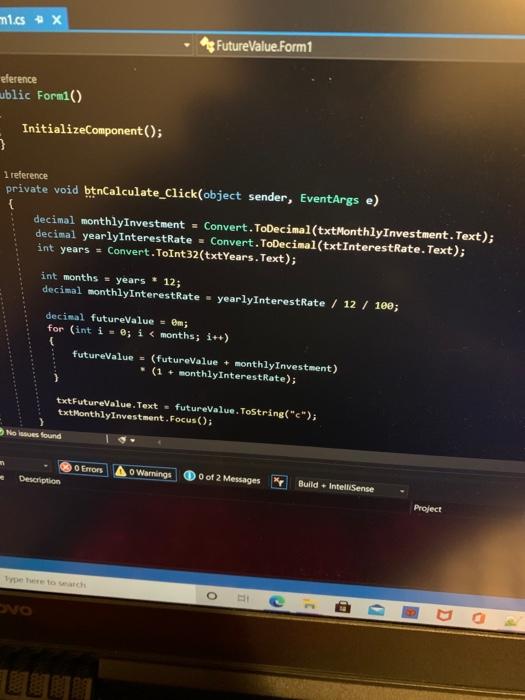
private void btnCalculate_Click(object sender, EventArgs e) { decimal monthlyInvestment = Convert.ToDecimal(txtMonthlyInvestment.Text); decimal yearlyInterestRate = Convert.ToDecimal(txtInterestRate.Text); int years = Convert.ToInt32(txtYears.Text);
int months = years * 12; decimal monthlyInterestRate = yearlyInterestRate / 12 / 100;
decimal futureValue = 0m; for (int i = 0; i
txtFutureValue.Text = futureValue.ToString("c"); txtMonthlyInvestment.Focus(); }
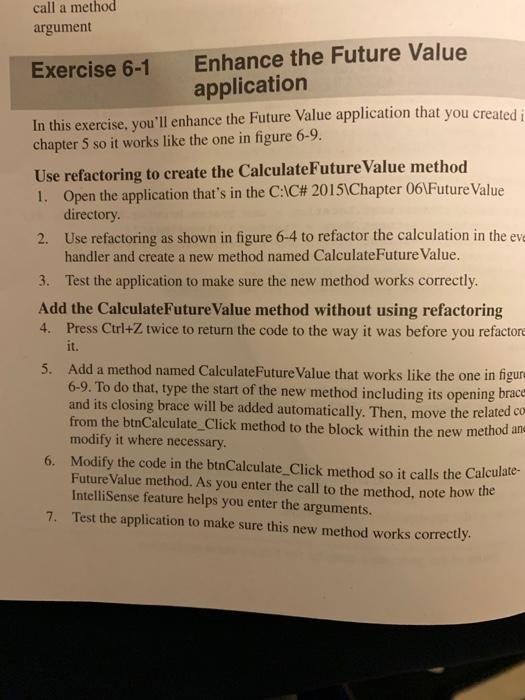
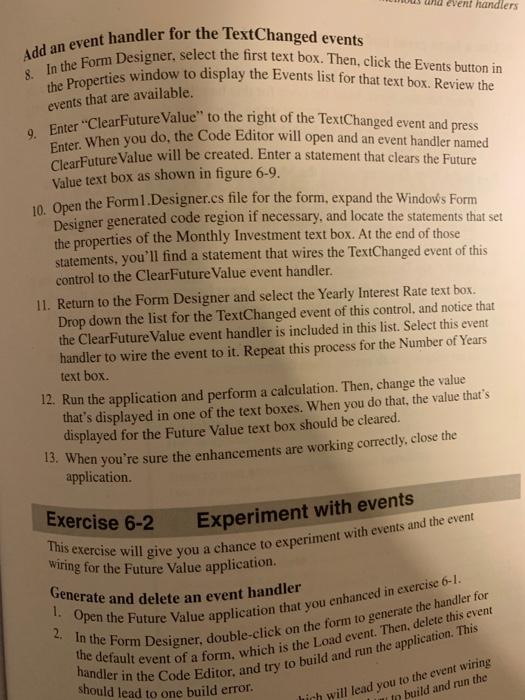
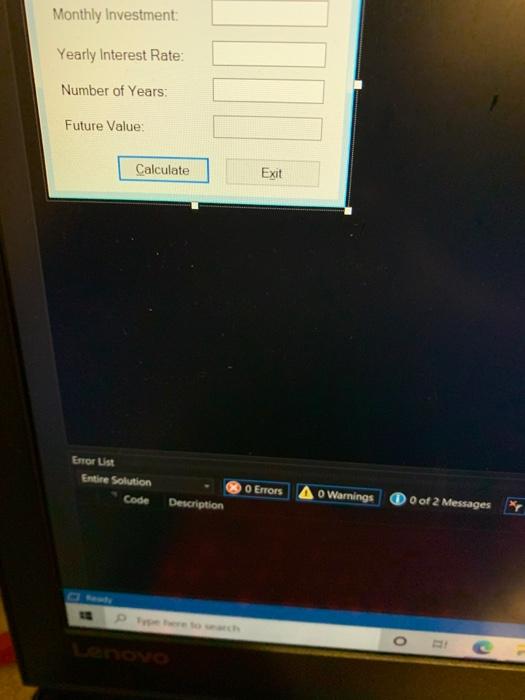
call a method argument Exercise 6-1 Enhance the Future Value application In this exercise, you'll enhance the Future Value application that you created i chapter 5 so it works like the one in figure 6-9. Use refactoring to create the CalculateFuture Value method 1. Open the application that's in the C:\C# 2015 Chapter 06\Future Value directory 2. Use refactoring as shown in figure 6-4 to refactor the calculation in the eve handler and create a new method named Calculate Future Value. 3. Test the application to make sure the new method works correctly. Add the CalculateFuture Value method without using refactoring 4. Press Ctrl+Z twice to return the code to the way it was before you refactor it. 5. Add a method named CalculateFuture Value that works like the one in figure 6-9. To do that, type the start of the new method including its opening brace and its closing brace will be added automatically. Then, move the related.com from the btnCalculate_Click method to the block within the new method an modify it where necessary. 6. Modify the code in the btnCalculate_Click method so it calls the Calculate- Future Value method. As you enter the call to the method, note how the IntelliSense feature helps you enter the arguments. 7. Test the application to make sure this new method works correctly. should lead to one build error. events that are available. Add an event handler for the TextChanged events 8. In the Form Designer, select the first text box. Then, click the Events button in the Properties window to display the Events list for that text box. Review the 9. Enter "Clear Future Value to the right of the TextChanged event and press Enter. When you do, the Code Editor will open and an event handler named ClearFuture Value will be created. Enter a statement that clears the Future This exercise will give you a chance to experiment with events and the event Generate and delete an event handler 1. Open the Future Value application that you enhanced in exercise 6-1. 2. In the Form Designer, double-click on the form to generate the handler for the default event of a form, which is the Load event. Then, delete this event handler in the Code Editor, and try to build and run the application. This na event handlers Value text box as shown in figure 6-9. 10. Open the Form 1. Designer.cs file for the form, expand the Windows Form Designer generated code region if necessary, and locate the statements that set the properties of the Monthly Investment text box. At the end of those statements, you'll find a statement that wires the TextChanged event of this control to the ClearFuture Value event handler. 11. Return to the Form Designer and select the Yearly Interest Rate text box. Drop down the list for the TextChanged event of this control and notice that the ClearFuture Value event handler is included in this list. Select this event handler to wire the event to it. Repeat this process for the Number of Years text box. application. Exercise 6-2 Wiring for the Future Value application. 12. Run the application and perform a calculation. Then, change the value that's displayed in one of the text boxes. When you do that, the value that's displayed for the Future Value text box should be cleared. 13. When you're sure the enhancements are working correctly, close the Experiment with events hich will lead you to the event wiring In build and run the Monthly Investment Yearly Interest Rate: Number of Years Future Value Calculate Exit Error List Entire Solution Code O Errors o Warnings Description O of 2 Messages o m1.cs + x FutureValue.Form1 eference ublic Form1() InitializeComponent(); } { 1 reference private void btnCalculate_Click(object sender, EventArgs e) decimal monthlyInvestment = Convert.ToDecimal(txtMonthly Investment.Text); decimal yearlyInterestRate = Convert.ToDecimal(txtInterestRate.Text); int years = Convert.ToInt32(txtYears.Text); int months = years * 12; decimal monthlyInterestRate - yearlyInterest Rate / 12 / 100; decimal futureValue = m; for (int i = ; i
Step by Step Solution
There are 3 Steps involved in it

Get step-by-step solutions from verified subject matter experts
 Study Help