



Question: Need help with solving this Excel HW! EX16 XL CH09_GRADER CAP HW - School of Information Sciences 1.5 Project Description: You are the financial manager
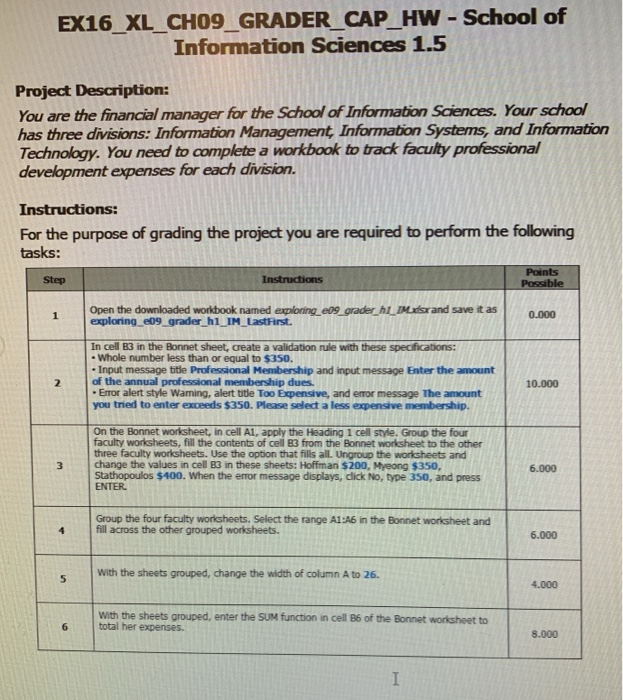
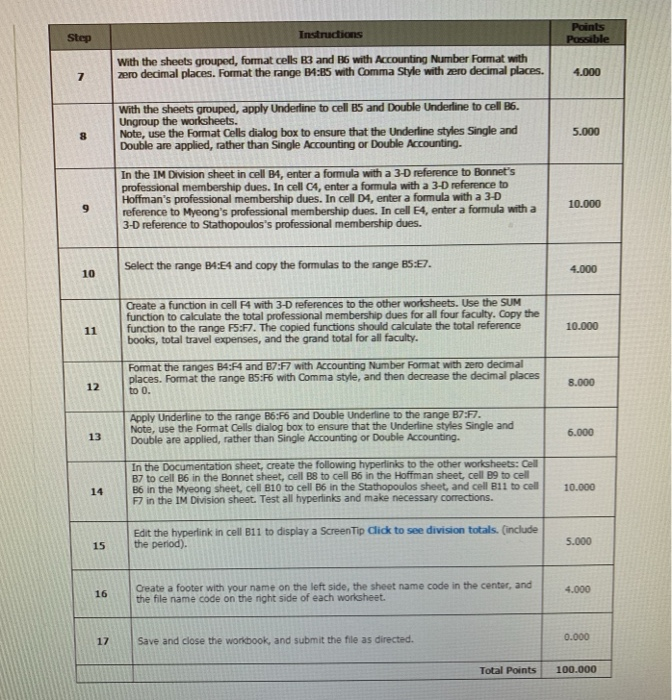
EX16 XL CH09_GRADER CAP HW - School of Information Sciences 1.5 Project Description: You are the financial manager for the School of Information Sciences. Your school has three divisions: Information Management Information Systems, and Information Technology. You need to complete a workbook to track faculty professional development expenses for each division. Instructions: For the purpose of grading the project you are required to perform the following tasks: Points Open the downloaded workbook named exploning e09 grader ht IMxsr and save it as exploring e09 grader h1 IM LastFirst In cell 83 in the Bonnet sheet, eate a validation rule with these spechaors: - Whole number less than or equal to $350. . Input message title Professional Membership and input message Enter the amount 2 of the annual professional membership dues. 10.000 Error alert style Waming, alert tite Too Expensive, and error message The amount you tried to enter exceeds $350. Please select a less expensive membership. On the Bonnet worksheet, in cell A1, apply the Heading 1 cell style. Group the fourA faculty worksheets, fill the contents of cell B3 from the Bonnet worksheet to the other three faculty worksheets. Use the option that fills all. Ungroup the worksheets and change the values in cell B3 in these sheets: Hoffman $200, Myeong $350, Stathopoulos $400. When the error message displays, click No, type 350, and press 6.000 ENTER Group the four faculty worksheets. Select the range A1:A6 in the Bonnet worksheet and fill across the other grouped worksheets. 6.000 s with the sheets grouped, change the width of column A to 26. 4.000 With the sheets grouped, enter the SUM function in cell B6 of the Bonnet worksheet to 6 total her expenses. 8.000 With the sheets grouped, format cells Rand B6 with Accounting Mmber Format with 7 zero decimal places. Format the range B4:85 with Comma Style with zero decimal places.4000 With the sheets grouped, apply Underline to cell B5 and Double Underline to cell B6. Ungroup the worksheets. Note, use the Format Cells dialog box to ensure that the Underline styles Single and Double are applied, rather than Single Accounting or Double Accounting. 5.000 8 In the IM Division sheet in cell B4, enter a formula with a 3-D reference to Bonnet's professional membership dues. In cell C4, enter a formula with a 3-D reference to Hoffman's professional membership dues. In cell D4, enter a formula with a 3-D 10.000 9reference to Myeong's professional membership dues. In cell E4, enter a formula with a 3-D reference to Stathopoulos's professional membership dues. Select the range B4:E4 and copy the formulas to the range BS:7. 4.000 10 Create a function in cell F4 with 3-D references to the other worksheets. Use the SUM function to calculate the total professional membership dues for all four faculty. Copy the function to the range F5:F7. The copied functions should calculate the total reference 10.000 11 books, total travel expenses, and the grand total for all faculty. Fomat the ranges B4:F4 and B7:F7 with Accounting Number Format with zero decimal places. Format the range B5% with Comma style, and then decrease the decimal places 8.000 12 to 0. Apply Underline to the range B6:F6 and Double Underline to the range B7:F7 Note, use the Format Cells dialog box to ensure that the Underline styles Single and 6.000 Double are applied, rather than Single Accounting or Double Accounting. In the Documentation sheet, create the following hyperlinks to the other worksheets: Cell B7 to cell B6 in the Bonnet sheet, cell B8 to cell B6 in the Hoffman sheet, cell B9 to cell B6 in the Myeong sheet, cell 810 to cell B6 in the Stathopoulos sheet, and cell 811 to ll 10.000 F7 in the IM Division sheet. Test all hyperlinks and make necessary corrections. 14 Edit the hyperlink in cell B11 to display a ScreenTip Click to see division totals. (include 15 the period). Create a footer with your name on the left side, the sheet name code in the center, and the file name code on the right side of each worksheet. 4.000 16 0.000 17 Save and close the workbook, and submit the file as directed. Total Points100.000 EX16 XL CH09_GRADER CAP HW - School of Information Sciences 1.5 Project Description: You are the financial manager for the School of Information Sciences. Your school has three divisions: Information Management Information Systems, and Information Technology. You need to complete a workbook to track faculty professional development expenses for each division. Instructions: For the purpose of grading the project you are required to perform the following tasks: Points Open the downloaded workbook named exploning e09 grader ht IMxsr and save it as exploring e09 grader h1 IM LastFirst In cell 83 in the Bonnet sheet, eate a validation rule with these spechaors: - Whole number less than or equal to $350. . Input message title Professional Membership and input message Enter the amount 2 of the annual professional membership dues. 10.000 Error alert style Waming, alert tite Too Expensive, and error message The amount you tried to enter exceeds $350. Please select a less expensive membership. On the Bonnet worksheet, in cell A1, apply the Heading 1 cell style. Group the fourA faculty worksheets, fill the contents of cell B3 from the Bonnet worksheet to the other three faculty worksheets. Use the option that fills all. Ungroup the worksheets and change the values in cell B3 in these sheets: Hoffman $200, Myeong $350, Stathopoulos $400. When the error message displays, click No, type 350, and press 6.000 ENTER Group the four faculty worksheets. Select the range A1:A6 in the Bonnet worksheet and fill across the other grouped worksheets. 6.000 s with the sheets grouped, change the width of column A to 26. 4.000 With the sheets grouped, enter the SUM function in cell B6 of the Bonnet worksheet to 6 total her expenses. 8.000 With the sheets grouped, format cells Rand B6 with Accounting Mmber Format with 7 zero decimal places. Format the range B4:85 with Comma Style with zero decimal places.4000 With the sheets grouped, apply Underline to cell B5 and Double Underline to cell B6. Ungroup the worksheets. Note, use the Format Cells dialog box to ensure that the Underline styles Single and Double are applied, rather than Single Accounting or Double Accounting. 5.000 8 In the IM Division sheet in cell B4, enter a formula with a 3-D reference to Bonnet's professional membership dues. In cell C4, enter a formula with a 3-D reference to Hoffman's professional membership dues. In cell D4, enter a formula with a 3-D 10.000 9reference to Myeong's professional membership dues. In cell E4, enter a formula with a 3-D reference to Stathopoulos's professional membership dues. Select the range B4:E4 and copy the formulas to the range BS:7. 4.000 10 Create a function in cell F4 with 3-D references to the other worksheets. Use the SUM function to calculate the total professional membership dues for all four faculty. Copy the function to the range F5:F7. The copied functions should calculate the total reference 10.000 11 books, total travel expenses, and the grand total for all faculty. Fomat the ranges B4:F4 and B7:F7 with Accounting Number Format with zero decimal places. Format the range B5% with Comma style, and then decrease the decimal places 8.000 12 to 0. Apply Underline to the range B6:F6 and Double Underline to the range B7:F7 Note, use the Format Cells dialog box to ensure that the Underline styles Single and 6.000 Double are applied, rather than Single Accounting or Double Accounting. In the Documentation sheet, create the following hyperlinks to the other worksheets: Cell B7 to cell B6 in the Bonnet sheet, cell B8 to cell B6 in the Hoffman sheet, cell B9 to cell B6 in the Myeong sheet, cell 810 to cell B6 in the Stathopoulos sheet, and cell 811 to ll 10.000 F7 in the IM Division sheet. Test all hyperlinks and make necessary corrections. 14 Edit the hyperlink in cell B11 to display a ScreenTip Click to see division totals. (include 15 the period). Create a footer with your name on the left side, the sheet name code in the center, and the file name code on the right side of each worksheet. 4.000 16 0.000 17 Save and close the workbook, and submit the file as directed. Total Points100.000
Step by Step Solution
There are 3 Steps involved in it

Get step-by-step solutions from verified subject matter experts