







Question: Need help with the conditional formatting rules. Please. Problem 10: Below is a spreadsheet for a small business' expenses in the month of December. It
Need help with the conditional formatting rules. Please.
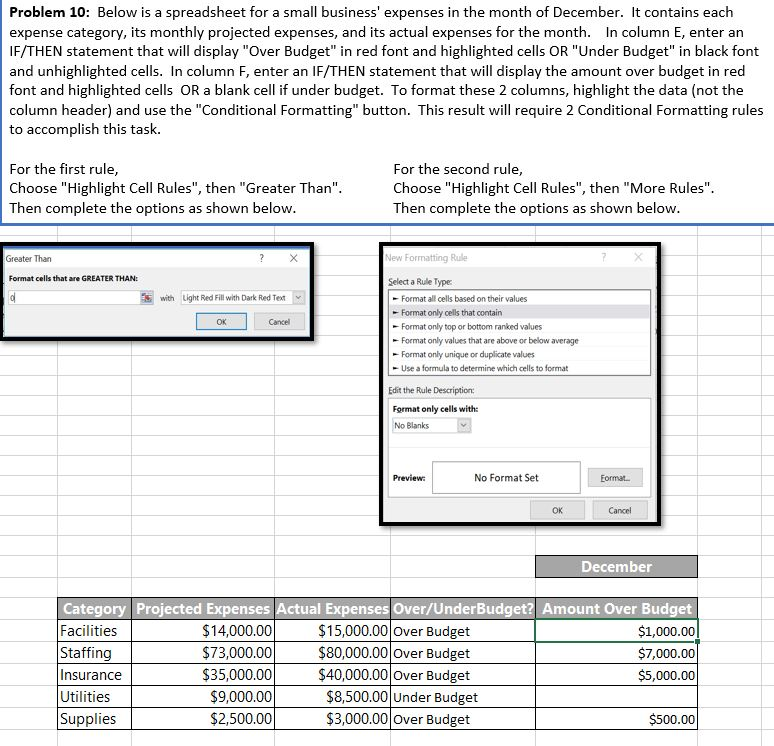
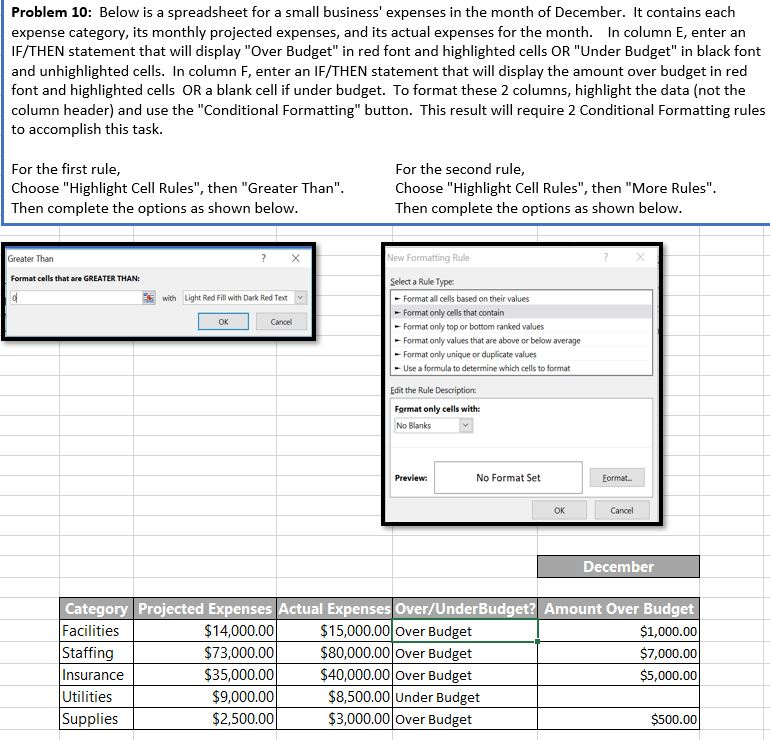
Problem 10: Below is a spreadsheet for a small business' expenses in the month of December. It contains each expense category, its monthly projected expenses, and its actual expenses for the month. In column E, enter an IF/THEN statement that will display "Over Budget" in red font and highlighted cells OR "Under Budget" in black font and unhighlighted cells. In column F, enter an IF/THEN statement that will display the amount over budget in red font and highlighted cells OR a blank cell if under budget. To format these 2 columns, highlight the data (not the column header) and use the "Conditional Formatting" button. This result will require 2 Conditional Formatting rule:s to accomplish this task. For the first rule Choose "Highlight Cell Rules", then "Greater Than" Then complete the options as shown below For the second rule Choose "Highlight Cell Rules", then "More Rules" Then complete the options as shown below Greater Than New Rule Format cells that are GREATER THAN: Select a Rule Type -Format all cells based on their values -Format only cells that contain -Format only top or bottom ranked values -Format only values that are above or below average with Light Red Fill with Dark Red Ten Format only unique or duplicate values - Use a formula to determine which cells to format Edit the Rule Description: Format only cells with No Blanks Preview No Format Set Eormat. OK Cancel December Category Projected Expenses Actual Expenses Over/UnderBudget? Amount Over Budget Facilities Staffing Insurance Utilities Supplies $14,000.00 $73,000.00 $35,000.00 9,000.00 $2,500.00 1500000 Over Budget $80,000.00 Over Budget 40,000.00 Over Budget $8,500.00 Under Budget $3,000.00 Over Budget $1,000.00 $7,000.00 $5,000.00 $500.00 Problem 10: Below is a spreadsheet for a small business' expenses in the month of December. It contains each expense category, its monthly projected expenses, and its actual expenses for the month. In column E, enter an IF/THEN statement that will display "Over Budget" in red font and highlighted cells OR "Under Budget" in black font and unhighlighted cells. In column F, enter an IF/THEN statement that will display the amount over budget in red font and highlighted cells OR a blank cell if under budget. To format these 2 columns, highlight the data (not the column header) and use the "Conditional Formatting" button. This result will require 2 Conditional Formatting rule:s to accomplish this task. For the first rule Choose "Highlight Cell Rules", then "Greater Than" Then complete the options as shown below For the second rule Choose "Highlight Cell Rules", then "More Rules" Then complete the options as shown below Greater Than New Rule Format cells that are GREATER THAN: Select a Rule Type -Format all cells based on their values -Format only cells that contain -Format only top or bottom ranked values -Format only values that are above or below average with Light Red Fill with Dark Red Ten Format only unique or duplicate values - Use a formula to determine which cells to format Edit the Rule Description: Format only cells with No Blanks Preview No Format Set Eormat. OK Cancel December Category Projected Expenses Actual Expenses Over/UnderBudget? Amount Over Budget Facilities Staffing Insurance Utilities Supplies $14,000.00 $73,000.00 $35,000.00 9,000.00 $2,500.00 1500000 Over Budget $80,000.00 Over Budget 40,000.00 Over Budget $8,500.00 Under Budget $3,000.00 Over Budget $1,000.00 $7,000.00 $5,000.00 $500.00
Step by Step Solution
There are 3 Steps involved in it

Get step-by-step solutions from verified subject matter experts
 Study Help