







Question: Needing step by step instructions on how to complete this a. C. 4. Create a Single Record form using the Plants table as the record

Needing step by step instructions on how to complete this
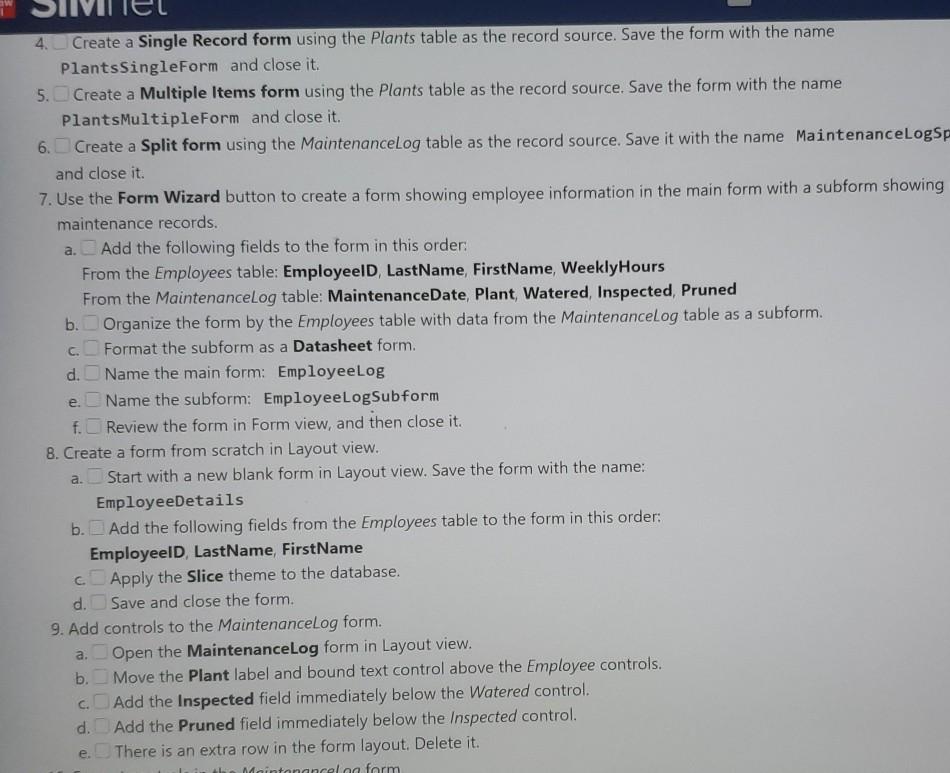
a. C. 4. Create a Single Record form using the Plants table as the record source. Save the form with the name PlantsSingleForm and close it. 5. Create a Multiple Items form using the Plants table as the record source. Save the form with the name Plants MultipleForm and close it. 6. Create a Split form using the Maintenancelog table as the record source. Save it with the name MaintenanceLogsp and close it. 7. Use the Form Wizard button to create a form showing employee information in the main form with a subform showing maintenance records. Add the following fields to the form in this order: From the Employees table: Employeeld, LastName, FirstName, WeeklyHours From the Maintenancelog table: MaintenanceDate, Plant, Watered, Inspected, Pruned b. Organize the form by the Employees table with data from the Maintenancelog table as a subform. Format the subform as a Datasheet form. d. Name the main form: EmployeeLog e.Name the subform: EmployeeLogSubform f. Review the form in Form view, and then close it. 8. Create a form from scratch in Layout view. Start with a new blank form in Layout view. Save the form with the name: EmployeeDetails b. Add the following fields from the Employees table to the form in this order: Employeeld, LastName, FirstName c Apply the Slice theme to the database. d. Save and close the form. 9. Add controls to the MaintenanceLog form. Open the MaintenanceLog form in Layout view. b. Move the plant label and bound text control above the Employee controls. Add the Inspected field immediately below the Watered control. d. Add the Pruned field immediately below the Inspected control. There is an extra row in the form layout. Delete it. Maintanancelag form a. a. C. e. 10. Format controls in the MaintenanceLog form. a. Change the MaintenanceDate label to: Date b Change the font color for all the label controls to the standard color Maroon (the fifth color from the right in the first row of standard colors). c. Modify the Maintenance Date bound text box control to use the Long Date format. d. Add the title Maintenance Log to the form header. Be sure to include a space between the words in the title. e. Save the form and close it. a. C. 4. Create a Single Record form using the Plants table as the record source. Save the form with the name PlantsSingleForm and close it. 5. Create a Multiple Items form using the Plants table as the record source. Save the form with the name Plants MultipleForm and close it. 6. Create a Split form using the Maintenancelog table as the record source. Save it with the name MaintenanceLogsp and close it. 7. Use the Form Wizard button to create a form showing employee information in the main form with a subform showing maintenance records. Add the following fields to the form in this order: From the Employees table: Employeeld, LastName, FirstName, WeeklyHours From the Maintenancelog table: MaintenanceDate, Plant, Watered, Inspected, Pruned b. Organize the form by the Employees table with data from the Maintenancelog table as a subform. Format the subform as a Datasheet form. d. Name the main form: EmployeeLog e.Name the subform: EmployeeLogSubform f. Review the form in Form view, and then close it. 8. Create a form from scratch in Layout view. Start with a new blank form in Layout view. Save the form with the name: EmployeeDetails b. Add the following fields from the Employees table to the form in this order: Employeeld, LastName, FirstName c Apply the Slice theme to the database. d. Save and close the form. 9. Add controls to the MaintenanceLog form. Open the MaintenanceLog form in Layout view. b. Move the plant label and bound text control above the Employee controls. Add the Inspected field immediately below the Watered control. d. Add the Pruned field immediately below the Inspected control. There is an extra row in the form layout. Delete it. Maintanancelag form a. a. C. e. 10. Format controls in the MaintenanceLog form. a. Change the MaintenanceDate label to: Date b Change the font color for all the label controls to the standard color Maroon (the fifth color from the right in the first row of standard colors). c. Modify the Maintenance Date bound text box control to use the Long Date format. d. Add the title Maintenance Log to the form header. Be sure to include a space between the words in the title. e. Save the form and close it
Step by Step Solution
There are 3 Steps involved in it

Get step-by-step solutions from verified subject matter experts
 Study Help