





Question: Networking Exercise and 3 questions after implementation (include print screen of VM) You need to create 2 VM with Windows 2008 R2 Server, one of

Networking Exercise and 3 questions after implementation (include print screen of VM)
Networking Exercise and 3 questions after implementation (include print screen of VM)
You need to create 2 VM with Windows 2008 R2 Server, one

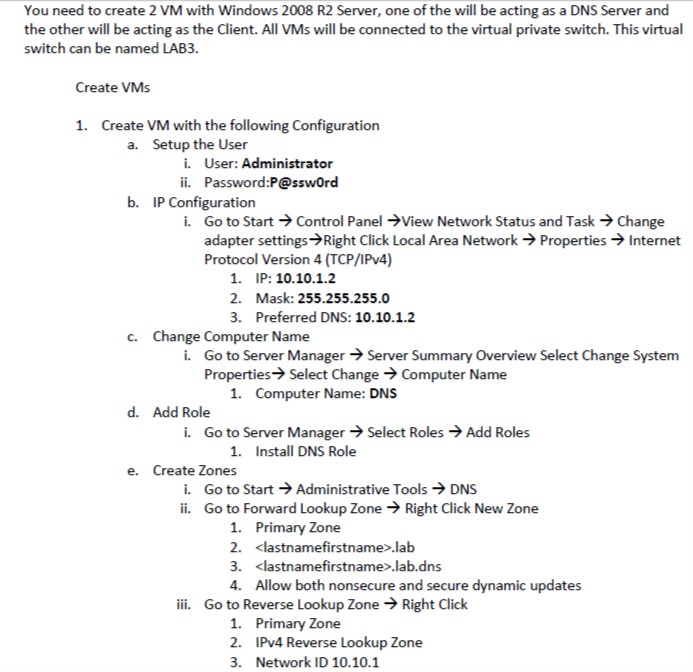
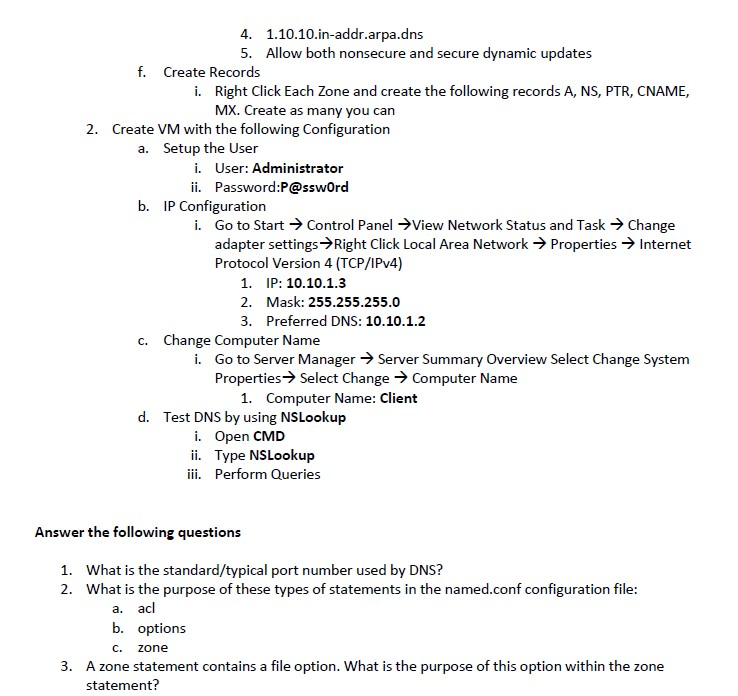
You need to create 2 VM with Windows 2008 R2 Server, one of the will be acting as a DNS Server and the other will be acting as the Client. All VMs will be connected to the virtual private switch. This virtual switch can be named LAB3. Create VMs 1. Create VM with the following Configuration a. Setup the User i. User: Administrator ii. Password:P@sswOrd b. IP Configuration Go to Start Control Panel View Network Status and Task Change adapter settings Right Click Local Area NetworkPropertiesInternet Protocol Version 4 (TCP/IPv4) i. 1. IP: 10.10.1.2 2. Mask: 255.255.255.0 3. Preferred DNS: 10.10.1.2 c. Change Computer Name i. Go to Server ManagerServer Summary Overview Select Change System Properties Select Change Computer Name 1. Computer Name: DNS d. Add Role i. Go to Server Manager-) Select Roles-) Add Roles 1. Install DNS Role e. Create Zones i. ii. Go to Start Administrative Tools DNS Go to Forward Lookup Zone Right Click New Zone 1. 2. 3. 4. Primary Zone .lab .lab.dns Allow both nonsecure and secure dynamic updates iii. Go to Reverse Lookup Zone Right Click 1. 2. 3. Primary Zone IPv4 Reverse Lookup Zone Network ID 10.10.1 4. 1.10.10.in-addr.arpa.dns 5. Allow both nonsecure and secure dynamic updates f. Create Records i. Right Click Each Zone and create the following records A, NS, PTR, CNAME, MX. Create as many you carn 2. Create VM with the following Configuration a. Setup the User i. User: Administrator ii. Password:P@sswOrd IP Configuration Go to Start Control Panel View Network Status and Task Change adapter settings -Right Click Local Area Network Protocol Version 4 (TCP/IPv4) i. PropertiesInternet 1. 2. 3. Change Computer Name IP: 10.10.1.3 Mask: 255.255.255.0 Preferred DNS: 10.10.1.2 c. i. Go to Server ManagerServer Summary Overview Select Change System PropertiesSelect Change - Computer Name 1. Computer Name: Client d. Test DNS by using NSLookup i. Open CMD ii. Type NSLookup iii. Perform Queries Answer the following questions 1. 2. What is the standard/typical port number used by DNS? What is the purpose of these types of statements in the named.conf configuration file a. acl b. options C. ZOne A zone statement contains a file option. What is the purpose of this option within the zone statement? 3. You need to create 2 VM with Windows 2008 R2 Server, one of the will be acting as a DNS Server and the other will be acting as the Client. All VMs will be connected to the virtual private switch. This virtual switch can be named LAB3. Create VMs 1. Create VM with the following Configuration a. Setup the User i. User: Administrator ii. Password:P@sswOrd b. IP Configuration Go to Start Control Panel View Network Status and Task Change adapter settings Right Click Local Area NetworkPropertiesInternet Protocol Version 4 (TCP/IPv4) i. 1. IP: 10.10.1.2 2. Mask: 255.255.255.0 3. Preferred DNS: 10.10.1.2 c. Change Computer Name i. Go to Server ManagerServer Summary Overview Select Change System Properties Select Change Computer Name 1. Computer Name: DNS d. Add Role i. Go to Server Manager-) Select Roles-) Add Roles 1. Install DNS Role e. Create Zones i. ii. Go to Start Administrative Tools DNS Go to Forward Lookup Zone Right Click New Zone 1. 2. 3. 4. Primary Zone .lab .lab.dns Allow both nonsecure and secure dynamic updates iii. Go to Reverse Lookup Zone Right Click 1. 2. 3. Primary Zone IPv4 Reverse Lookup Zone Network ID 10.10.1 4. 1.10.10.in-addr.arpa.dns 5. Allow both nonsecure and secure dynamic updates f. Create Records i. Right Click Each Zone and create the following records A, NS, PTR, CNAME, MX. Create as many you carn 2. Create VM with the following Configuration a. Setup the User i. User: Administrator ii. Password:P@sswOrd IP Configuration Go to Start Control Panel View Network Status and Task Change adapter settings -Right Click Local Area Network Protocol Version 4 (TCP/IPv4) i. PropertiesInternet 1. 2. 3. Change Computer Name IP: 10.10.1.3 Mask: 255.255.255.0 Preferred DNS: 10.10.1.2 c. i. Go to Server ManagerServer Summary Overview Select Change System PropertiesSelect Change - Computer Name 1. Computer Name: Client d. Test DNS by using NSLookup i. Open CMD ii. Type NSLookup iii. Perform Queries Answer the following questions 1. 2. What is the standard/typical port number used by DNS? What is the purpose of these types of statements in the named.conf configuration file a. acl b. options C. ZOne A zone statement contains a file option. What is the purpose of this option within the zone statement? 3

Step by Step Solution

There are 3 Steps involved in it

1 Expert Approved Answer
Step: 1 Unlock blur-text-image
Question Has Been Solved by an Expert!

Get step-by-step solutions from verified subject matter experts

Step: 2 Unlock
Step: 3 Unlock

Students Have Also Explored These Related Databases Questions!