







Question: Note: I have the URL. 1. On your local machine in the csis 1430/ htdocs folder, create the following folder structure: Inside of htdocs create
Note: I have the URL.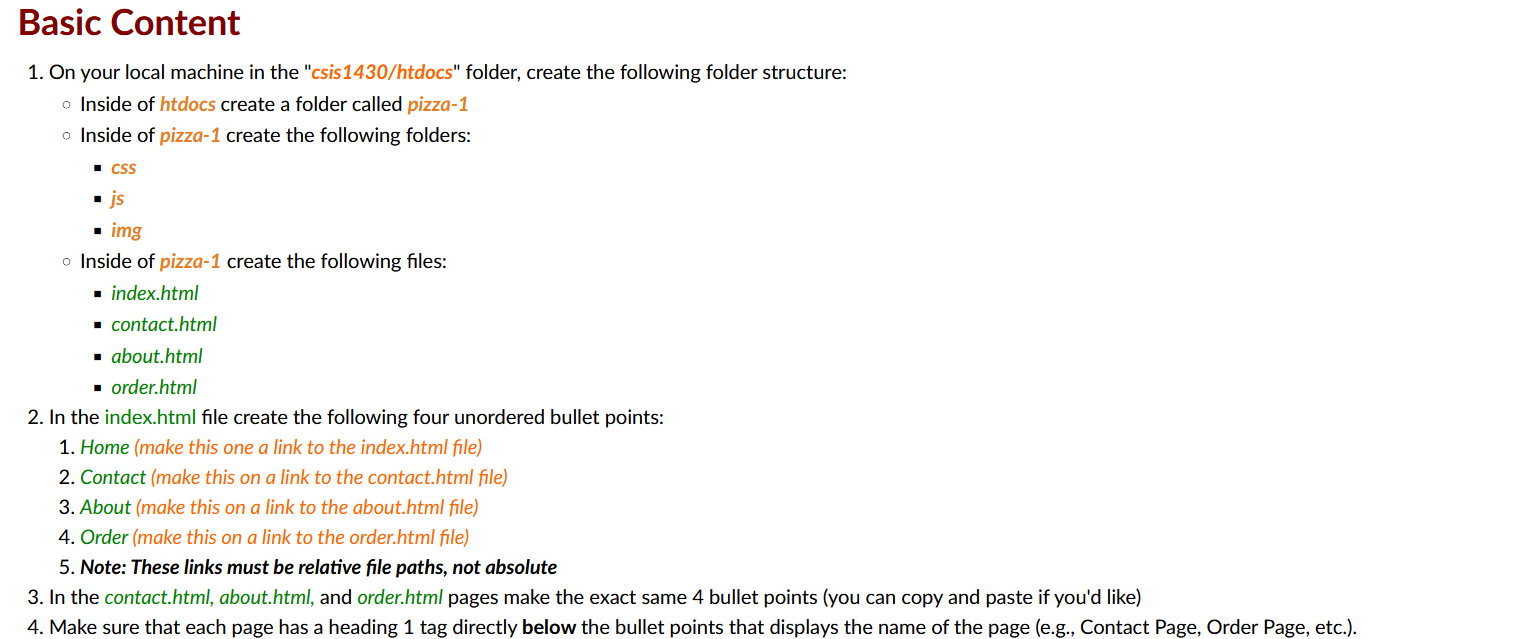
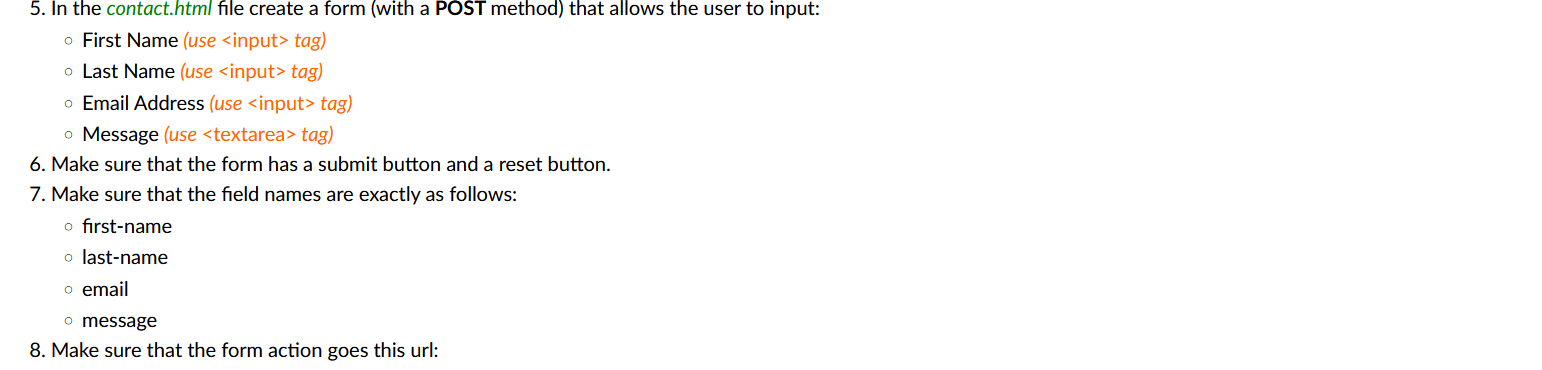
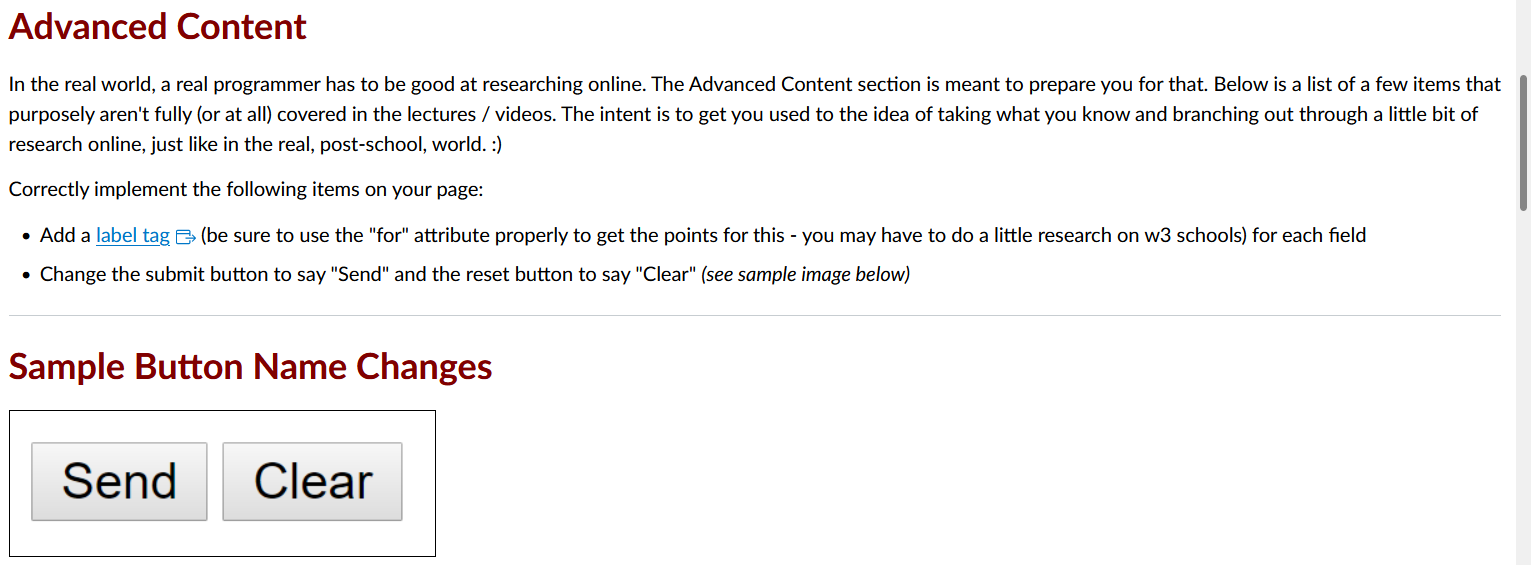
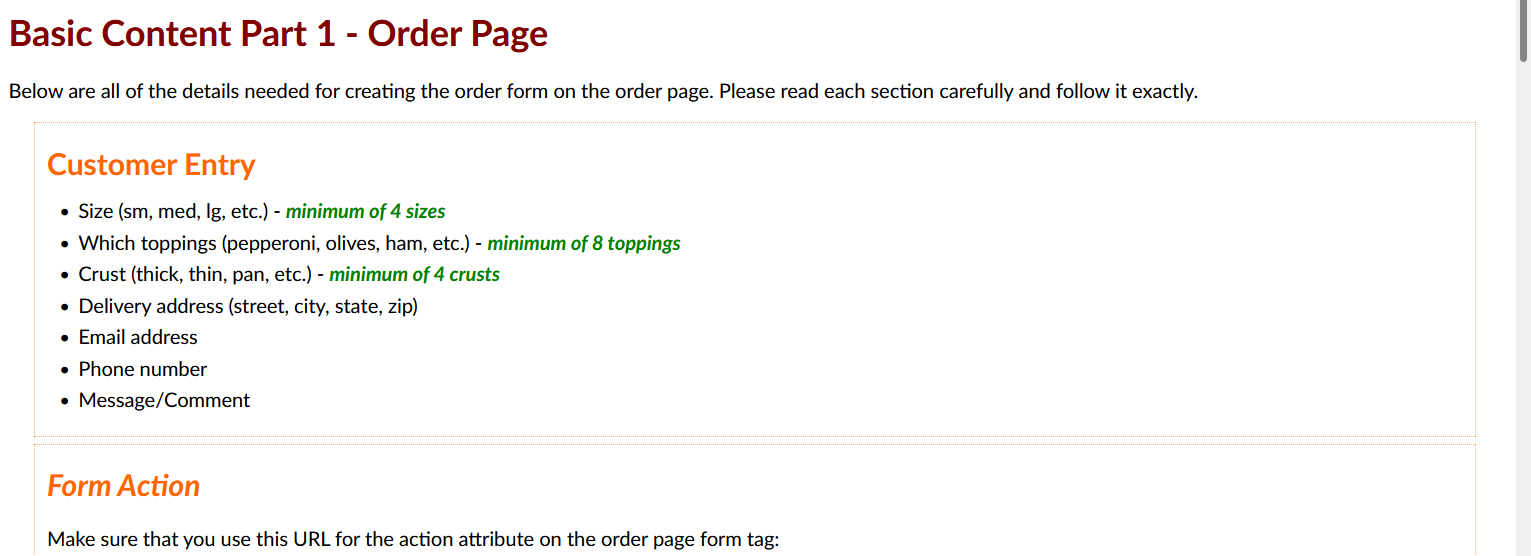
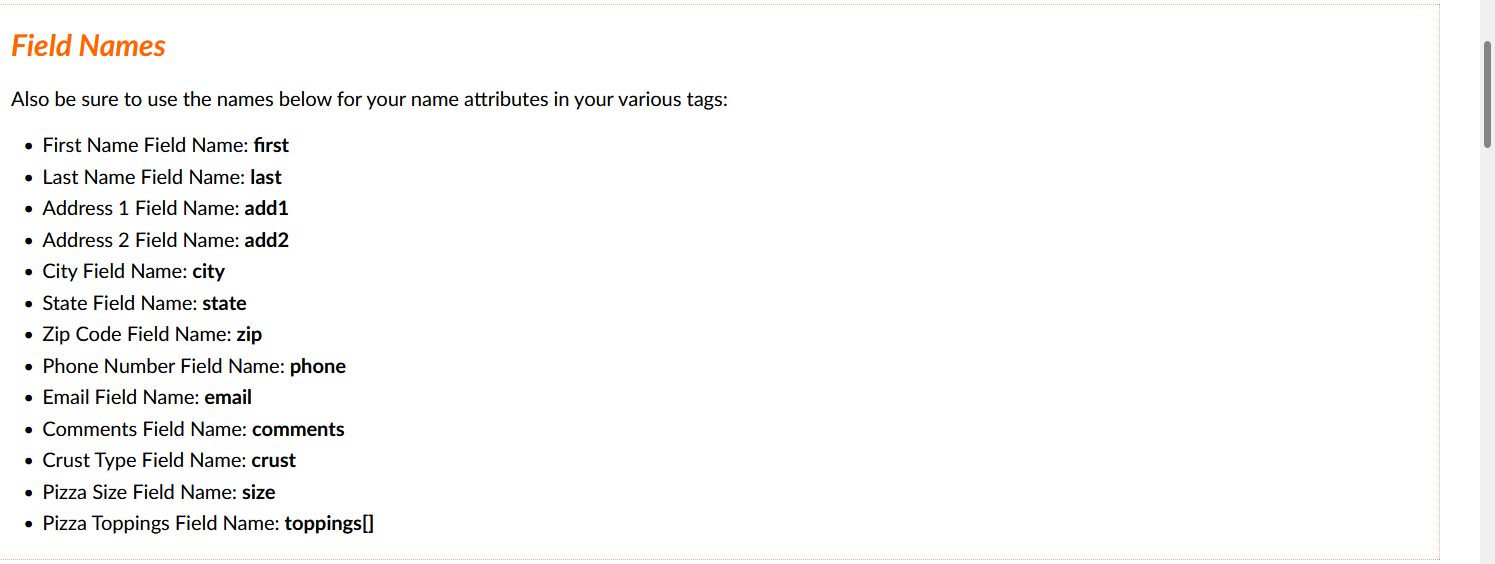
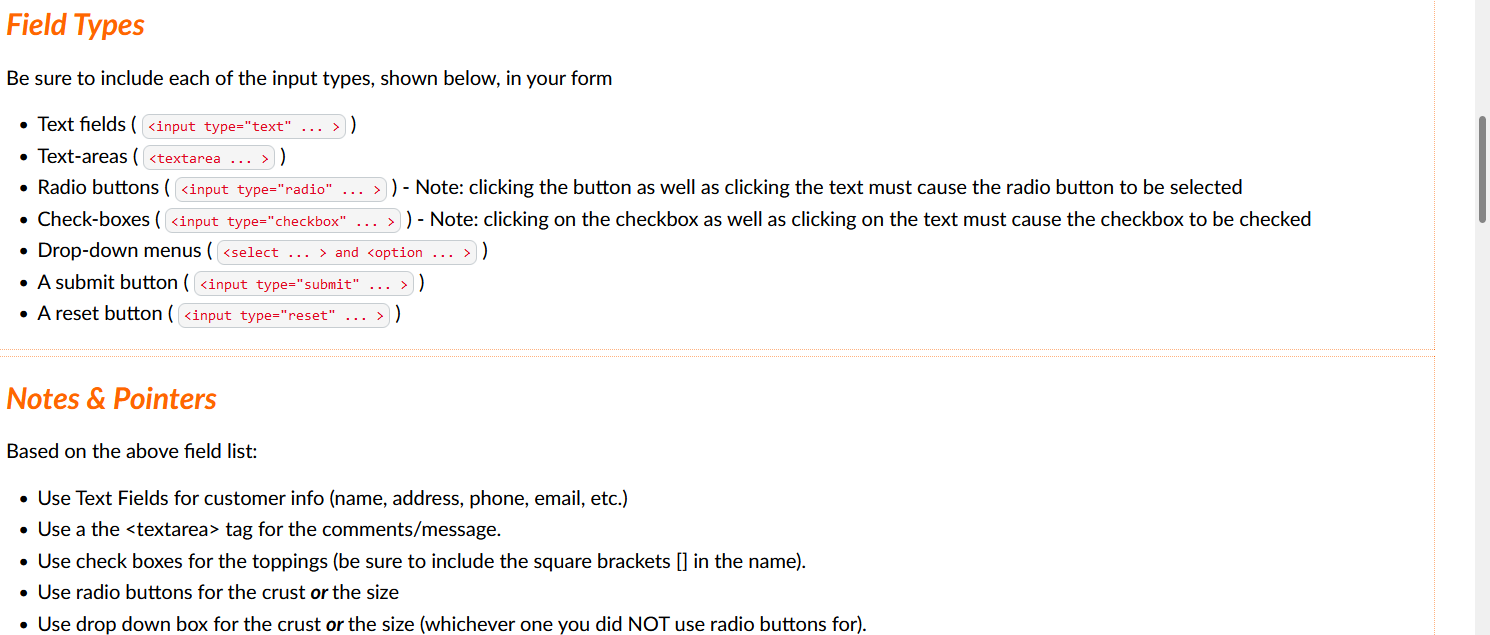
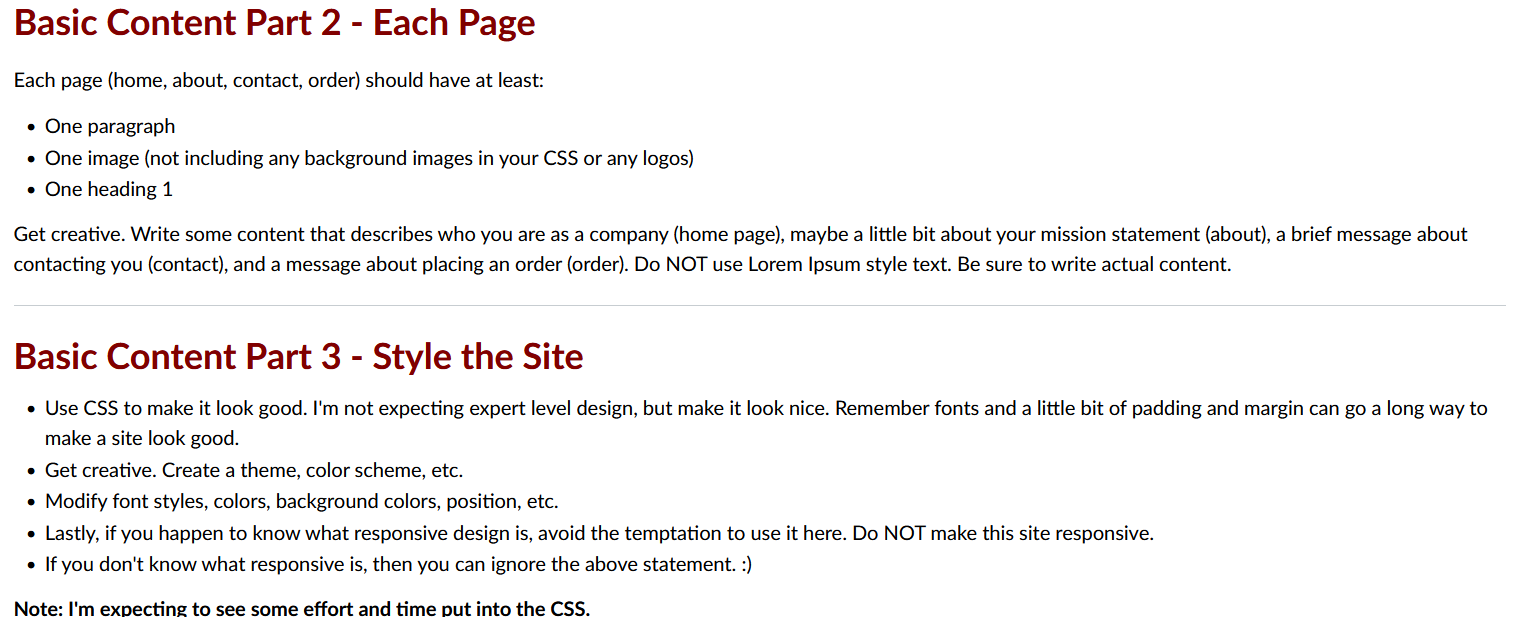
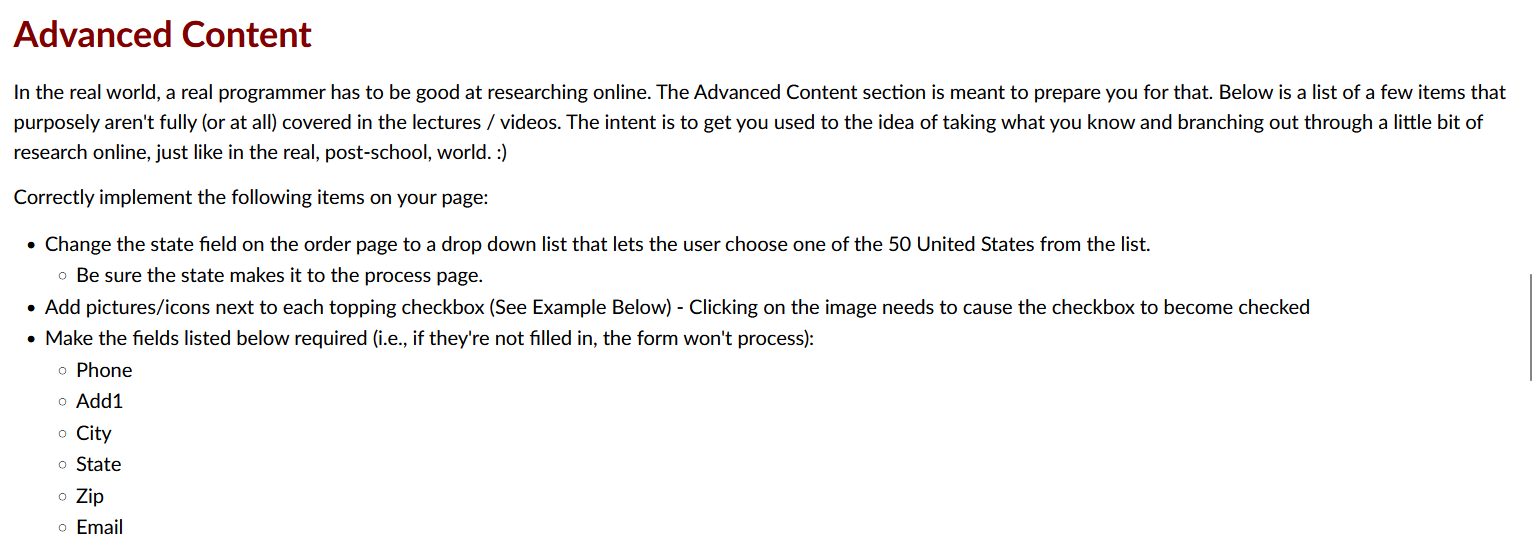
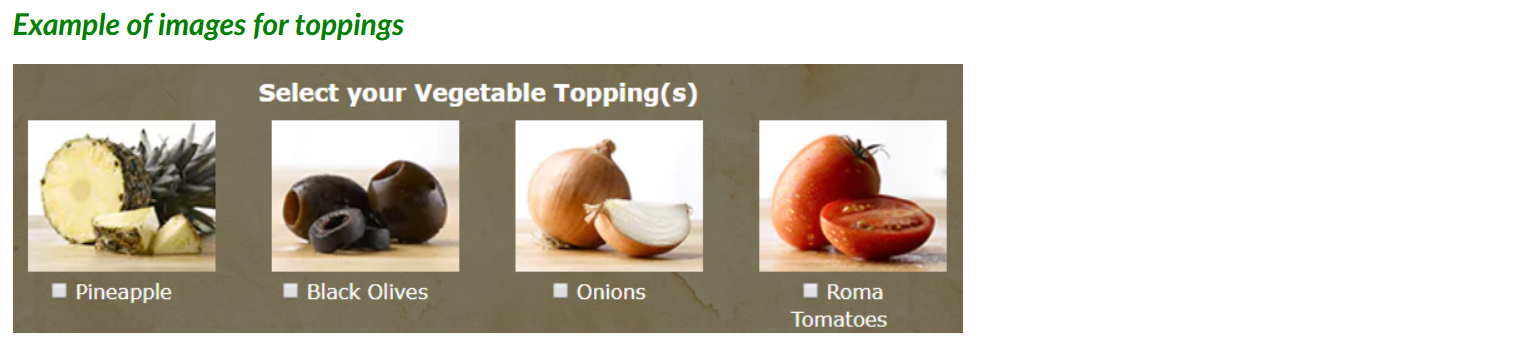
1. On your local machine in the "csis 1430/ htdocs" folder, create the following folder structure: Inside of htdocs create a folder called pizza-1 Inside of pizza-1 create the following folders: - css - js - img Inside of pizza-1 create the following files: - index.html - contact.html - about.html - order.html 2. In the index.html file create the following four unordered bullet points: 1. Home (make this one a link to the index.html file) 2. Contact (make this on a link to the contact.html file) 3. About (make this on a link to the about.html file) 4. Order (make this on a link to the order.html file) 5. In the contact.htm/ file create a form (with a POST method) that allows the user to input: First Name (use tag) Last Name (use > tag) Email Address (use > tag) Message (use tag) 6. Make sure that the form has a submit button and a reset button. 7. Make sure that the field names are exactly as follows: first-name last-name email message 8. Make sure that the form action goes this url: Advancea content In the real world, a real programmer has to be good at researching online. The Advanced Content section is meant to prepare you for that. Below is a list of a few items th purposely aren't fully (or at all) covered in the lectures / videos. The intent is to get you used to the idea of taking what you know and branching out through a little bit of research online, just like in the real, post-school, world. :) Correctly implement the following items on your page: - Add a (be sure to use the "for" attribute properly to get the points for this - you may have to do a little research on w3 schools) for each field - Change the submit button to say "Send" and the reset button to say "Clear" (see sample image below) Sample Button Name Changes Basic Content Part 1 - Order Page Below are all of the details needed for creating the order form on the order page. Please read each section carefully and follow it exactly. Customer Entry - Size (sm, med, Ig, etc.) - minimum of 4 sizes - Which toppings (pepperoni, olives, ham, etc.) - minimum of 8 toppings - Crust (thick, thin, pan, etc.) - minimum of 4 crusts - Delivery address (street, city, state, zip) - Email address - Phone number - Message/Comment Form Action Make sure that you use this URL for the action attribute on the order page form tag: Also be sure to use the names below for your name attributes in your various tags: - First Name Field Name: first - Last Name Field Name: last - Address 1 Field Name: add1 - Address 2 Field Name: add2 - City Field Name: city - State Field Name: state - Zip Code Field Name: zip - Phone Number Field Name: phone - Email Field Name: email - Comments Field Name: comments - Crust Type Field Name: crust - Pizza Size Field Name: size - Pizza Toppings Field Name: toppings[] Be sure to include each of the input types, shown below, in your form - Text fields ( ) - Text-areas ( ) - Radio buttons ( - Note: clicking the button as well as clicking the text must cause the radio button to be selected - Check-boxes ( ) ) Note: clicking on the checkbox as well as clicking on the text must cause the checkbox to be checked - Drop-down menus ( - A submit button (> ) - A reset button ( Notes \& Pointers Based on the above field list: - Use Text Fields for customer info (name, address, phone, email, etc.) - Use a the tag for the comments/message. - Use check boxes for the toppings (be sure to include the square brackets [] in the name). - Use radio buttons for the crust or the size - Use drop down box for the crust or the size (whichever one you did NOT use radio buttons for). Basic Content Part 2 - Each Page Each page (home, about, contact, order) should have at least: - One paragraph - One image (not including any background images in your CSS or any logos) - One heading 1 Get creative. Write some content that describes who you are as a company (home page), maybe a little bit about your mission statement (about), a brief message about contacting you (contact), and a message about placing an order (order). Do NOT use Lorem Ipsum style text. Be sure to write actual content. Basic Content Part 3 - Style the Site - Use CSS to make it look good. I'm not expecting expert level design, but make it look nice. Remember fonts and a little bit of padding and margin can go a long way to make a site look good. - Get creative. Create a theme, color scheme, etc. - Modify font styles, colors, background colors, position, etc. - Lastly, if you happen to know what responsive design is, avoid the temptation to use it here. Do NOT make this site responsive. - If you don't know what responsive is, then you can ignore the above statement. :) Aavanced content In the real world, a real programmer has to be good at researching online. The Advanced Content section is meant to prepare you for that. Below is a list of a few items purposely aren't fully (or at all) covered in the lectures / videos. The intent is to get you used to the idea of taking what you know and branching out through a little bit research online, just like in the real, post-school, world. :) Correctly implement the following items on your page: - Change the state field on the order page to a drop down list that lets the user choose one of the 50 United States from the list. Be sure the state makes it to the process page. - Add pictures/icons next to each topping checkbox (See Example Below) - Clicking on the image needs to cause the checkbox to become checked - Make the fields listed below required (i.e., if they're not filled in, the form won't process): Phone Add1 City State Zip Email Example of images for toppings
Step by Step Solution
There are 3 Steps involved in it

Get step-by-step solutions from verified subject matter experts
 Study Help