







Question: NOTE: Throughout this class, you will be asked to install and run various pieces of software. The executables, when available, are provided for you in
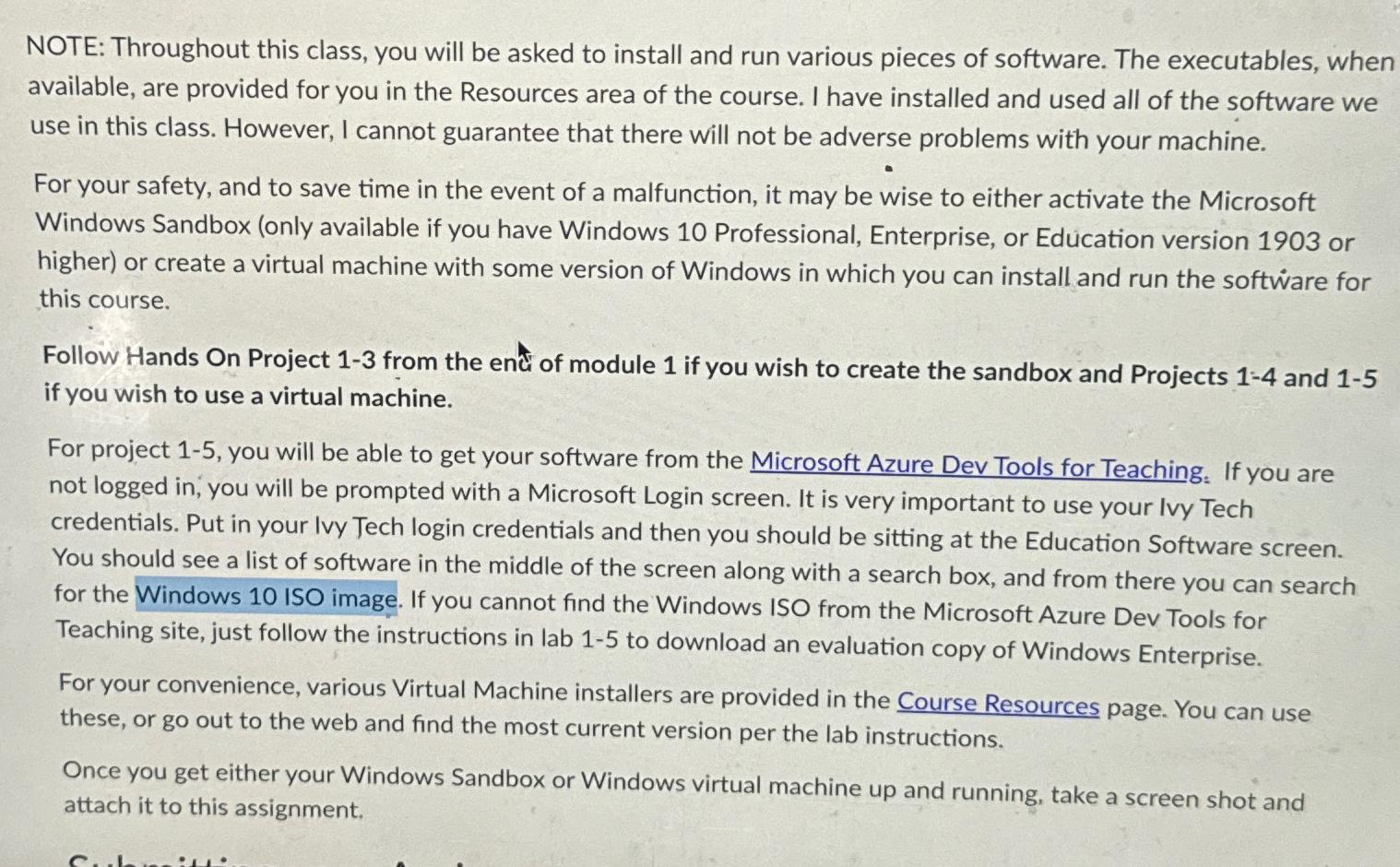
NOTE: Throughout this class, you will be asked to install and run various pieces of software. The executables, when available, are provided for you in the Resources area of the course. I have installed and used all of the software we use in this class. However, I cannot guarantee that there will not be adverse problems with your machine.
For your safety, and to save time in the event of a malfunction, it may be wise to either activate the Microsoft Windows Sandbox only available if you have Windows Professional, Enterprise, or Education version or higher or create a virtual machine with some version of Windows in which you can install and run the software for this course.
Follow Hands On Project from the enci of module if you wish to create the sandbox and Projects and if you wish to use a virtual machine.
For project you will be able to get your software from the Microsoft Azure Dev Tools for Teaching. If you are not logged in you will be prompted with a Microsoft Login screen. It is very important to use your Ivy Tech credentials. Put in your Ivy Tech login credentials and then you should be sitting at the Education Software screen. You should see a list of software in the middle of the screen along with a search box, and from there you can search for the Windows ISO image. If you cannot find the Windows ISO from the Microsoft Azure Dev Tools for Teaching site, just follow the instructions in lab to download an evaluation copy of Windows Enterprise.
For your convenience, various Virtual Machine installers are provided in the Course Resources page. You can use these, or go out to the web and find the most current version per the lab instructions.
Once you get either your Windows Sandbox or Windows virtual machine up and running, take a screen shot and attach it to this assignment.
Step by Step Solution
There are 3 Steps involved in it
1 Expert Approved Answer
Step: 1 Unlock

Question Has Been Solved by an Expert!
Get step-by-step solutions from verified subject matter experts
Step: 2 Unlock
Step: 3 Unlock
 Study Help