







Question: Office 2016 - myitlab:grader - Instructions Excel Project Step Instructions Points Possible On the Revenue PivotTable worksheet, insert a footer with the file name in
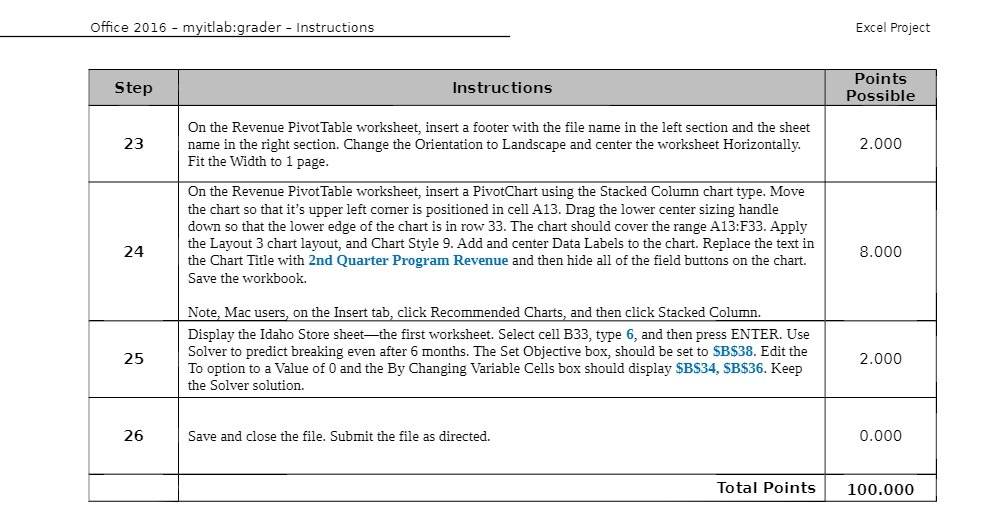
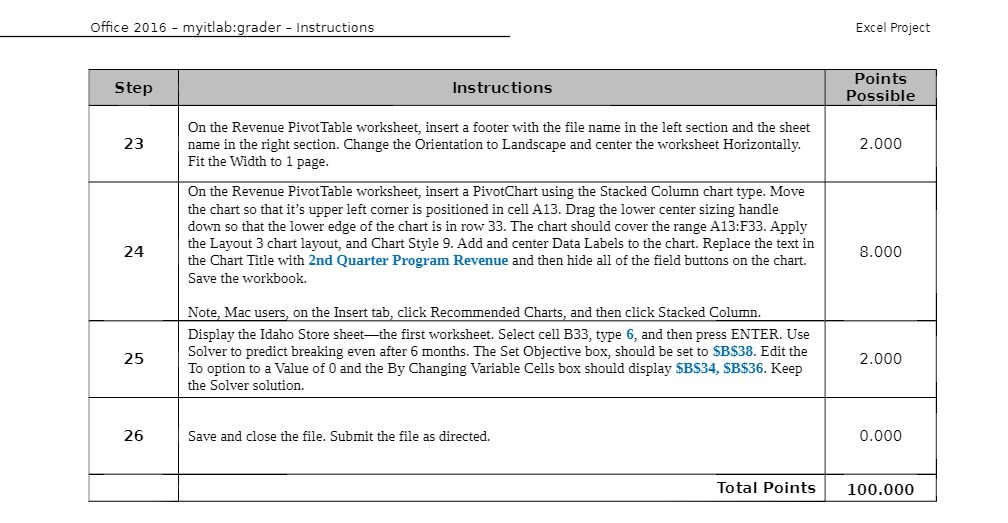
Office 2016 - myitlab:grader - Instructions Excel Project Step Instructions Points Possible On the Revenue PivotTable worksheet, insert a footer with the file name in the left section and the sheet 23 name in the right section. Change the Orientation to Landscape and center the worksheet Horizontally. 2.000 Fit the Width to 1 page. On the Revenue PivotTable worksheet, insert a PivotChart using the Stacked Column chart type. Move the chart so that it's upper left corner is positioned in cell A13. Drag the lower center sizing handle down so that the lower edge of the chart is in row 33. The chart should cover the range A13:F33. Apply 24 the Layout 3 chart layout, and Chart Style 9. Add and center Data Labels to the chart. Replace the text in the Chart Title with 2nd Quarter Program Revenue and then hide all of the field buttons on the chart. 8.000 Save the workbook. Note, Mac users, on the Insert tab, click Recommended Charts, and then click Stacked Column. Display the Idaho Store sheet-the first worksheet. Select cell B33, type 6, and then press ENTER. Use 25 Solver to predict breaking even after 6 months. The Set Objective box, should be set to SB$38. Edit the 2.000 To option to a Value of 0 and the By Changing Variable Cells box should display $B$34, SB$36. Keep the Solver solution. 26 Save and close the file. Submit the file as directed. 0.000 Total Points 100.000
Step by Step Solution
There are 3 Steps involved in it

Get step-by-step solutions from verified subject matter experts
 Study Help