







Question: Okay so I need to write an appliction using JavaFX and scenebuilder (using Netbeans IDE): The program structure must be in scene builder as follows:
Okay so I need to write an appliction using JavaFX and scenebuilder (using Netbeans IDE):
The program structure must be in scene builder as follows:
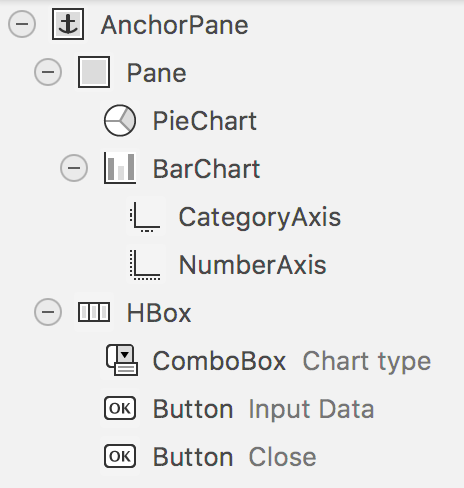
The program should look like the following:
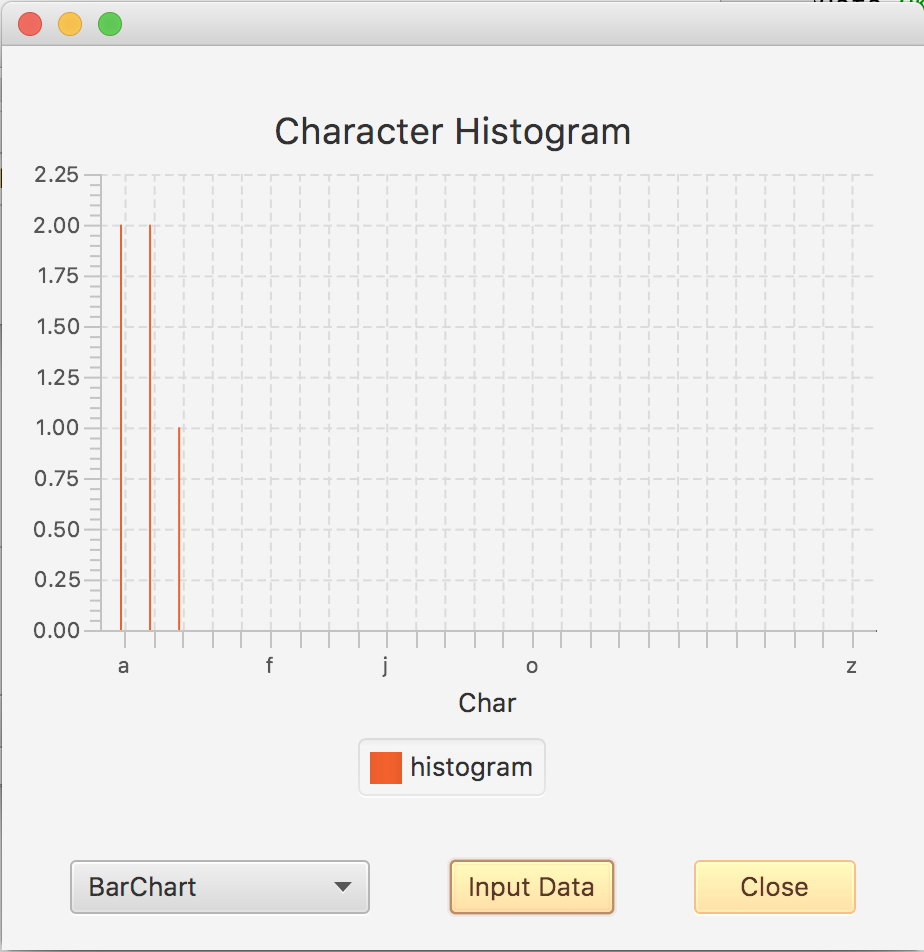
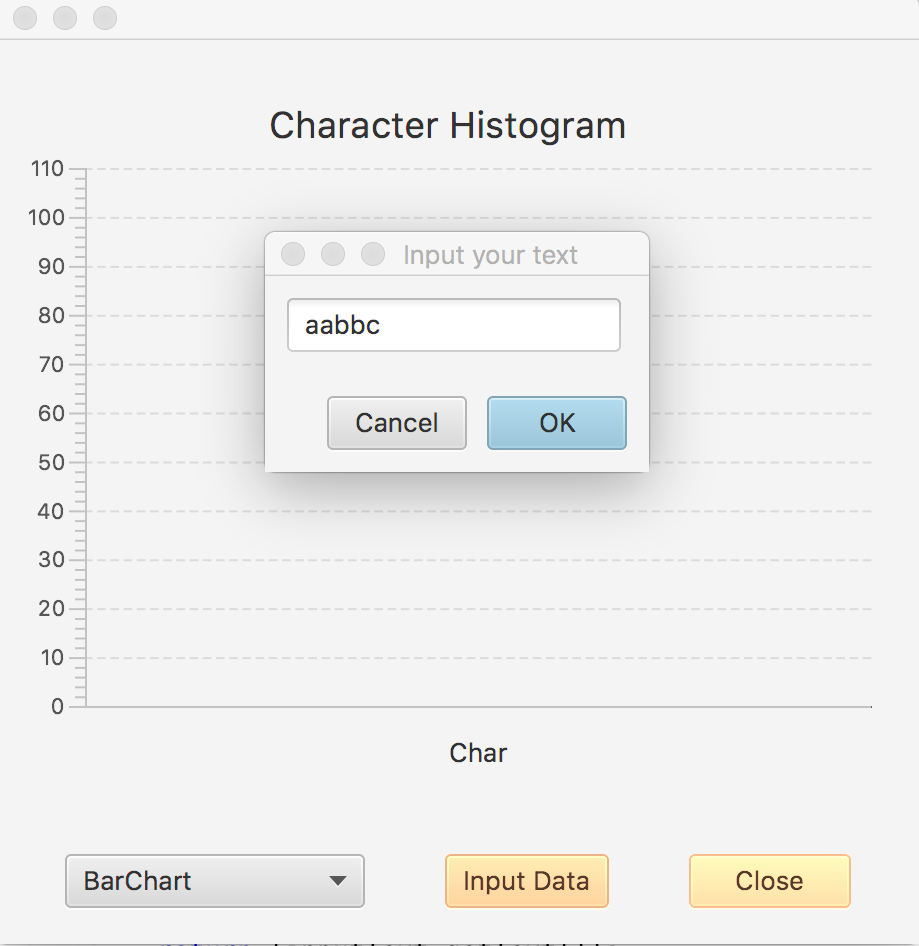
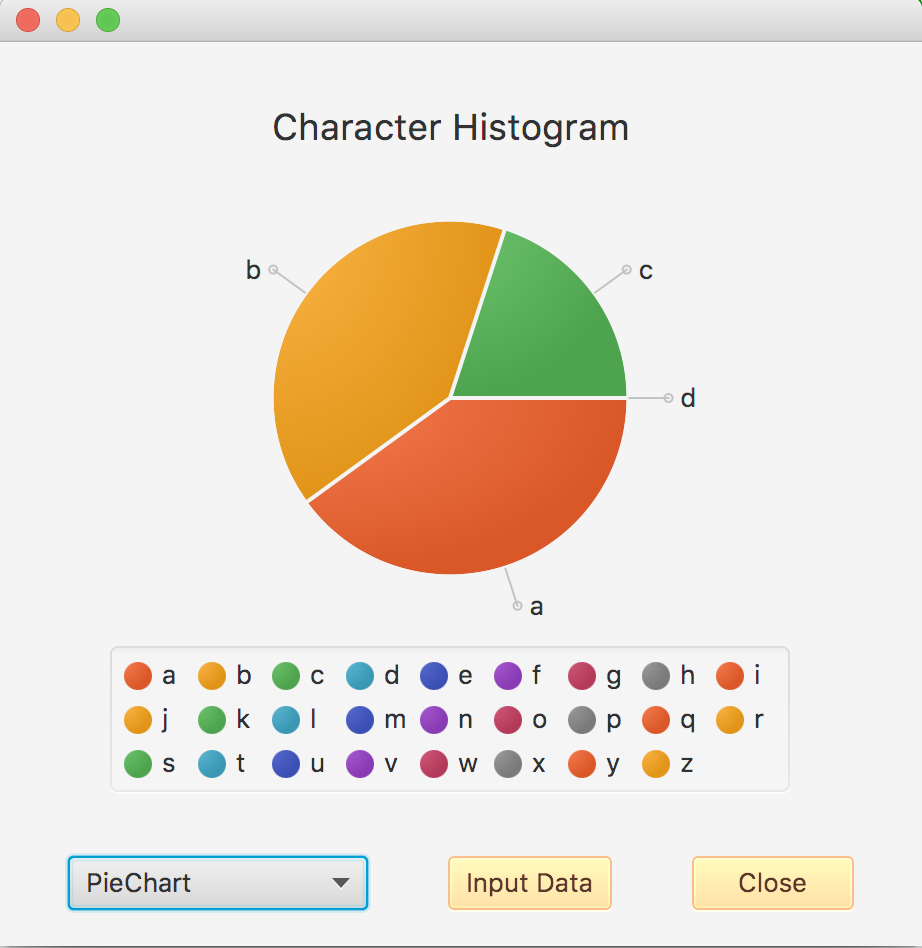
Here is my code so far including my Testing.java , FXMLDocumentController.java and my FXMLDocument.fxml
Testing.java
package testing;
import javafx.application.Application; import javafx.fxml.FXMLLoader; import javafx.scene.Parent; import javafx.scene.Scene; import javafx.stage.Stage;
public class Testing extends Application { @Override public void start(Stage stage) throws Exception { Parent root = FXMLLoader.load(getClass().getResource("FXMLDocument.fxml")); Scene scene = new Scene(root, 460, 450); stage.setScene(scene); stage.show(); }
/** * @param args the command line arguments */ public static void main(String[] args) { launch(args); } }
FXMLDocumentController.java
package testing;
import java.net.URL; import java.util.Arrays; import java.util.Optional; import java.util.ResourceBundle; import javafx.application.Platform; import javafx.beans.value.ChangeListener; import javafx.beans.value.ObservableValue; import javafx.event.ActionEvent; import javafx.fxml.FXML; import javafx.fxml.Initializable; import javafx.scene.chart.BarChart; import javafx.scene.chart.PieChart; import javafx.scene.chart.XYChart; import javafx.scene.chart.XYChart.Series; import javafx.scene.control.Button; import javafx.scene.control.ButtonBar.ButtonData; import javafx.scene.control.ButtonType; import javafx.scene.control.ComboBox; import javafx.scene.control.Dialog; import javafx.scene.control.TextField; import javafx.scene.layout.GridPane; import javafx.stage.Stage;
enum ChartType{barChart, pieChart};
public class FXMLDocumentController implements Initializable { final int TOTAL_CHARS = 26; ChartType mChartType; int mChars[]; @FXML private javafx.scene.control.Button mButtonClose; @FXML private void didClickCloseButton(ActionEvent event){ Stage stage = (Stage) mButtonClose.getScene().getWindow(); stage.close(); } private String showInputDialog(){ Dialog
ButtonType okButton = new ButtonType("OK", ButtonData.OK_DONE); dialog.getDialogPane().getButtonTypes().addAll(okButton, ButtonType.CANCEL);
GridPane gridPane = new GridPane(); gridPane.setHgap(10); gridPane.setVgap(10); TextField inputText = new TextField(); inputText.setPromptText("Input Text"); gridPane.add(inputText, 0, 0); dialog.getDialogPane().setContent(gridPane);
Platform.runLater(()->inputText.requestFocus());
dialog.setResultConverter((ButtonType dialogButton) -> { if (dialogButton == okButton) { return (inputText.getText()); } return (null); }); Optional
return (result.get()); } private void paint(){ // Please implement this function // This function according to the mChartType // refreshes either BarChart or PieChart // You need to add each item and its occurance (for instance 'a', 2) // to the selected chart for each character in the alpabet } @FXML private void didClickInputButton(ActionEvent event) { Arrays.fill(mChars, 0); String s = showInputDialog(); if ((s!= null) && (s.trim().length() > 0)){ s = s.toLowerCase(); for (int i=0;i FXMLDocument.fxml *NOTE: So far I have the structure and the close button working but I can't figure out how to make everything else communicate. Please help.
Step by Step Solution
There are 3 Steps involved in it

Get step-by-step solutions from verified subject matter experts
 Study Help