



Question: on Project 4-1: Manage Your Local ARP Cache Hands-On Proie Time Required: 10 minutes Objective: Learn how Description: This po 1. Open a command search
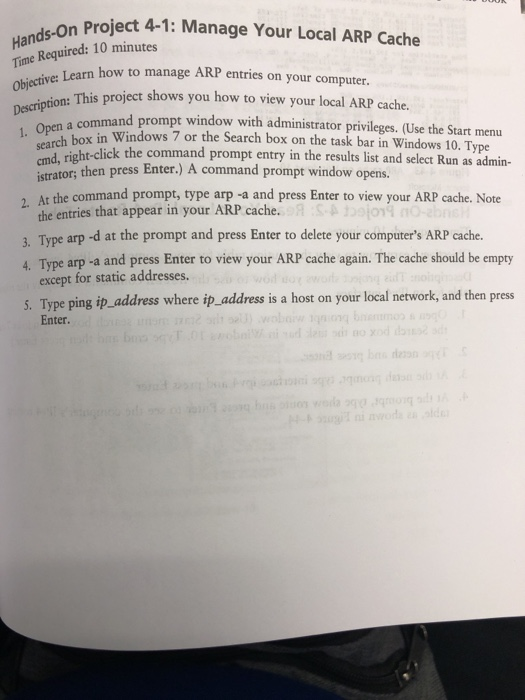
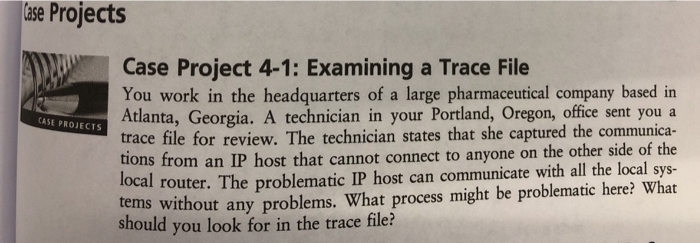
on Project 4-1: Manage Your Local ARP Cache Hands-On Proie Time Required: 10 minutes Objective: Learn how Description: This po 1. Open a command search box in Windo Learn how to manage ARP entries on your computer. on: This project shows you how to view your local ARP cache. command prompt window with administrator privileges. (Use the Start menu box in Windows 7 or the Search box on the task bar in Windows 10. Type right-click the command prompt entry in the results list and select Run as admin- istrator; then press Enter.) A command prompt window opens. the command prompt, type arp -a and press Enter to view your ARP cache. Note the entries that appear in your ARP cache. 3. Type arp-d at the prompt and press Enter to delete your computer's ARP cache. 4. Type arp-a and press Enter to view your ARP cache again. The cache should be empty except for static addresses. 3. Type ping ip_address where ip_address is a host on your local network, and then press Enter. Case Projects CASE PROJECTS Case Project 4-1: Examining a Trace File You work in the headquarters of a large pharmaceutical company based in Atlanta, Georgia. A technician in your Portland, Oregon, office sent you a trace file for review. The technician states that she captured the communica- tions from an IP host that cannot connect to anyone on the other side of the local router. The problematic IP host can communicate with all the local sys- tems without any problems. What process might be problematic here? What should you look for in the trace file
Step by Step Solution
There are 3 Steps involved in it

Get step-by-step solutions from verified subject matter experts