



Question: (On QuickBooks Online) In Chapter 4, you will be opening and modifying the sample company, Craig's Design & Landscaping Services. This chapter will have you
(On QuickBooks Online)
In Chapter 4, you will be opening and modifying the sample company, Craig's Design & Landscaping Services.
This chapter will have you add items, customers, sales receipts, invoices and receive payments. You will also make a bank deposit. You have twofiles to submit for this assignment:
- Figure 4.20 reflects the Transaction Detail by Account report. After you run this, print it as a PDF. Further, download this report as an Excel File too.
Note that once you close this company file, your work will disappear and the company will be reset. Make sure to download or print to PDF any requirements BEFORE you close it. And watch your dates!
Rubric
| Criteria | Ratings | Pts | ||
|---|---|---|---|---|
This criterion is linked to a Learning OutcomeTransaction Detail by Account PDF Correct Transaction Detail by Account is uploaded |
| 5 pts | ||
This criterion is linked to a Learning OutcomeTransaction Detail by Account Excel Correct Transaction Detail file is uploaded |
| 5 pts | ||
This criterion is linked to a Learning OutcomeParticipation Evidence of assignment completion and effort |
|
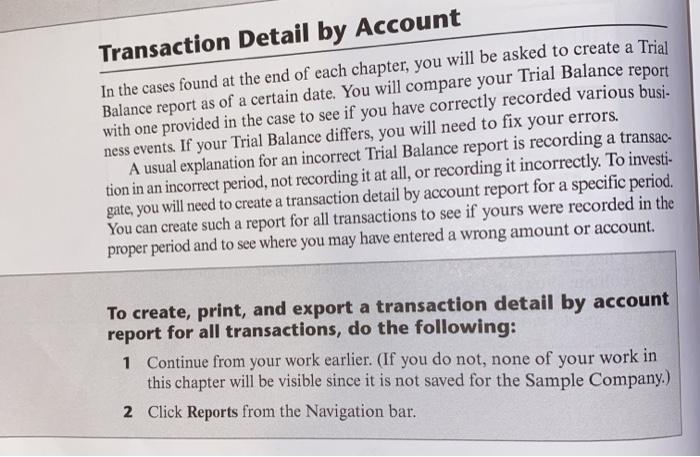
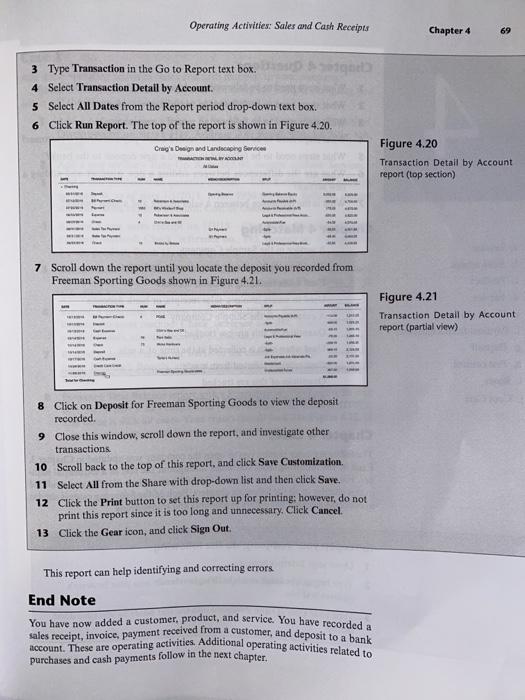
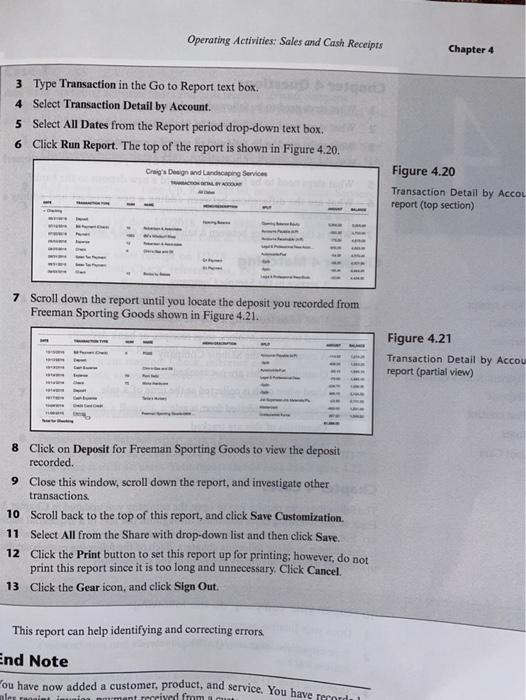
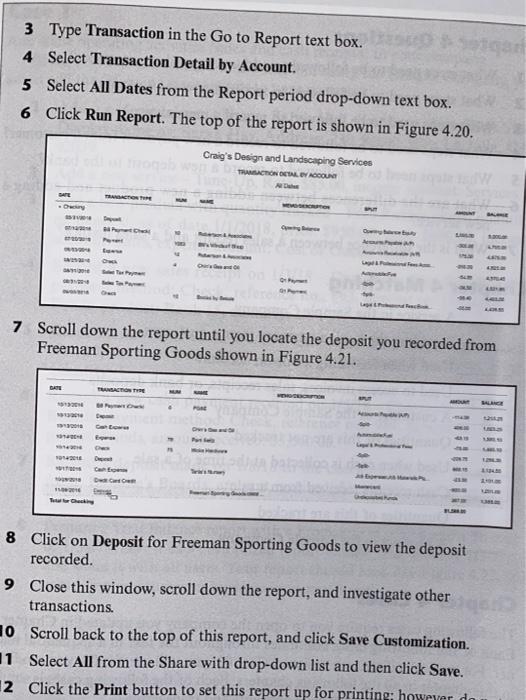
Transaction Detail by Account In the cases found at the end of each chapter, you will be asked to create a Trial Balance report as of a certain date. You will compare your Trial Balance report with one provided in the case to see if you have correctly recorded various busi- ness events . If your Trial Balance differs, you will need to fix your errors. A usual explanation for an incorrect Trial Balance report is recording a transac- tion in an incorrect period, not recording it at all, or recording it incorrectly. To investi- gate, you will need to create a transaction detail by account report for a specific period. You can create such a report for all transactions to see if yours were recorded in the proper period and to see where you may have entered a wrong amount or account. To create, print, and export a transaction detail by account report for all transactions, do the following: 1 Continue from your work earlier. (If you do not, none of your work in this chapter will be visible since it is not saved for the Sample Company.) 2 Click Reports from the Navigation bar. Operating Activities: Sales and Cash Receipts Chapter 4 69 3 Type Transaction in the Go to Report text box. 4 Select Transaction Detail by Account 5 Select All Dates from the Report period drop-down text box. 6 Click Run Report. The top of the report is shown in Figure 4.20 Craig's Design und Landscaping Serece w Figure 4.20 Transaction Detail by Account report (top section) 7 Scroll down the report until you locate the deposit you recorded from Freeman Sporting Goods shown in Figure 4.21. Figure 4.21 Transaction Detail by Account report (partial view) 1111!!!!! 8 Click on Deposit for Freeman Sporting Goods to view the deposit recorded 9 Close this window, scroll down the report, and investigate other transactions 10 Scroll back to the top of this report, and click Save Customization. 11 Select All from the Share with drop-down list and then click Save. 12 Click the Print button to set this report up for printing: however, do not print this report since it is too long and unnecessary. Click Cancel. 13 Click the Gear icon, and click Sign Out. This report can help identifying and correcting errors End Note You have now added a customer, product, and service. You have recorded a sales receipt, invoice, payment received from a customer, and deposit to a bank account. These are operating activities. Additional operating activities related to purchases and cash payments follow in the next chapter. Operating Activities: Sales and Cash Receipts Chapter 4 3 Type Transaction in the Go to Report text box. 4 Select Transaction Detail by Account 5 Select All Dates from the Report period drop-down text box. 6 Click Run Report. The top of the report is shown in Figure 4.20 Craig's Design and Landscaping Service Figure 4.20 Transaction Detail by Accou report (top section) 7 Scroll down the report until you locate the deposit you recorded from Freeman Sporting Goods shown in Figure 4.21. Figure 4.21 Transaction Detail by Accou report (partial view) 8 Click on Deposit for Freeman Sporting Goods to view the deposit recorded. 9 Close this window, scroll down the report, and investigate other transactions 10 Scroll back to the top of this report, and click Save Customization 11 Select All from the Share with drop-down list and then click Save. 12 Click the Print button to set this report up for printing; however, do not print this report since it is too long and unnecessary. Click Cancel. 13 Click the Gear icon, and click Sign Out This report can help identifying and correcting errors. End Note You have now added a customer, product, and service. You have recorde olegi... imant received from a 3 Type Transaction in the Go to Report text box. 4 Select Transaction Detail by Account 5 Select All Dates from the Report period drop-down text box. 6 Click Run Report. The top of the report is shown in Figure 4.20 Craig's Design and Landscaping Services THACHONGA ACCOUNT AL BATE . 150 LORES 7 Scroll down the report until you locate the deposit you recorded from Freeman Sporting Goods shown in Figure 4.21. DATE MOUNT BLE . Po De iulie 8 Click on Deposit for Freeman Sporting Goods to view the deposit recorded. 9 Close this window, scroll down the report, and investigate other transactions 10 Scroll back to the top of this report, and click Save Customization. 11 Select All from the Share with drop-down list and then click Save. 12 Click the Print button to set this report up for printing: however do Transaction Detail by Account In the cases found at the end of each chapter, you will be asked to create a Trial Balance report as of a certain date. You will compare your Trial Balance report with one provided in the case to see if you have correctly recorded various busi- ness events . If your Trial Balance differs, you will need to fix your errors. A usual explanation for an incorrect Trial Balance report is recording a transac- tion in an incorrect period, not recording it at all, or recording it incorrectly. To investi- gate, you will need to create a transaction detail by account report for a specific period. You can create such a report for all transactions to see if yours were recorded in the proper period and to see where you may have entered a wrong amount or account. To create, print, and export a transaction detail by account report for all transactions, do the following: 1 Continue from your work earlier. (If you do not, none of your work in this chapter will be visible since it is not saved for the Sample Company.) 2 Click Reports from the Navigation bar. Operating Activities: Sales and Cash Receipts Chapter 4 69 3 Type Transaction in the Go to Report text box. 4 Select Transaction Detail by Account 5 Select All Dates from the Report period drop-down text box. 6 Click Run Report. The top of the report is shown in Figure 4.20 Craig's Design und Landscaping Serece w Figure 4.20 Transaction Detail by Account report (top section) 7 Scroll down the report until you locate the deposit you recorded from Freeman Sporting Goods shown in Figure 4.21. Figure 4.21 Transaction Detail by Account report (partial view) 1111!!!!! 8 Click on Deposit for Freeman Sporting Goods to view the deposit recorded 9 Close this window, scroll down the report, and investigate other transactions 10 Scroll back to the top of this report, and click Save Customization. 11 Select All from the Share with drop-down list and then click Save. 12 Click the Print button to set this report up for printing: however, do not print this report since it is too long and unnecessary. Click Cancel. 13 Click the Gear icon, and click Sign Out. This report can help identifying and correcting errors End Note You have now added a customer, product, and service. You have recorded a sales receipt, invoice, payment received from a customer, and deposit to a bank account. These are operating activities. Additional operating activities related to purchases and cash payments follow in the next chapter. Operating Activities: Sales and Cash Receipts Chapter 4 3 Type Transaction in the Go to Report text box. 4 Select Transaction Detail by Account 5 Select All Dates from the Report period drop-down text box. 6 Click Run Report. The top of the report is shown in Figure 4.20 Craig's Design and Landscaping Service Figure 4.20 Transaction Detail by Accou report (top section) 7 Scroll down the report until you locate the deposit you recorded from Freeman Sporting Goods shown in Figure 4.21. Figure 4.21 Transaction Detail by Accou report (partial view) 8 Click on Deposit for Freeman Sporting Goods to view the deposit recorded. 9 Close this window, scroll down the report, and investigate other transactions 10 Scroll back to the top of this report, and click Save Customization 11 Select All from the Share with drop-down list and then click Save. 12 Click the Print button to set this report up for printing; however, do not print this report since it is too long and unnecessary. Click Cancel. 13 Click the Gear icon, and click Sign Out This report can help identifying and correcting errors. End Note You have now added a customer, product, and service. You have recorde olegi... imant received from a 3 Type Transaction in the Go to Report text box. 4 Select Transaction Detail by Account 5 Select All Dates from the Report period drop-down text box. 6 Click Run Report. The top of the report is shown in Figure 4.20 Craig's Design and Landscaping Services THACHONGA ACCOUNT AL BATE . 150 LORES 7 Scroll down the report until you locate the deposit you recorded from Freeman Sporting Goods shown in Figure 4.21. DATE MOUNT BLE . Po De iulie 8 Click on Deposit for Freeman Sporting Goods to view the deposit recorded. 9 Close this window, scroll down the report, and investigate other transactions 10 Scroll back to the top of this report, and click Save Customization. 11 Select All from the Share with drop-down list and then click Save. 12 Click the Print button to set this report up for printing: however do
Step by Step Solution
There are 3 Steps involved in it

Get step-by-step solutions from verified subject matter experts