







Question: On the InventoryAudit worksheet, the cells in range A3:D17 need to be filled in based on the category that is listed in cell B1, Massage.
| On the InventoryAudit worksheet, the cells in range A3:D17 need to be filled in based on the category that is listed in cell B1, "Massage". The table will then contain the information about each product within the listed category. Using named ranges already created in the Inventory worksheet, complete the following: In cell B3, create a formula to retrieve the item within each category in cell B1. Enter an INDIRECT function to return the item numbers by category. The function will reference cell $B$1 (absolute) and index the value of the intersection of row 3 (A3) and column 1. Nest the function in an IFERROR function to return a blank cell if no items exist within the category. | 6 |
| On the InventoryAudit worksheet in cell C3, create a formula to retrieve the projected sales for each item within the category in cell B1. Enter an INDIRECT function to return the item numbers by category. The function will reference cell $B$1 (absolute) and index the value of the intersection of row 3 (A3) and column 2. Nest the function in an IFERROR function to return a blank cell if no items exist within the category. | 6 |
| On the InventoryAudit worksheet in cell D3, create a formula to determine the total quantity sold within the category in cell B1. Enter a SUMIF function nested in an IF function to determine if B3 has a value. If B3 has a value, then you will sum the Trans_Sold if the Trans_Item meets the criteria in B3. If B3 does not have a value, then the cell is left blank. Select range B3:D3, and then double-click the Fill handle to copy the three formulas down through cell range B4:D17. Rows 7 through 17 will be blank because the Indirect function is referring to the named range for the value in cell B1, "Massage". The Massage named range only contains the four items. To test your formula, type Golf in cell B1, and then view the results. Type Massage in cell B1. | 6 |
| In cell C21, using a SUMIFS function, calculate the total quantity sold (Trans_Sold) per category (Trans_Category) per day (Weekday) in range B20:I26 based on two sets of criteria, C20 and B21. Use an appropriate mixed reference on the criteria cell references to be able to copy the formula through cell I26. Copy the formula through cell range D21:I26. | 6 |
| Calculate the total quantity sold per category in range D32:D51 based on the item in column B. Once this has been calculated, the total quantity delivered and ending inventory can be calculated. In cell D32, create a formula to sum the range Trans_Sold from the DailyTransactions worksheet if the criteria in B32 is found in the range Trans_Item from the DailyTransactions worksheet. | 6 |
| On the InventoryAudit worksheet, in cell E32, create a formula to sum the range Trans_Delivered if the criteria in B32 is found in the range Trans_Item. In cell F32, create a formula that subtracts the Total out (D32) from the Beginning inventory (C32) and then adds the Total in (E32). | 12 |
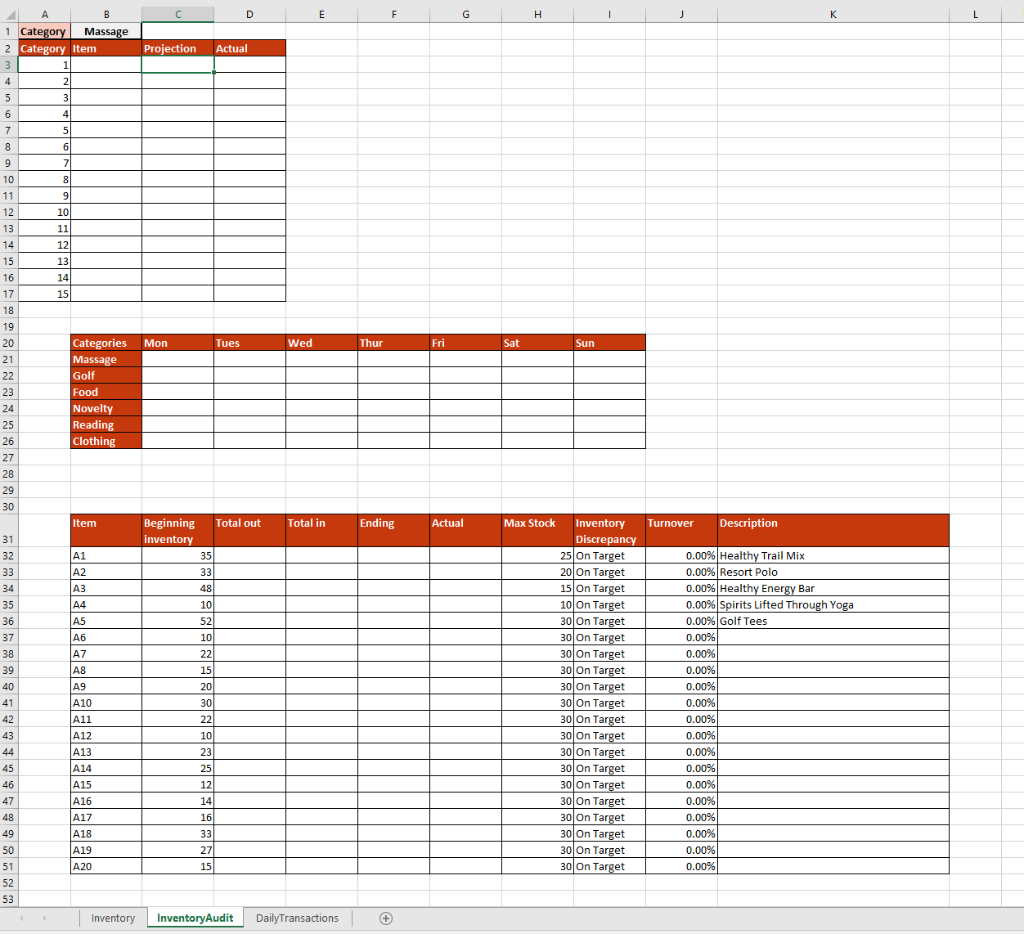
Some of the data may be missing (unsure) but I just need help with formatting these functions it wants me to make.
1 Category Massage 2 Category Item Projection Actual Mon Tues Wed Thur Fri Sat Categories Massage Golf Food Novelty Reading Clothing Item Total out Total in Ending Actual Turnover Beginning inventory Description A1 A2 33 A3 48/ D A5 A6 A7 AS A9 A10 A11 A12 Max Stock Inventory Discrepancy 25 On Target 20 On Target 15 On Target 10 On Target 30 On Target 30 On Target 30 On Target 30 On Target 30 On Target 30 On Target 30 On Target 30 On Target 30 On Target 30 On Target 30 On Target 30 On Target 30 On Target 30 On Target 30 On Target 30 On Target 0.00% Healthy Trail Mix 0.00% Resort Polo 0.00% Healthy Energy Bar 0.00% Spirits Lifted Through Yoga 0.00% Golf Tees 0.00% 0.00%| 0.00% 0.00% 0.00% 0.00% 0.00% 0.00% 0.00% 0.00% 0.00% 0.00% 0.00% 0.00% 0.00% A16 A17 A18 A19 A 20 Inventory Inventory Audit DailyTransactions + 1 Category Massage 2 Category Item Projection Actual Mon Tues Wed Thur Fri Sat Categories Massage Golf Food Novelty Reading Clothing Item Total out Total in Ending Actual Turnover Beginning inventory Description A1 A2 33 A3 48/ D A5 A6 A7 AS A9 A10 A11 A12 Max Stock Inventory Discrepancy 25 On Target 20 On Target 15 On Target 10 On Target 30 On Target 30 On Target 30 On Target 30 On Target 30 On Target 30 On Target 30 On Target 30 On Target 30 On Target 30 On Target 30 On Target 30 On Target 30 On Target 30 On Target 30 On Target 30 On Target 0.00% Healthy Trail Mix 0.00% Resort Polo 0.00% Healthy Energy Bar 0.00% Spirits Lifted Through Yoga 0.00% Golf Tees 0.00% 0.00%| 0.00% 0.00% 0.00% 0.00% 0.00% 0.00% 0.00% 0.00% 0.00% 0.00% 0.00% 0.00% 0.00% A16 A17 A18 A19 A 20 Inventory Inventory Audit DailyTransactions +
Step by Step Solution
There are 3 Steps involved in it

Get step-by-step solutions from verified subject matter experts
 Study Help