







Question: Open NetBeans or Eclipse or Similar Java - Based Editor Open NetBeans or Eclipse or Similar Java - Based Editor and create a Java project
Open NetBeans or Eclipse or Similar Java - Based Editor
Open NetBeans or Eclipse or Similar Java - Based Editor and create a Java project with the following details:
For Project Name include: SimpleGUI
For the Main Class include: SimpleGUI
In your Code window for this class, shown below, copy the program code shown in Figure 1 below, in the appropriate places, except substitute your own name in place of Sammy Student.
import java.awt.*;
import java.awt.event.*;
import javax.swing.*;
//Sammy Student
public class SimpleGUI extends JFrame implements ActionListener
{
private static final long serialVersionUID = 1L;
JLabel l1, l2, l3;
JButton b1;
JTextField t1, t2, t3;
SimpleGUI()
{
l1 = new JLabel(" INPUT 1");
l2 = new JLabel(" INPUT 2");
l3 = new JLabel(" OUTPUT");
b1 = new JButton("BUTTON 1");
t1 = new JTextField(10);
t2 = new JTextField(10);
t3 = new JTextField(10);
add(l1);
add(t1);
add(l2);
add(t2);
add(l3);
add(t3);
add(b1);
b1.addActionListener(this);
setSize(500,300);
setLayout(new GridLayout(4,2));
setTitle("Simple Java GUI");
}
public void actionPerformed(ActionEvent ae)
{
float a, b, c;
if(ae.getSource() == b1)
{
a = Float.parseFloat(t1.getText());
b = Float.parseFloat(t2.getText());
c = a + b;
t3.setText(String.valueOf(c));
}
}
public static void main(String args[])
{
SimpleGUI a = new SimpleGUI();
a.setVisible(true);
a.setLocation(200, 200);
}
}
Modify the Program
For your first modification of the program you are to a new click button element to your graphical user interface. The purpose of this new button is to allow the user to exit the application.
To do this, perform the following tasks:
Declare a new button by supplementing the JButton declaration statement to include a new button named b2 .
JButton b1, b2;
In an appropriate location in your program code, instantiate the new button, named b2 .
b2 = new JButton("EXIT");
In an appropriate location in your program code and directly below the line of code
add(b1);
place the new button on your GUI grid by writing this statement:
add(b2);
In an appropriate location in your program code and directly below the line of code
b1.addActionListener(this);
add an action to the new button by writing this statement:
b2.addActionListener(e -> System.exit(0));
Test your modified program and the operation of the [ EXIT ] button.
STEP 5 Modify Again the Program
You will now expand your programs layout by including a new row of GUI elements.
To accomplish this, perform these tasks:
In the class definition and before the constructor method, declare a new JLabel named l1 and also declare a new JCheckBox element.
JCheckBox check1;
In the class constructor, instantiate these two new GUI elements as follows:
l4 = new JLabel(" ");
check1 = new JCheckBox("click to select");
In the class constructor, set the initial state of the textbox.
check1.setSelected(true);
In the class constructor, place the new checkbox and label to appear between text field 3 and button 1 .
add(check1);
add(l4);
Now change the settings of the GridLayout() to accommodate five rows and two columns instead of the existing four rows and two columns.
Finally, add a skeletal if / else block directly below the existing if block that appears in the main() method.
// verify the checkbox state
if (check1.isSelected())
{
// perform a task ...
}
else
{
// perform a different task ...
}
Test your modified program and the operation of the program.
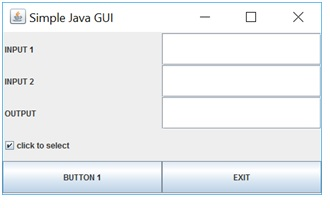
Alter the Program
Now change the GUI application such that the screen will appear as follows:
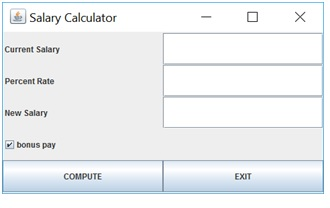
Then alter your program code such that when a current salary and percent rate are entered into their respective text fields a new salary is then computed, with a bonus amount added to the new salary when the checkbox is selected.
You can test your program with these two sample data scenarios:
Scenario I ( bonus pay NOT included )
Current Salary $ 30,000
Percent Rate 5 %
Bonus Pay NO
New Salary $ 31,500
Scenario II ( bonus pay included )
Current Salary $ 30,000
Percent Rate 5 %
Bonus Pay YES ( $ 500 )
New Salary $ 32,000
Simple Java GUI INPUT 1 INPUT 2 click to select BUTTON 1
Step by Step Solution
There are 3 Steps involved in it

Get step-by-step solutions from verified subject matter experts
 Study Help