







Question: Open the Drivers table, observe the data, and then close the table. Create an update query based on the Drivers table. Include all of the
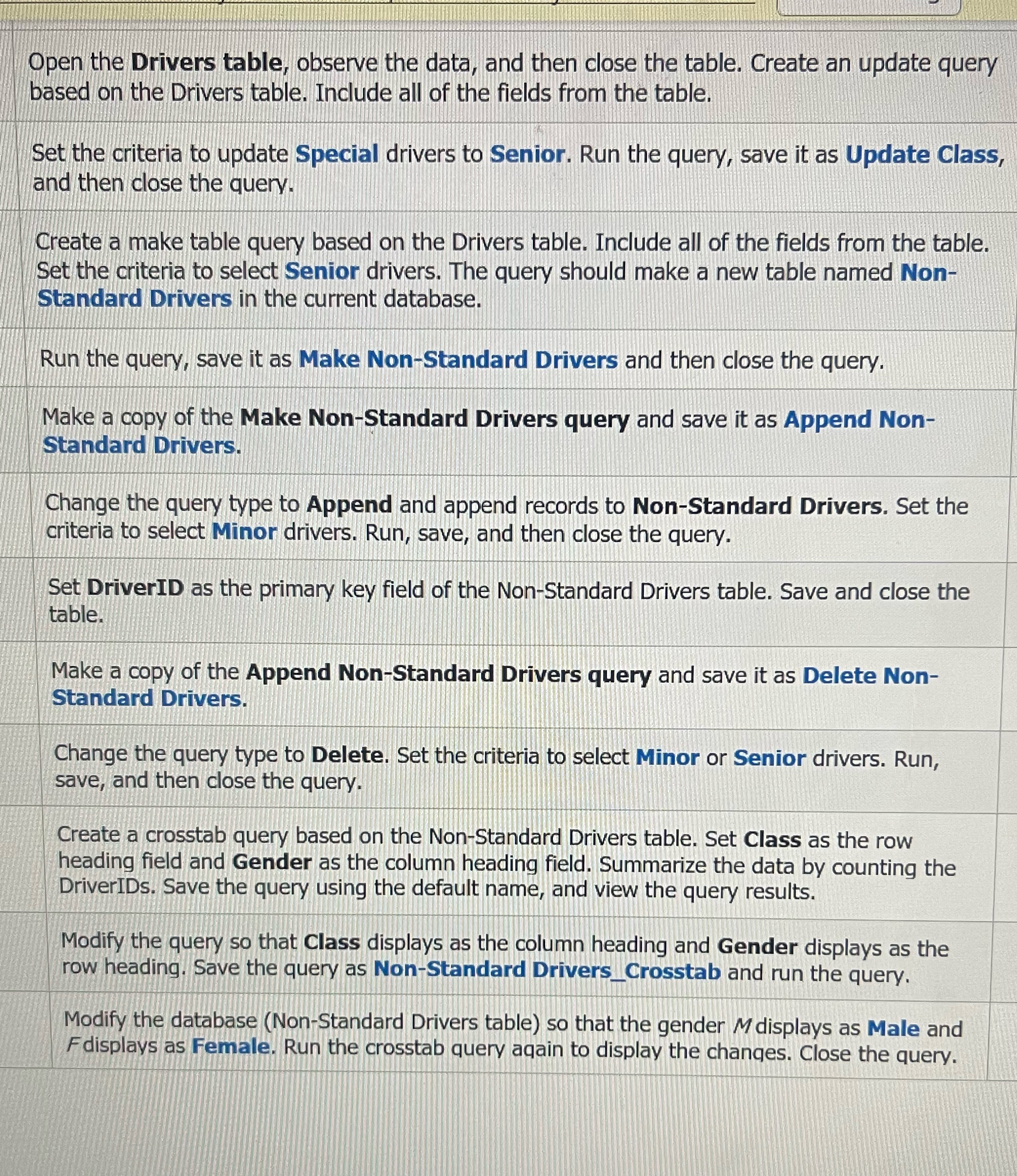
Open the Drivers table, observe the data, and then close the table. Create an update query based on the Drivers table. Include all of the fields from the table.
Set the criteria to update Special drivers to Senior. Run the query, save it as Update Class, and then close the query.
Create a make table query based on the Drivers table. Include all of the fields from the table. Set the criteria to select Senior drivers. The query should make a new table named NonStandard Drivers in the current database.
Run the query, save it as Make NonStandard Drivers and then close the query.
Make a copy of the Make NonStandard Drivers query and save it as Append NonStandard Drivers.
Change the query type to Append and append records to NonStandard Drivers. Set the criteria to select Minor drivers. Run, save, and then close the query.
Set DriverID as the primary key field of the NonStandard Drivers table. Save and close the table.
Make a copy of the Append NonStandard Drivers query and save it as Delete NonStandard Drivers.
Change the query type to Delete. Set the criteria to select Minor or Senior drivers. Run, save, and then close the query.
Create a crosstab query based on the NonStandard Drivers table. Set Class as the row heading field and Gender as the column heading field. Summarize the data by counting the DriverIDs. Save the query using the default name, and view the query results.
Modify the query so that Class displays as the column heading and Gender displays as the row heading. Save the query as NonStandard DriversCrosstab and run the query.
Modify the database NonStandard Drivers table so that the gender displays as Male and displays as Female. Run the crosstab query aqain to display the chanqes. Close the query.
Please provide detailed steps
Step by Step Solution
There are 3 Steps involved in it
1 Expert Approved Answer
Step: 1 Unlock

Question Has Been Solved by an Expert!
Get step-by-step solutions from verified subject matter experts
Step: 2 Unlock
Step: 3 Unlock
 Study Help