





Question: Open the grace tool (click the link above) . Navigate using the + and - at the bottom left and by dragging the map so
Open the grace tool (click the link above) .
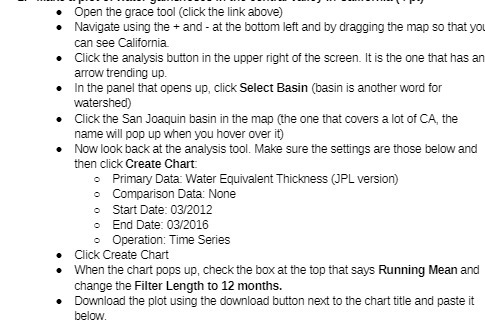
Open the grace tool (click the link above) . Navigate using the + and - at the bottom left and by dragging the map so that you can see California Click the analysis button in the upper right of the screen. It is the one that has an arrow trending up. In the panel that opens up, click Select Basin (basin is another word for watershed) Click the San Joaquin basin in the map (the one that covers a lot of CA, the name will pop up when you hover over it) Now look back at the analysis tool. Make sure the settings are those below and then click Create Chart Primary Data Water Equivalent Thickness (JPL version) o Comparison Data: None Start Date: 03/2012 o End Date: 03/2016 o Operation: Time Series Click Create Chart When the chart pops up, check the box at the top that says Running Mean and change the Filter Length to 12 months. Download the plot using the download button next to the chart title and paste it below

Step by Step Solution

There are 3 Steps involved in it

1 Expert Approved Answer
Step: 1 Unlock blur-text-image

Question Has Been Solved by an Expert!

Get step-by-step solutions from verified subject matter experts

Step: 2 Unlock
Step: 3 Unlock

Students Have Also Explored These Related Mathematics Questions!