







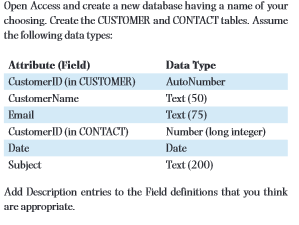
Question: Open the Relationships window and create a relationship from CUSTOMER to CONTACT using the CustomerID attribute. Click all of the check boxes. Enter sample data.
Open the Relationships window and create a relationship from
CUSTOMER to CONTACT using the CustomerID attribute. Click all of the check boxes. Enter sample data. Add at least
five rows to CUSTOMER and at least seven rows to CON
TACT. Ensure that some CUSTOMER rows have no matching
CONTACT rows. Open the default data entry form for the CUSTOMER table.
Click the CUSTOMER rows to display the related CONTACT
data. Now use the Form tool to create a data entry form. Navi
gate through that form to see that the CONTACT rows are cor
rectly connected to the CUSTOMER rows. Adjust spacing as
you deem appropriate; remove the CustomerID field from the
CUSTOMER section.
Step by Step Solution
There are 3 Steps involved in it
1 Expert Approved Answer
Step: 1 Unlock

Question Has Been Solved by an Expert!
Get step-by-step solutions from verified subject matter experts
Step: 2 Unlock
Step: 3 Unlock
 Study Help