







Question: PART 1 : EXCEL VBA - Working with Strings ( 5 0 marks ) Each project team ( 3 - 7 students ) is required
PART : EXCEL VBA Working with Strings
marks
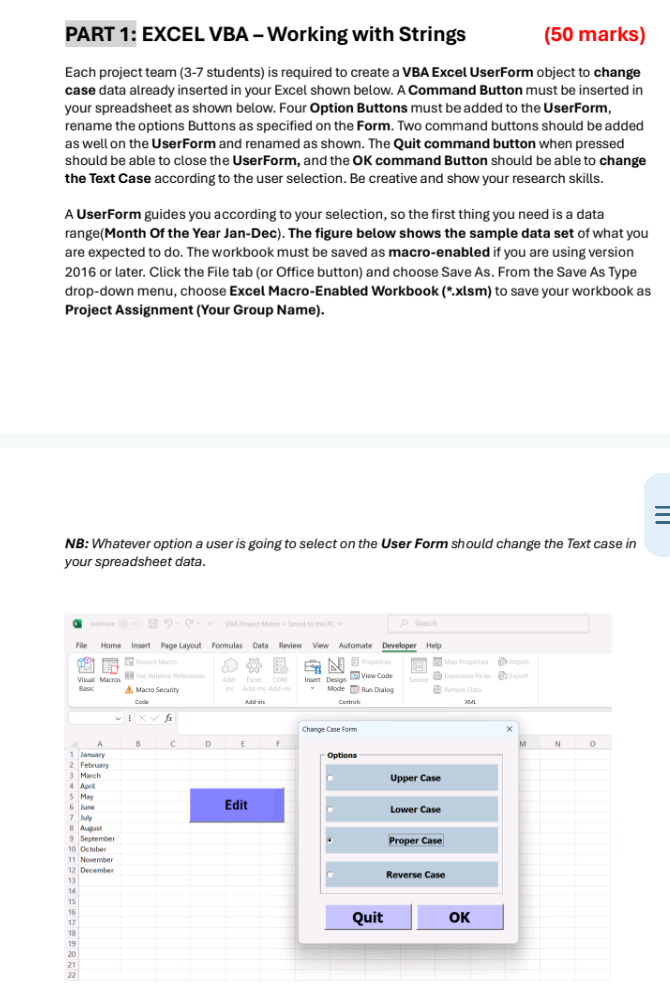
Each project team students is required to create a VBA Excel UserForm object to change
case data atready inserted in your Excel shown below. A Command Button must be inserted in
your spreadsheet as shown below. Four Option Buttons must be added to the UserForm,
rename the options Buttons as specified on the Form. Two command buttons should be added
as well on the UserForm and renamed as shown. The Quit command button when pressed
should be able to close the UserForm, and the OK command Button should be able to change
the Text Case according to the user selection. Be creative and show your research skills.
A UserForm guides you according to your selection, so the first thing you need is a data
rangeMonth Of the Year JanDec The figure below shows the sample data set of what you
are expected to do The workbook must be saved as macroenabled if you are using version
or later. Click the File tab or Office button and choose Save As From the Save As Type
dropdown menu, choose Excel MacroEnabled Workbook xlsm to save your workbook as
Project Assignment Your Group Name
NB: Whatever option a user is going to select on the User Form should change the Text case in
your spreadsheet data.
Step by Step Solution
There are 3 Steps involved in it
1 Expert Approved Answer
Step: 1 Unlock

Question Has Been Solved by an Expert!
Get step-by-step solutions from verified subject matter experts
Step: 2 Unlock
Step: 3 Unlock
 Study Help