







Question: Part 1. Flip the second triangle Between Line 61-74, the program sets up a vertex-array of size 9. The drawing command is in Line 142.
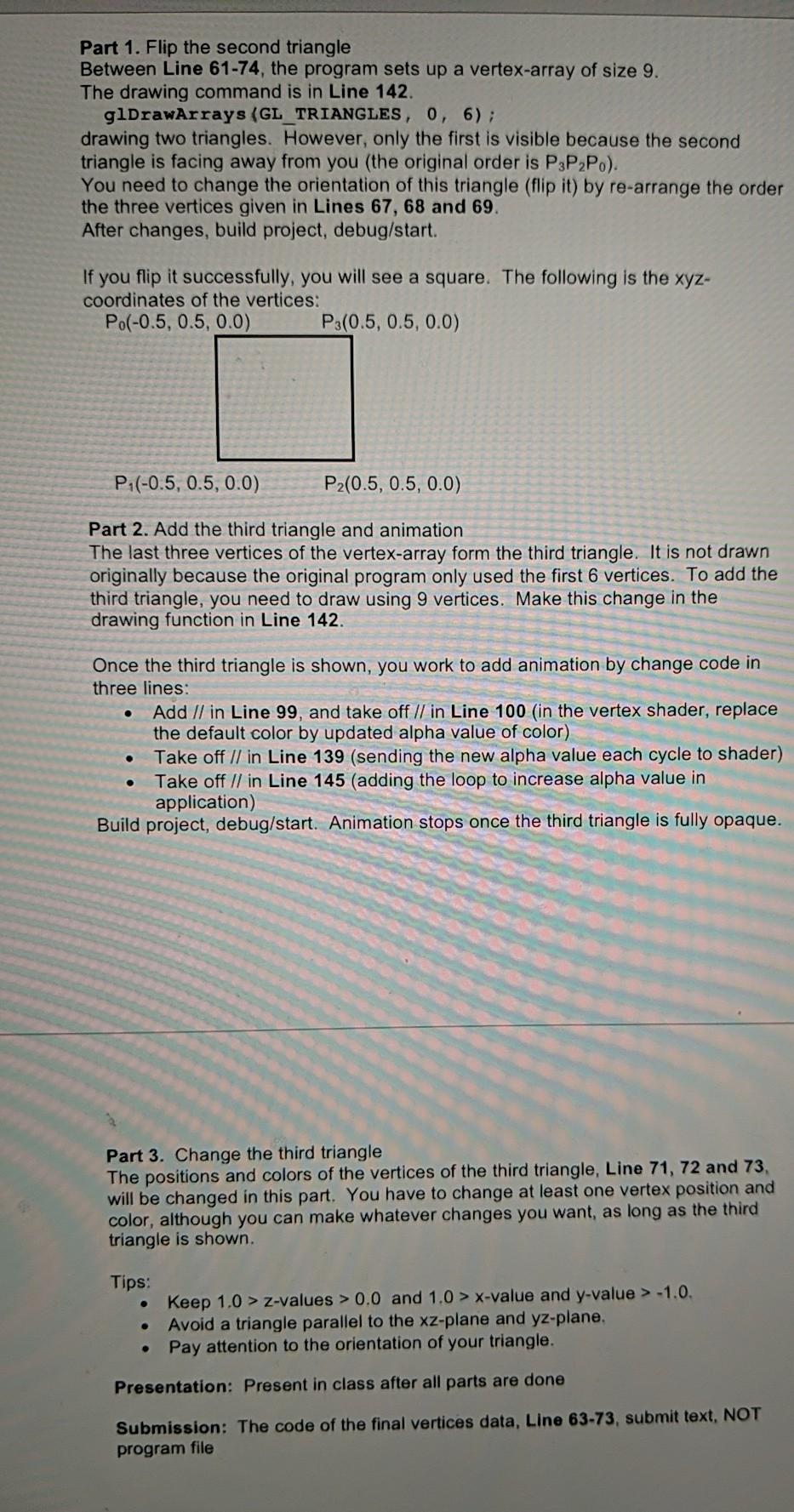
Part 1. Flip the second triangle Between Line 61-74, the program sets up a vertex-array of size 9. The drawing command is in Line 142. glDrawArrays (GL_TRIANGLES, 0, 6); drawing two triangles. However, only the first is visible because the second triangle is facing away from you (the original order is P3PP.). You need to change the orientation of this triangle (flip it) by re-arrange the order the three vertices given in Lines 67, 68 and 69. After changes, build project, debug/start. If you flip it successfully, you will see a square. The following is the xyz- coordinates of the vertices: Po(-0.5, 0.5, 0.0) P:(0.5, 0.5, 0.0) P:(-0.5, 0.5, 0.0) P2(0.5, 0.5, 0.0) Part 2. Add the third triangle and animation The last three vertices of the vertex-array form the third triangle. It is not drawn originally because the original program only used the first 6 vertices. To add the third triangle, you need to draw using 9 vertices. Make this change in the drawing function in Line 142. . Once the third triangle is shown, you work to add animation by change code in three lines: Add // in Line 99, and take off II in Line 100 (in the vertex shader, replace the default color by updated alpha value of color) Take off // in Line 139 (sending the new alpha value each cycle to shader) Take off // in Line 145 (adding the loop to increase alpha value in application) Build project, debug/start. Animation stops once the third triangle is fully opaque. . Part 3. Change the third triangle The positions and colors of the vertices of the third triangle, Line 71, 72 and 73, will be changed in this part. You have to change at least one vertex position and color, although you can make whatever changes you want, as long as the third triangle is shown. Tips: Keep 1.0 > Z-values > 0.0 and 1.0 > x-value and y-value > -1.0. Avoid a triangle parallel to the xz-plane and yz-plane, Pay attention to the orientation of your triangle. Presentation: Present in class after all parts are done Submission: The code of the final vertices data, Line 63-73, submit text, NOT program file Part 1. Flip the second triangle Between Line 61-74, the program sets up a vertex-array of size 9. The drawing command is in Line 142. glDrawArrays (GL_TRIANGLES, 0, 6); drawing two triangles. However, only the first is visible because the second triangle is facing away from you (the original order is P3PP.). You need to change the orientation of this triangle (flip it) by re-arrange the order the three vertices given in Lines 67, 68 and 69. After changes, build project, debug/start. If you flip it successfully, you will see a square. The following is the xyz- coordinates of the vertices: Po(-0.5, 0.5, 0.0) P:(0.5, 0.5, 0.0) P:(-0.5, 0.5, 0.0) P2(0.5, 0.5, 0.0) Part 2. Add the third triangle and animation The last three vertices of the vertex-array form the third triangle. It is not drawn originally because the original program only used the first 6 vertices. To add the third triangle, you need to draw using 9 vertices. Make this change in the drawing function in Line 142. . Once the third triangle is shown, you work to add animation by change code in three lines: Add // in Line 99, and take off II in Line 100 (in the vertex shader, replace the default color by updated alpha value of color) Take off // in Line 139 (sending the new alpha value each cycle to shader) Take off // in Line 145 (adding the loop to increase alpha value in application) Build project, debug/start. Animation stops once the third triangle is fully opaque. . Part 3. Change the third triangle The positions and colors of the vertices of the third triangle, Line 71, 72 and 73, will be changed in this part. You have to change at least one vertex position and color, although you can make whatever changes you want, as long as the third triangle is shown. Tips: Keep 1.0 > Z-values > 0.0 and 1.0 > x-value and y-value > -1.0. Avoid a triangle parallel to the xz-plane and yz-plane, Pay attention to the orientation of your triangle. Presentation: Present in class after all parts are done Submission: The code of the final vertices data, Line 63-73, submit text, NOT program file
Step by Step Solution
There are 3 Steps involved in it

Get step-by-step solutions from verified subject matter experts
 Study Help