







Question: Part 1: Required: 1. Based on the information below, calculate Depreciation Expense, Accumulated Depreciation and the BookValue of the equipment: (a) Using the Straight-line method
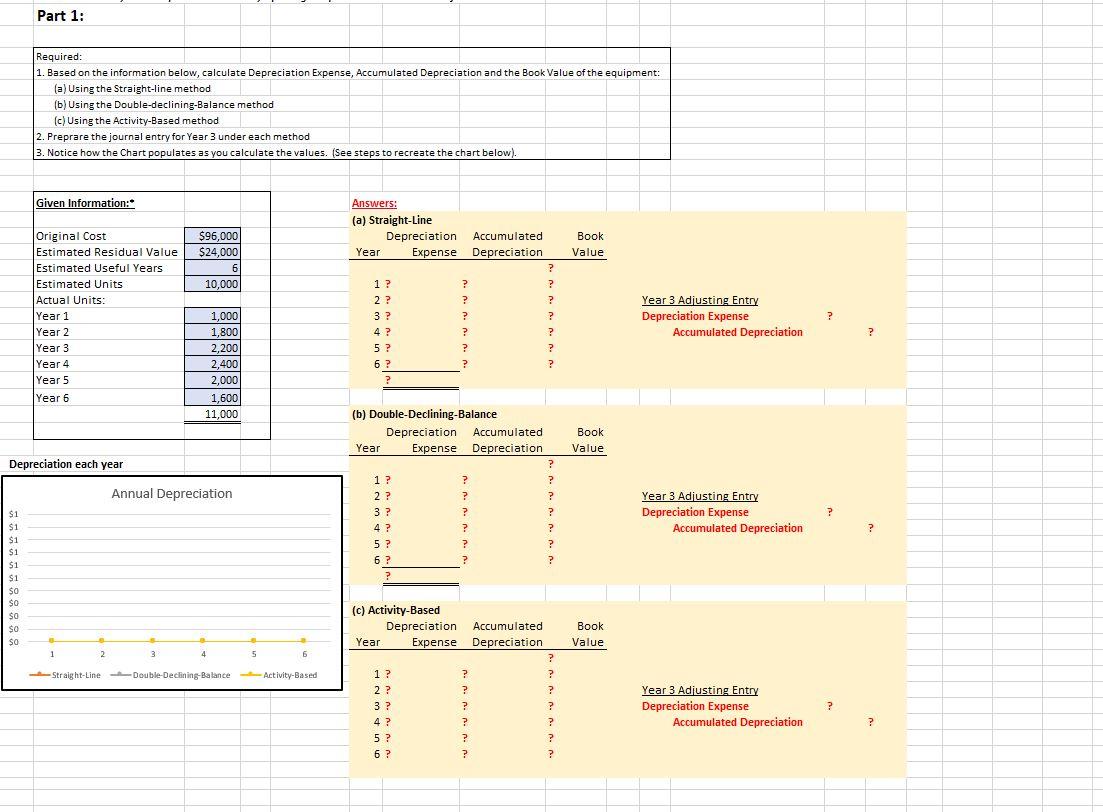
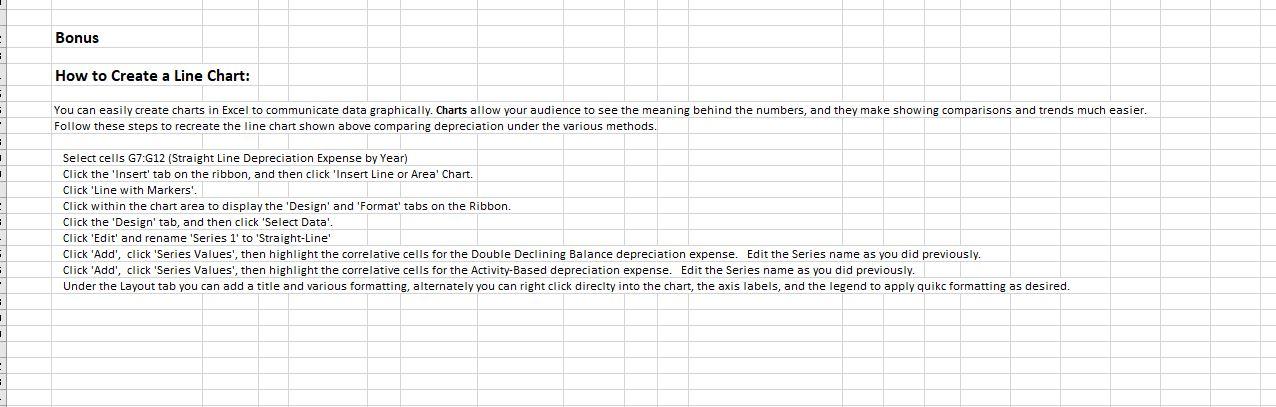
Part 1: Required: 1. Based on the information below, calculate Depreciation Expense, Accumulated Depreciation and the BookValue of the equipment: (a) Using the Straight-line method (b) Using the Double-declining-Balance method (c) Using the Activity-Based method 2. Preprare the journal entry for Year 3 under each method 3. Notice how the Chart populates as you calculate the values. (See steps to recreate the chart below). Bonus How to Create a Line Chart: You can easily create charts in Excel to communicate data graphically. Charts allow your audience to see the meaning behind the numbers, and they make showing comparisons and trends much easier. Follow these steps to recreate the line chart shown above comparing depreciation under the various methods. Select cells G7: G12 (Straight Line Depreciation Expense by Year) Click the 'Insert' tab on the ribbon, and then click 'Insert Line or Area' Chart. Click 'Line with Markers'. Click within the chart area to display the 'Design' and 'Format' tabs on the Ribbon. Click the 'Design' tab, and then click 'Select Data'. Click 'Edit' and rename 'Series 1' to 'Straight-Line' Click 'Add', click 'Series Values', then highlight the correlative cells for the Double Declining Balance depreciation expense. Edit the Series name as you did previously. Click 'Add', click 'Series Values', then highlight the correlative cells for the Activity-Based depreciation expense. Edit the Series name as you did previously. Under the Layout tab you can add a title and various formatting, alternately you can right click direcity into the chart, the axis labels, and the legend to apply quikc formatting as desired
Step by Step Solution
There are 3 Steps involved in it

Get step-by-step solutions from verified subject matter experts
 Study Help