







Question: Part 2 Area vs . radius Choose Add Page from the Page menu. Select New Data Set and Graph and give the page an appropriate
Part Area vs radius
Choose Add Page from the Page menu. Select New Data Set and Graph and give the page an appropriate name.
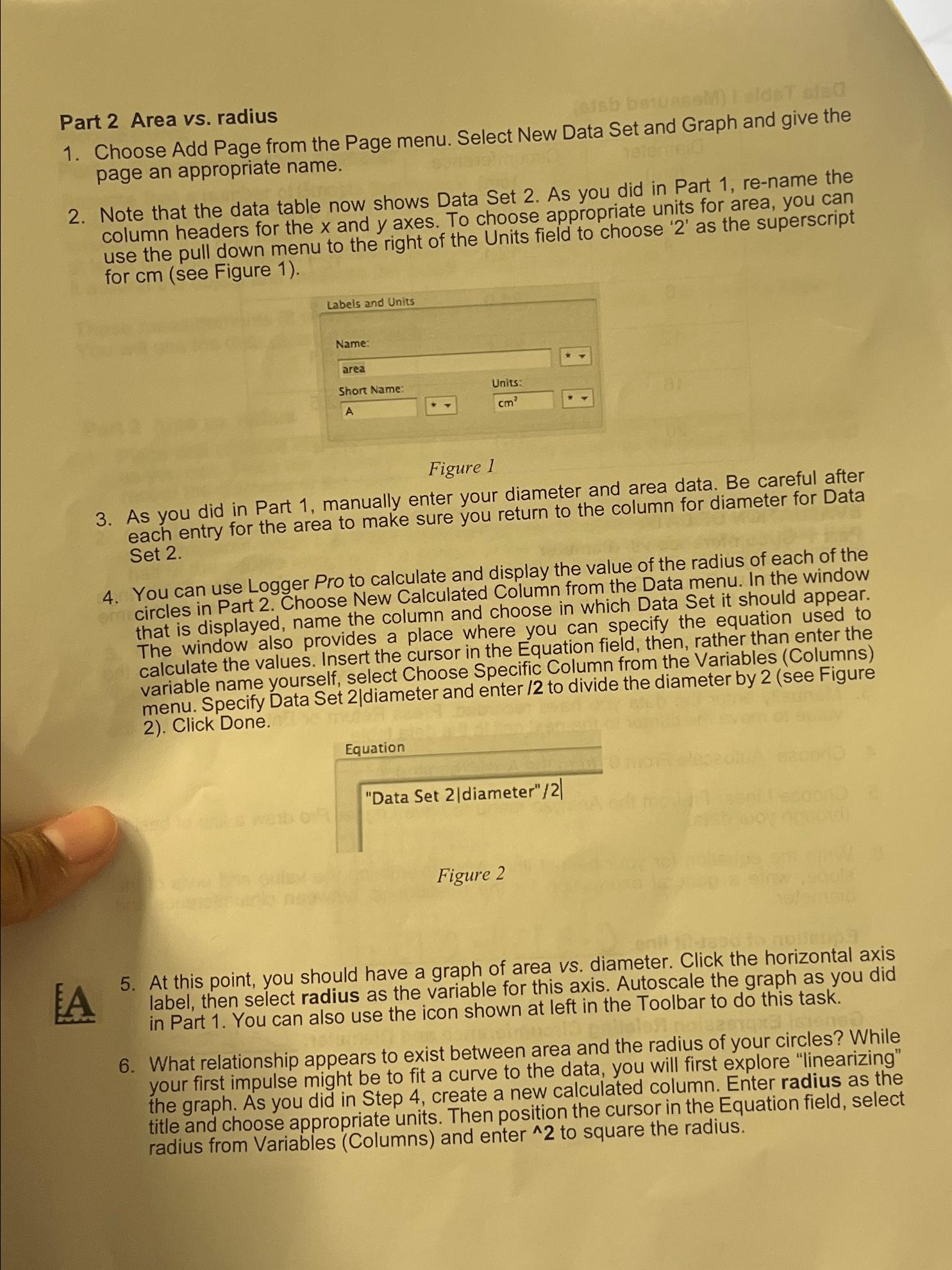
Note that the data table now shows Data Set As you did in Part rename the column headers for the and axes. To choose appropriate units for area, you can use the pull down menu to the right of the Units field to choose as the superscript for see Figure
Labels and Units
Name:
Figure
As you did in Part manually enter your diameter and area data. Be careful after each entry for the area to make sure you return to the column for diameter for Data Set
You can use Logger Pro to calculate and display the value of the radius of each of the circles in Part Choose New Calculated Column from the Data menu. In the window that is displayed, name the column and choose in which Data Set it should appear. The window also provides a place where you can specify the equation used to calculate the values. Insert the cursor in the Equation field, then, rather than enter the variable name yourself, select Choose Specific Column from the Variables Columns menu. Specify Data Set diameter and enter to divide the diameter by see Figure Click Done.
Equation
"Data Set diameter
Figure
A
At this point, you should have a graph of area vs diameter. Click the horizontal axis label, then select radius as the variable for this axis. Autoscale the graph as you did in Part You can also use the icon shown at left in the Toolbar to do this task.
What relationship appears to exist between area and the radius of your circles? While your first impulse might be to fit a curve to the data, you will first explore "linearizing" the graph. As you did in Step create a new calculated column. Enter radius as the title and choose appropriate units. Then position the cursor in the Equation field, select radius from Variables Columns and enter to square the radius.
Step by Step Solution
There are 3 Steps involved in it
1 Expert Approved Answer
Step: 1 Unlock

Question Has Been Solved by an Expert!
Get step-by-step solutions from verified subject matter experts
Step: 2 Unlock
Step: 3 Unlock
 Study Help