







Question: PART 2 Start with robot _ arm.html and robot _ arm.js from Project 7 zip. When you open Part 2 folder and run robot _
PART
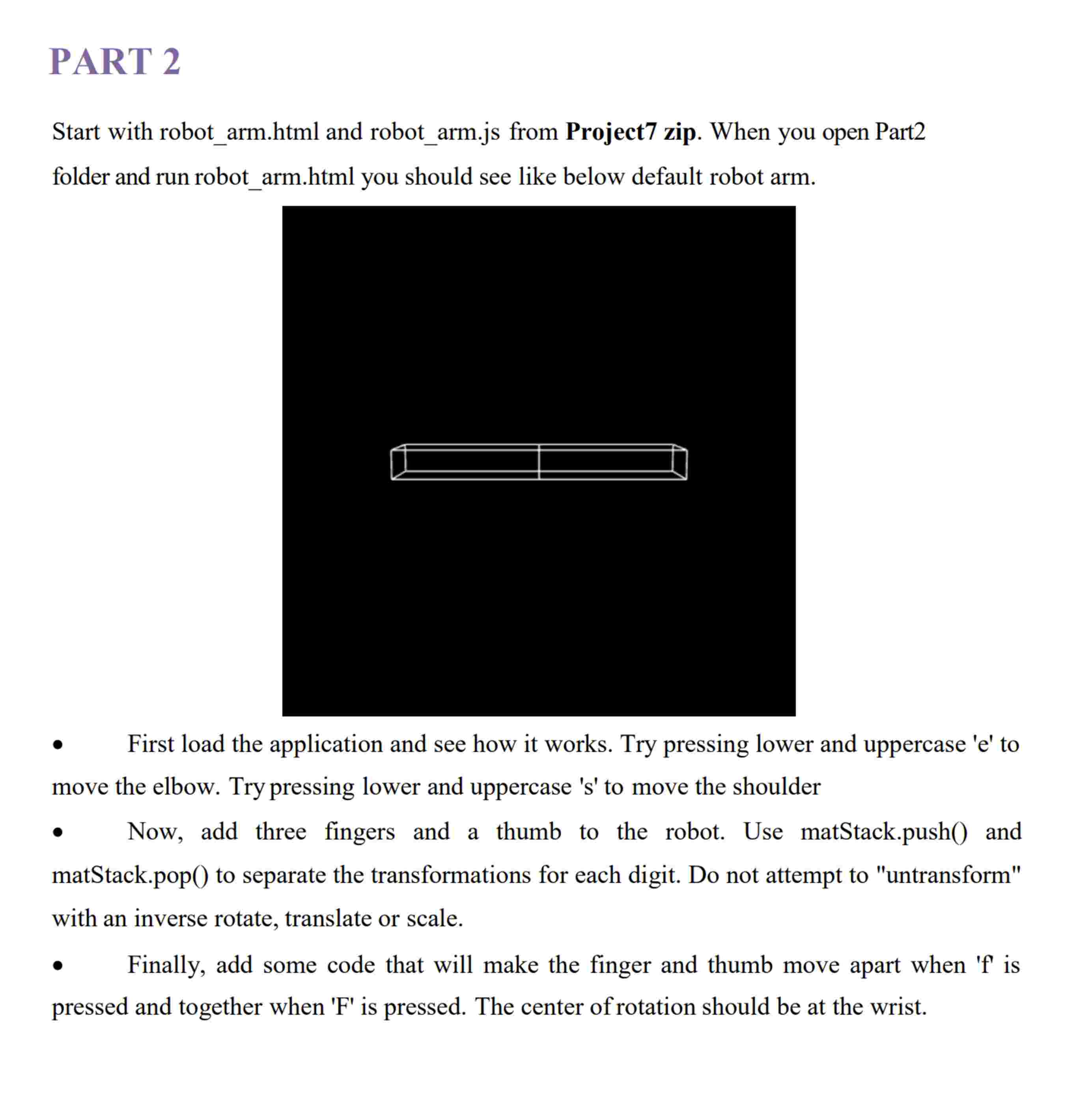
Start with robotarm.html and robotarm.js from Project zip. When you open Part
folder and run robotarm.html you should see like below default robot arm.
quad First load the application and see how it works. Try pressing lower and uppercase e to
move the elbow. Try pressing lower and uppercase s to move the shoulder
Now, add three fingers and a thumb to the robot. Use matStack.push and
matStack.pop to separate the transformations for each digit. Do not attempt to "untransform"
with an inverse rotate, translate or scale.
Finally, add some code that will make the finger and thumb move apart when f is
pressed and together when F is pressed. The center of rotation should be at the wrist.
this is jscode You can interact with this sample solution to see how your arm might work. Click on it and use the keys described above. I have also added some additional controls:
mathrmxmathrmX : to rotate the arm on the X axis so you can see it from different angles
y Y : to rotate the arm on the Y axis so you can see it from different angles
aA: to rotate the fingers on the x axis with positive direction
bB: to rotate the fingers on the x axis with negative direction
mathrmmmathrmM : to rotate the fingers on the y axis with positive direction
mathrmnmathrmN : to rotate the fingers on the y axis with negative direction
mathrmtmathrmT : toggle between solid and wire cubes
mathrmpmathrmP : toggle between perspective and ortho projections
Ss: Increase movement speed
Dd: Decrease movement speed
Zz: Sequential fingers closing right to left
Gg: Sequential fingers opening right to left
Step by Step Solution
There are 3 Steps involved in it
1 Expert Approved Answer
Step: 1 Unlock

Question Has Been Solved by an Expert!
Get step-by-step solutions from verified subject matter experts
Step: 2 Unlock
Step: 3 Unlock
 Study Help