







Question: Part A: Brief introduction to the Command - line Calculator: The goal is to design and develop a simple command - line calculator. In this
Part A: Brief introduction to the Commandline Calculator:
The goal is to design and develop a simple commandline calculator. In this calculator, the user should be able to do simple mathematical operations, such as addition, subtraction, multiplication, and division for various numbers. After running the program, first a list of five possible options is shown to the user. Then, the user must select one option from the list. A next set of messages will be shown to the user based on the selected option in this first assignment, we assume that just options B and E are functional and if a user select other options, an error message will be shown In case the user selects option E the program will show a message and be terminated. If option B is selected, the user must enter the first number and then choose an operator and finally select the second number. The program will then show the result of that calculation and prompt again to receive the selected option from the user.
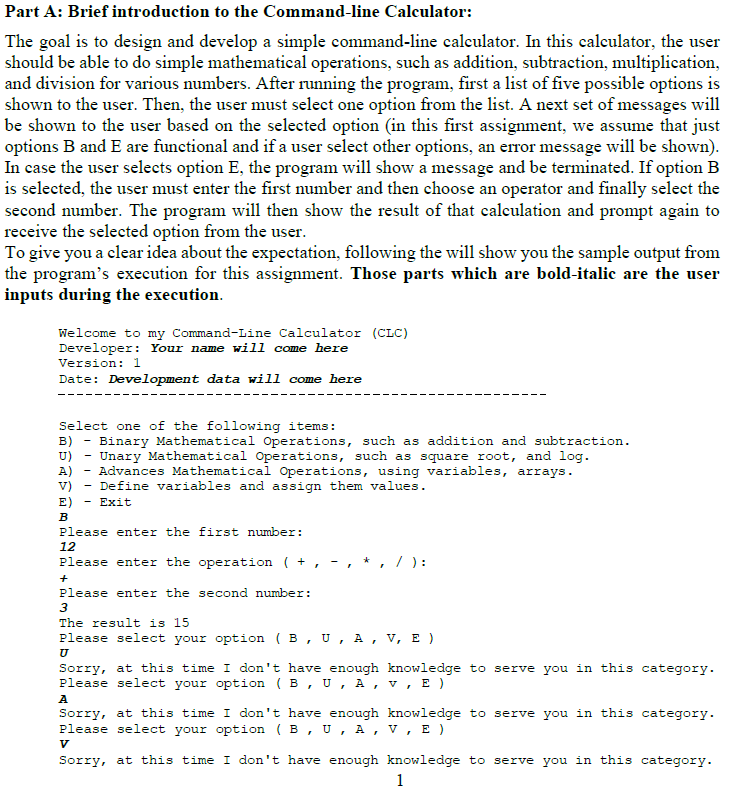
To give you a clear idea about the expectation, following the will show you the sample output from the program's execution for this assignment. Those parts which are bolditalic are the user inputs during the execution.
Welcome to my CommandLine Calculator CLC
Developer: Your name will come here
Version:
Date: Development data will come here
Select one of the following items:
B Binary Mathematical Operations, such as addition and subtraction.
U Unary Mathematical Operations, such as square root, and log
A Advances Mathematical Operations, using variables, arrays.
v Define variables and assign them values.
E Exit
B
Please enter the first number:
Please enter the operation :
Please enter the second number:
The result is
Please select your option B U A V E
U
Sorry, at this time I don't have enough knowledge to serve you in this category.
Please select your option B U A V E
A
Sorry, at this time I don't have enough knowledge to serve you in this category.
Please select your option B U A V E
V
Sorry, at this time I don't have enough knowledge to serve you in this category.
Please select your option B U A V E
B
Please enter the first number:
Please enter the operation :
Please enter the second number:
The result is
Please select your option B U A V E
B
Please enter the first number:
Please enter the operation :
Please enter the second number:
The result is
Please select your option B U A V E
E
Thanks for using my Simple Calculator. Hope to see you again soon. Goodbye!
As mentioned before, in this first version of the calculator, you just need to cover the four mathematical operations, addition, subtraction, multiplication, and division. Also, every time, the user can only do the operation for two operands, like the example above. Part B: Pseudocode:
marks
Using the above explanation and sample outputs of the program execution, write the pseudocode for the Commandline Calculator program. As a hint, some lines have been written, and you should complete the rest.
Start
Show a Welcome message to the user
Loop for asking the user to input their option
a Show a prompt for user selection
End of loop
Show a Goodbye message
End
Part C: Flowchart
marks
Using the pseudocode you wrote in the previous part, draw a flowchart for it You can use any flowchart software, like Raptor or Flogorithm, or draw it on any software with graphical capabilities, like Dia available on the School UNIX server Word, PowerPoint, or Paintbrush.
Part D: C program
marks
Based on the flowchart and pseudocode you've designed on the previous steps, now you are going to provide the skeleton of the C program for the calculator.
Your task in this part is to start writing a C program with the following parts:
Include required standard libraries
Create the main function
Using C commands display welcome messages to the user
Display the list of options and show a message to the user to select an option.
Step by Step Solution
There are 3 Steps involved in it
1 Expert Approved Answer
Step: 1 Unlock

Question Has Been Solved by an Expert!
Get step-by-step solutions from verified subject matter experts
Step: 2 Unlock
Step: 3 Unlock
 Study Help