







Question: Part A: Customer Support (this part to be submitted as a report) In Lab 1.0 many students typically have problems using Bridged Networking with their
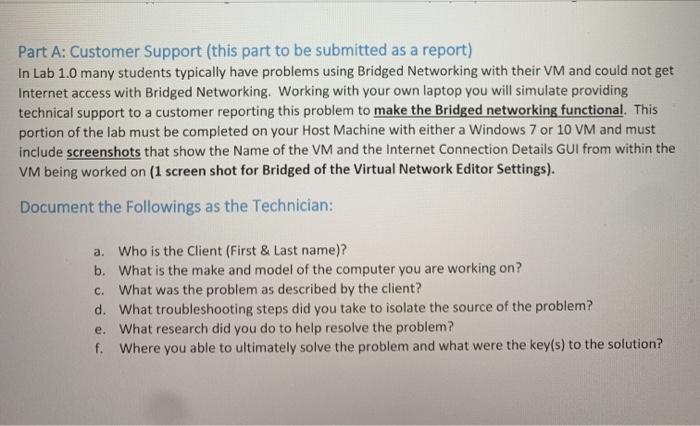
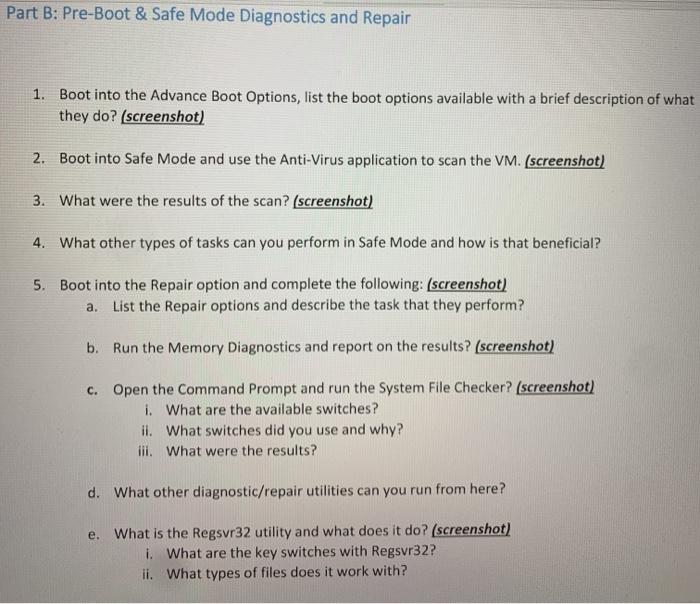
Part A: Customer Support (this part to be submitted as a report) In Lab 1.0 many students typically have problems using Bridged Networking with their VM and could not get Internet access with Bridged Networking. Working with your own laptop you will simulate providing technical support to a customer reporting this problem to make the Bridged networking functional. This portion of the lab must be completed on your Host Machine with either a Windows 7 or 10 VM and must include screenshots that show the Name of the VM and the Internet Connection Details GUI from within the VM being worked on (1 screen shot for Bridged of the Virtual Network Editor Settings). Document the followings as the Technician: a. Who is the Client (First & Last name)? b. What is the make and model of the computer you are working on? c. What was the problem as described by the client? d. What troubleshooting steps did you take to isolate the source of the problem? e. What research did you do to help resolve the problem? f. Where you able to ultimately solve the problem and what were the key(s) to the solution? Part B: Pre-Boot & Safe Mode Diagnostics and Repair 1. Boot into the Advance Boot Options, list the boot options available with a brief description of what they do? (screenshot) 2. Boot into Safe Mode and use the Anti-Virus application to scan the VM. (screenshot) 3. What were the results of the scan? (screenshot) 4. What other types of tasks can you perform in Safe Mode and how is that beneficial? 5. Boot into the Repair option and complete the following: (screenshot) a. List the Repair options and describe the task that they perform? b. Run the Memory Diagnostics and report on the results? (screenshot) c. Open the Command Prompt and run the System File Checker? (screenshot) i. What are the available switches? ii. What switches did you use and why? iii. What were the results? d. What other diagnostic/repair utilities can you run from here? e. What is the Regsvr32 utility and what does it do? (screenshot) i. What are the key switches with Regsvr32? ii. What types of files does it work with? Part A: Customer Support (this part to be submitted as a report) In Lab 1.0 many students typically have problems using Bridged Networking with their VM and could not get Internet access with Bridged Networking. Working with your own laptop you will simulate providing technical support to a customer reporting this problem to make the Bridged networking functional. This portion of the lab must be completed on your Host Machine with either a Windows 7 or 10 VM and must include screenshots that show the Name of the VM and the Internet Connection Details GUI from within the VM being worked on (1 screen shot for Bridged of the Virtual Network Editor Settings). Document the followings as the Technician: a. Who is the Client (First & Last name)? b. What is the make and model of the computer you are working on? c. What was the problem as described by the client? d. What troubleshooting steps did you take to isolate the source of the problem? e. What research did you do to help resolve the problem? f. Where you able to ultimately solve the problem and what were the key(s) to the solution? Part B: Pre-Boot & Safe Mode Diagnostics and Repair 1. Boot into the Advance Boot Options, list the boot options available with a brief description of what they do? (screenshot) 2. Boot into Safe Mode and use the Anti-Virus application to scan the VM. (screenshot) 3. What were the results of the scan? (screenshot) 4. What other types of tasks can you perform in Safe Mode and how is that beneficial? 5. Boot into the Repair option and complete the following: (screenshot) a. List the Repair options and describe the task that they perform? b. Run the Memory Diagnostics and report on the results? (screenshot) c. Open the Command Prompt and run the System File Checker? (screenshot) i. What are the available switches? ii. What switches did you use and why? iii. What were the results? d. What other diagnostic/repair utilities can you run from here? e. What is the Regsvr32 utility and what does it do? (screenshot) i. What are the key switches with Regsvr32? ii. What types of files does it work with
Step by Step Solution
There are 3 Steps involved in it

Get step-by-step solutions from verified subject matter experts
 Study Help