







Question: Part A: Implementing Your UML Data Model with Access ( 1 0 marks ) 1 ) Based on the UML class diagram you created in
Part A: Implementing Your UML Data Model with Access marks
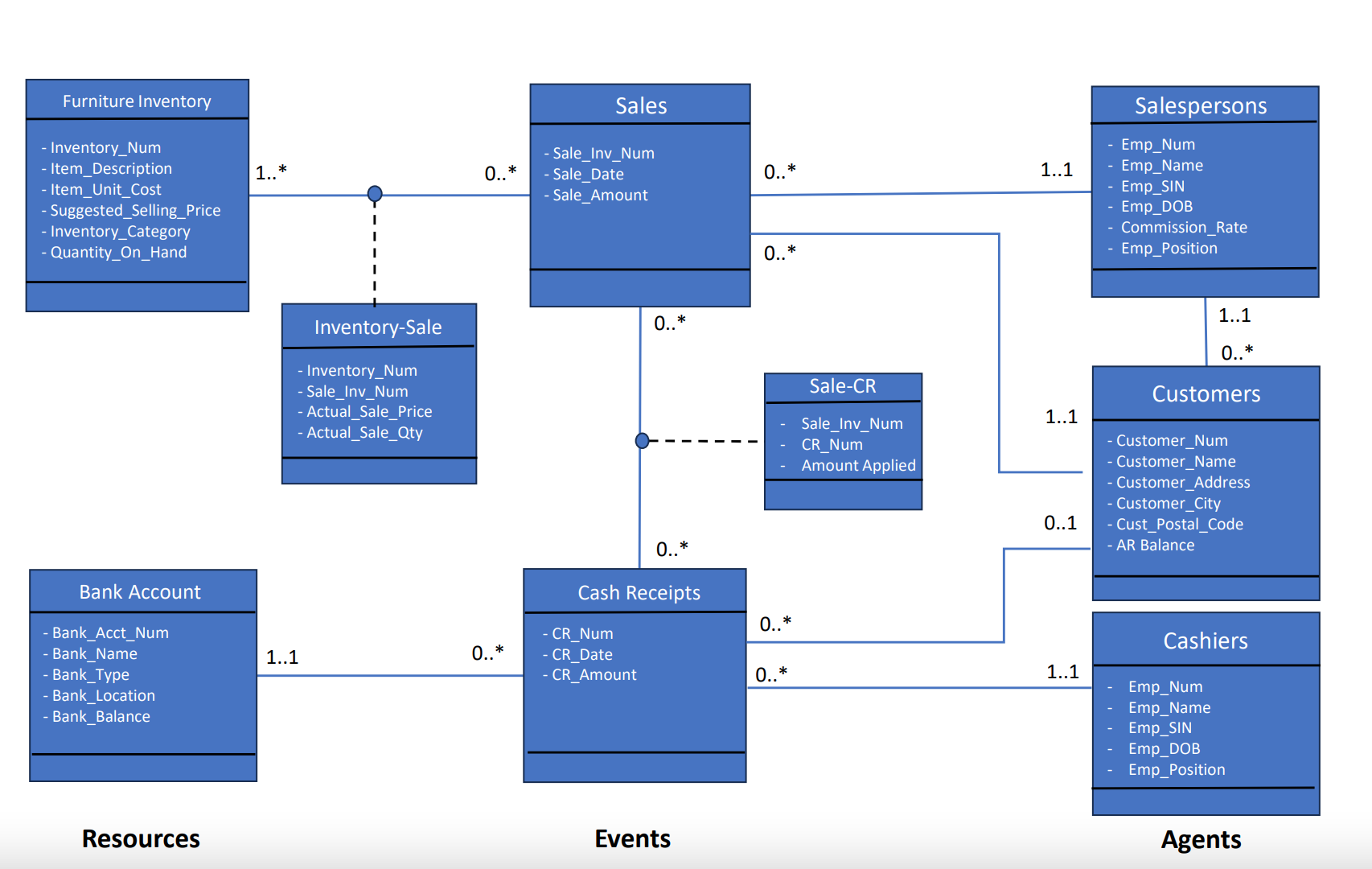
Based on the UML class diagram you created in Phase I, construct a database using MS Access.
a Create a table for each class and for each manytomany relationship.
b Establish appropriate relationships among the tables using foreign keys.
In your MS Access file, navigate to "Database Tools" and link all the tables.
Capture a screenshot with all the attributes of each table displayed clearly.
Create a new MS Word file, copy and paste the screenshot to the Word file.
Save the Access file.
Part B: Creating queries with MS Access: mathbf marks
Create a new MS Access file and save it as "Database ProjectLast Name, First Name".
Import all Excel files provided in the zip file into the new MS Access file and establish all necessary relationships.
In the new MS Access file, use either the MS Access query design tools or SQL to create a query for each of the following questions:
Q Which customers are located in St Catharines?
Q How many customers are located outside of Ontario?
Q What is the name of the customer that purchased the highest amount of furniture in November?
Q Which inventory type item generated the highest amount of sales revenue in the text rd quarter of
Q Based on the entire dataset, which salespersons earned more than $ commission?
Q Which inventory category generated the highest gross profit in June?
Q Which sales invoices had an outstanding balance as of September Include the invoice number, invoice amount, amount of cash received, and outstanding balance for each invoice in your output.
Q Which bank accounts processed more than $ of deposits in the text nd quarter of
Q Which customer spent the most on Beds in May?
Q Based on the entire dataset, who are the top three most valuable customers in terms of the gross profits earned?
For each of the above TEN queries, run the query and take a screenshot of the query result.
Copy and paste the TEN screenshots to the MS Word file you created in Part A
Provide your answers to the above TEN questions in the Word file.
Step by Step Solution
There are 3 Steps involved in it
1 Expert Approved Answer
Step: 1 Unlock

Question Has Been Solved by an Expert!
Get step-by-step solutions from verified subject matter experts
Step: 2 Unlock
Step: 3 Unlock
 Study Help