







Question: Part C: Creating Java Documentation Objective: Be able to add JavaDoc comments and create the Java documentation for a class 1) Create a new Empty
Part C: Creating Java Documentation
Objective: Be able to add JavaDoc comments and create the Java documentation for a class
1) Create a new Empty Java class called Circle.java. Make sure that it is added to the correct package. 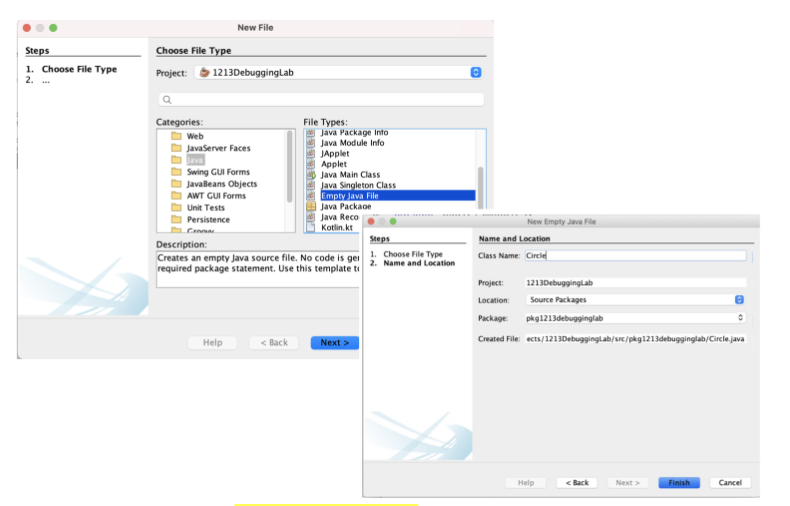
2) Copy the contents from the code snippet below into the Circle.java source code file. public class Circle { private double radius; private String color; private double area; public Circle() { radius = 1.0; color = "red"; } public Circle(double radius, String color) { this.radius = radius; this.color = color; } public double getRadius() { return radius; } public double getArea() { calculateArea(); return area; }
private void calculateArea() { area = radius * radius * Math.PI; } } 3) Make sure to add the package declaration to the beginning of the file package [packagename]; 4) Examine the code and develop an understanding of the code you just copied. At this point you should be able to follow along each line in this code and know what it means and its purpose inside this class. Take a few minutes to note the different components of this class and identify all the fields (instance variables), constructors, and methods. 5) Now, add in the appropriate Java comments. Be sure to include: A documentation comment for the overall class, including an @author tag Documentation comments for each of the methods and constructors (a summary that describes the purpose of the method) @param tags for all parameters (describes each of the parameters in the parameter list (if any)). @return tags for all return values (describes the information that is returned to the calling statement (if any)). 6) A description of anything that someone using the class might need to know. When you are done adding comments to the Circle class you are ready to generate the Java doc. NetBeans supports generating HTML files that can be viewed using any web browser. To generate the Java doc select your project in the Projects Pane, then choose Run Generate Javadoc ([PROJECT NAME]).
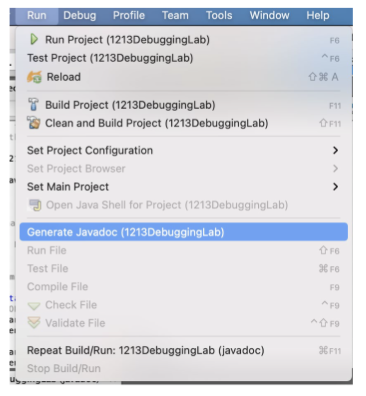
7) This will open a web browser window. On the left panel of this window will be a list of classes. Select the Circle class to load its Java doc. Check the Java doc to ensure your comments were put in correctly. 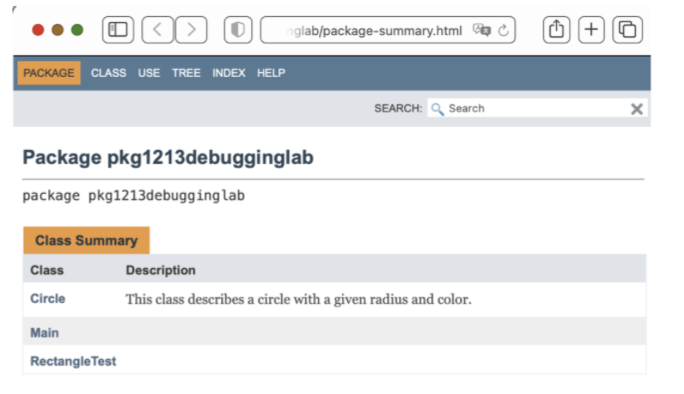
8) In the future, if you need to access the Javadoc of the Circle class, simply click on the Files tab in the upper left (beside the Projects tab). Expand [Project Name] dist javadoc [Project Name], right-click Circle.html then click View.
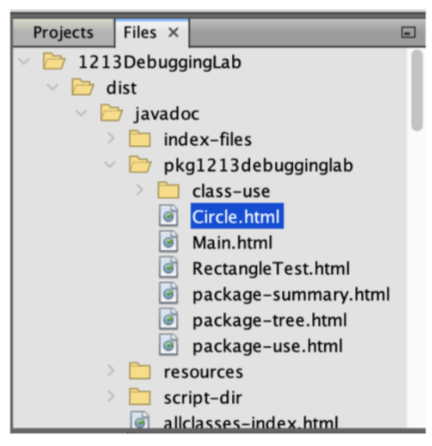
9) When you are satisfied with the JavaDoc, proceed to Part D.
Part D: Draw a UML diagram for Circle class
Objective: Be able to create a UML class diagram to represent a Java class. 1) Draw a UML class diagram for the Circle class. Make sure that you list all of the fields and methods in the diagram. You can use any tool (draw.io, PowerPoint, Google Slides, Jamboard, ZiteBoard,...). 2) Show your work to the instructional team to be checked off and proceed to Part E.
New File Steps 1. Choose File Type 2. Choose File Type Project: 1213Debugginglab Categories: File Types: Web Java Package Into JavaServer Faces Java Module Info JApplet lave Applet Swing GUI Forms Java Main Class JavaBeans Objects Java Singleton Class AWT GUI Forms Empty Java File Unit Tests Java Packace Persistence Java Reco C Kotlinkt Description: Steps Creates an empty Java source file. No code is gel. Choose File Type required package statement. Use this template ti 2. Name and Location New Empty JavaFle Name and Location Class Name: Circle Project: 1213Debugginglab Location: Source Packages Package pkg1213debugginglab Created File: ects/1213Debugginglab/src/pkg1213debugginglab/Circle.java Help Help Finish Cancel FG AFB F11 > 2 > ai > Run Debug Profile Team Tools Window Help Run Project (1213DebuggingLab) Test Project (1213DebuggingLab) Reload 03 A Build Project (1213DebuggingLab) Clean and Build Project (1213DebuggingLab) F11 Set Project Configuration Set Project Browser Set Main Project Open Java Shell for Project (1213DebuggingLab) Generate Javadoc (1213DebuggingLab) Run File FB Test File 36F Compile File Check File Validate File FO al Repeat Build/Run: 1213DebuggingLab (javadoc) 9CF11 Stop Build/Run F9 ti el el OD glab/package-summary.html G + PACKAGE CLASS USE TREE INDEX HELP SEARCH: Search x Package pkg1213debugginglab package pkg1213debugging lab Class Summary Class Description Circle This class describes a circle with a given radius and color. Main Rectangle Test Projects Files x 1213 DebuggingLab dist javadoc index-files pkg1213debugginglab class-use Circle.html Main.html Rectangle Test.html g package-summary.html package-tree.html package-use.html resources script-dir allclasses-index.html
Step by Step Solution
There are 3 Steps involved in it

Get step-by-step solutions from verified subject matter experts
 Study Help