







Question: Part One: Create a GUI application called Form Themes. Include a Form that contains two radio buttons; Light Mode and Dark Mode. When the user
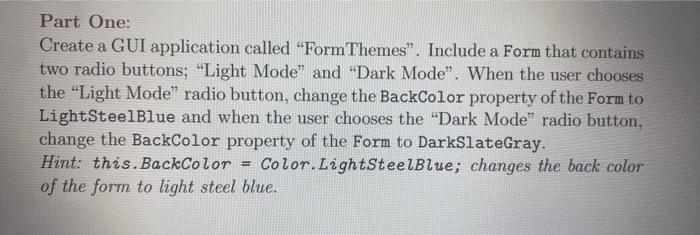
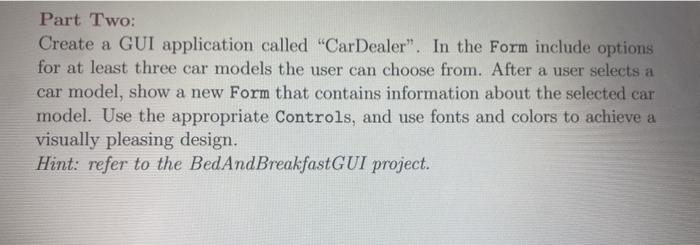
Part One: Create a GUI application called "Form Themes". Include a Form that contains two radio buttons; "Light Mode and Dark Mode". When the user chooses the "Light Mode radio button, change the BackColor property of the Form to LightSteelBlue and when the user chooses the "Dark Mode radio button, change the BackColor property of the Form to DarkSlateGray. Hint: this. BackColor = Color LightSteelBlue; changes the back color of the form to light steel blue. Part Two: Create a GUI application called "Car Dealer". In the Form include options for at least three car models the user can choose from. After a user selects a car model, show a new Form that contains information about the selected can model. Use the appropriate Controls, and use fonts and colors to achieve a visually pleasing design. Hint: refer to the Bed And Breakfast GUI project. Part One: Create a GUI application called "Form Themes". Include a Form that contains two radio buttons; "Light Mode and Dark Mode". When the user chooses the "Light Mode radio button, change the BackColor property of the Form to LightSteelBlue and when the user chooses the "Dark Mode radio button, change the BackColor property of the Form to DarkSlateGray. Hint: this. BackColor = Color LightSteelBlue; changes the back color of the form to light steel blue. Part Two: Create a GUI application called "Car Dealer". In the Form include options for at least three car models the user can choose from. After a user selects a car model, show a new Form that contains information about the selected can model. Use the appropriate Controls, and use fonts and colors to achieve a visually pleasing design. Hint: refer to the Bed And Breakfast GUI project
Step by Step Solution
There are 3 Steps involved in it

Get step-by-step solutions from verified subject matter experts
 Study Help