







Question: Path of Light Yoga Studio Case Study Chapter 4 HTML and CSS help! I have almost completed the assignment, but my pages don't look like
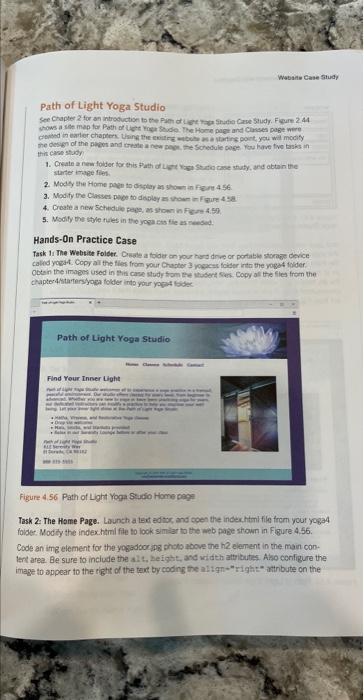
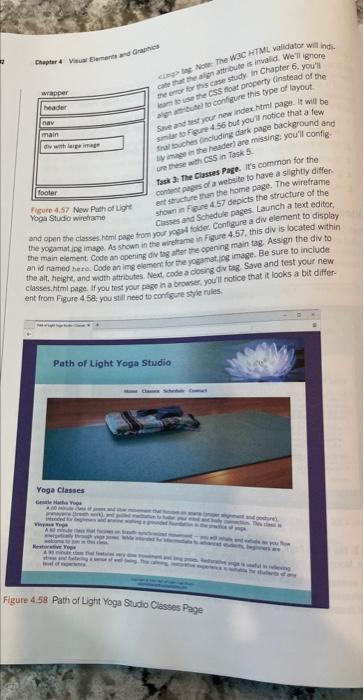
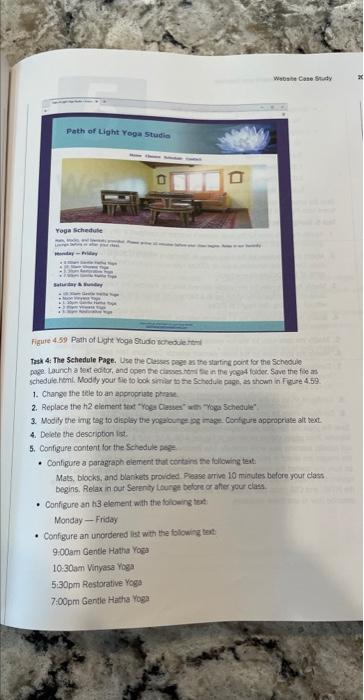
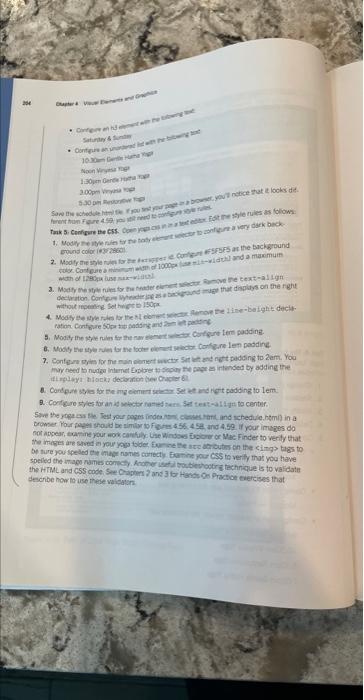
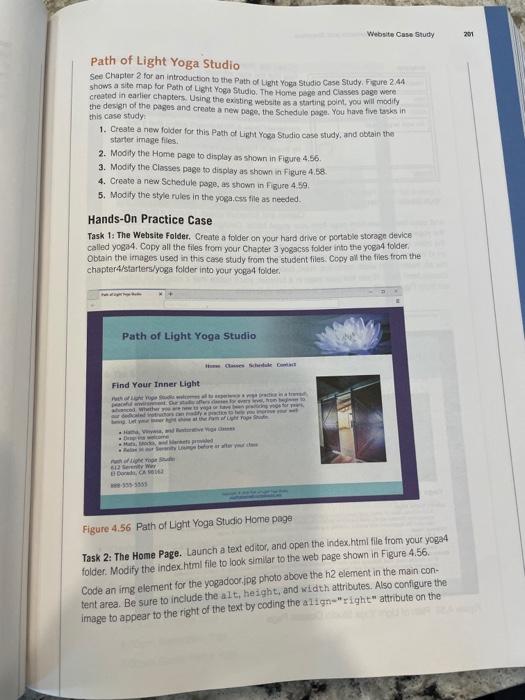
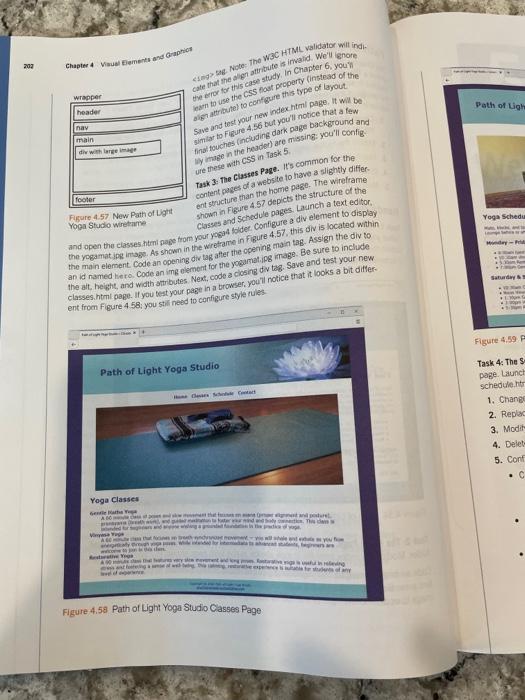
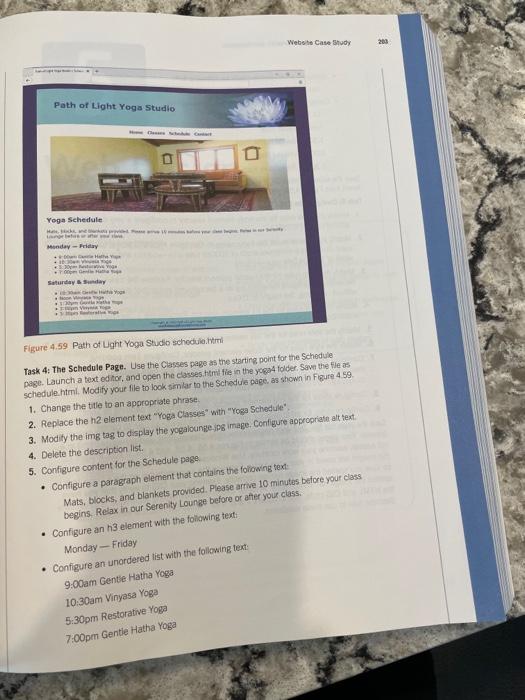
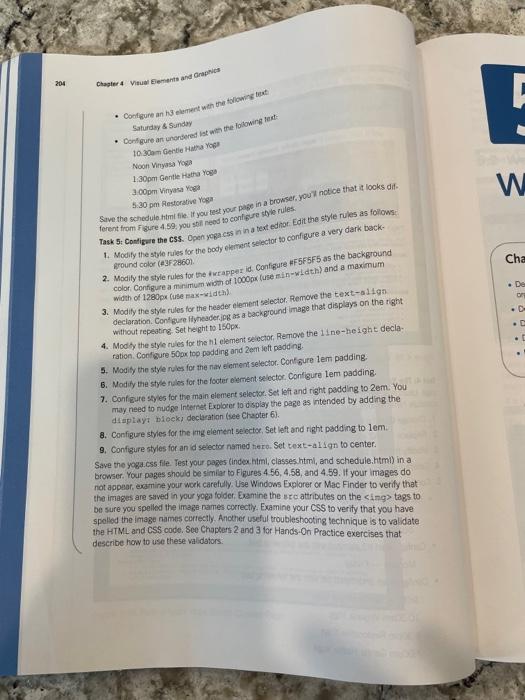
Path of Light Yoga Studio thows a side map for Poth of Lle Pregir Soide. The Home page and Clanses puge were the deseg of the piver and rreate a new peyin the Soredule coige pou have tive tasins in thit carestady? 1. Create a new folder for this Fath of Lye vage stacia case afuby, and obtain the starter image fires. 2. Modify the Home pain to dithiery ar 3 homen in fig 4.46. 4. Croate a new Schidile pete, a stown in Fisare 4.9., 5. Modify the style nules in tho yogia eas file as nensed. Hands-On Practice Case Task 1s The Websitt Folder. Creale a foider an your hera drive or portatik storage device calid yoeat. Copy ail the fles from your Chapter 3 yosxest foiser irter the yoget filder. Ootsin the images used in Bis cares dhudy fom the thusere sien. Copy al the fle from the chapte-4startersyoga folder inte your yopit fodec. Figure 4.56 Path of Light Yoga Surio Home page Task 2. The Hame Page. Launch a text edtax, and coen the inder.htmi file from your yogad foider: Modify the index.htmi fite to look simiar to the meb page shown in Figure 4.56. Code an ing element for the yogadoor,ps phots above the h2 element in the main con. tert area. Be sure to inciude the als, he fght, and width attributes. Anso configure the image to appear to the fight of the text by coding the alt mn-" right" inthbute on the Chaptar 4 Visual Elwmerth and Graphit? the alt, height, and width attributes. Next, code a cosing div tag. Stve and test your new Task 4: The Schedule Page. Use the Classes pege an the slartire point for the Scheoule. schedue.himl. Mod fy your tie to look sitriar to the Schodule prege, as shown in Fuste 4.59. 1. Change the tele to an appropriate prrane. 4. Deiche the description ins. 5. Configure content for the Schedule pas= - Configure a paragraph elament that cortaina siofollowing tent. Mats, blocks, and blarihets providet Prease urive 10 minules befere your ciass begin5. Relax in out Serarily Lourg belore or ahe your elass. - Configure an ha eloment with the forowing text: Monday - Friday - Configure an uncrdered list with tha folowing tat: 9.00an Gentle Hatha Yow. 10.60am Virtyasa Yoga 5:30pm Restarative Yogs 7.00pm Gentle Hashu roga - Contgin anie Noen Vigits rige 300pen Vupra tiet wath of IYgequ ause max-witiet) mor need ts nudge internet Eopbres as popory the page as irtanded by adding the the ariges are stoed in you yous toldes fo ne the arc atricuts en the cings thgs to be ture you speled ele inher nomes conecty. Fornine pur cs's te verily thas you have describe how te use these valdator: Path of Light Yoga Studio See Chapter 2 for an introduction to the Path of Light Yoga Studio Case Study. Figure 2.44. shows a site map for Path al Light Yoga Studio. The Horre pege and Classes page were created in earlier chapters. Using the exiting website as a starting poim, yoo will modily. the design of the pages and ereate a new page, the Schedule pose. You have five tasks in this case study: 1. Create a new foider for this Peth of Ligh Yoga Studio case study, and obtain the starter image files. 2. Modity the Home page to display as shown in Figure 4.56. 3. Modity the Classes page to display as shown in figure 4.38. 4. Create a new Schedule poge, as shown in Figure 4.59. 5. Mod ify the style rules in the yoga,css flie as neoded. Hands-On Practice Case Task 1: The Website Folder. Create a folder on your hard dive or portable storage device called yoga4. Copy all the files from your Chapter 3 yogacss folder into the yogot 4 folder: obtain the images used in this case study from the student files. Cocy all the files. from the chapter4/starters/yoga folder into your yoge 4 folder. Path of Light Yoga Studio Figure 4.56 Path of Light Yoga Studio Home page: Task 2: The Home Page. Launch a text editor, and open the index, himi flie from your yoga4 folder. Modify the index.html file to look similar to the web page shown in Figure 4.56. Code an ing element for the yogadoor.jpg photo above the h2 element in the main content area. Be sure to include the alt, height, and widich attributes. Also configure the image to appear to the right of the text by coding the align-" right" attribute on the Chapter 4 Vauel Eiements and Gaprich Path of Ligh Path of Light Yoga Studio Yoga Schedule mesmaty - Rridary Sindureay it atemtar o it Whan ciente lewtu Yogs Figure 4.59 Path of Ught Yoga Studb schedive.tirili Task 4: The Schedule Page. Use the Classes page as the starting point for the Schedule: page. Launch a text edico, and open the classes. Htrmi fie in the yogat folder. Save the fle as schedule. htmi. Modify your file to look simiar to the Schadue page. as shown in Figure 4.59. 1. Change the tile to an appcoprate phrase. 2. Replace the he element text "Yoga Classes" with "Yoga Schedule", 3. Modify the img tag, to display the yogalounhe-jpg image. Configure aopropriatia alt text. 4. Delete the description list. 5. Configure content for the Schedule page: - Configure a paragraph element that contains the foriowing text: Mats, blocks, and blankets provided. Please armie 10 minutes belore your class begins. Relax in our Serenity Lounge before or after your class. - Configure an his element with the foliowing texti Monday - Friday - Configure an unordered list with the following text: 9.00am Gente Hatha Yoga 10:30am Vinyasa Yoga 5:30pm Restorative Yoga 7:00pm Gentle Hatha Yoga Chagter 4 Vitual Eiements and Grapics - Configure an h 3 elemert win the taliowing bext Saturday 4 Sinday - Contigure an unorserest kst with the lotowine lest: 10.300 Gi Gertie Habra Yof? Noof Wryasa Yoga 1:30pm Gentle Hatha Yog' 3. 60pm Vinyana Voga 5.30pm Aestorative Yoga Save the schedule htmi file. If you feet your pape in a browisef, youl not ce that it locks dif. ferent from fi drre 4. 89 , you soll reod 10 confinge shyle rules. Task 5: Conigze the c5S. Open yogacss min a text edear Edit the stye rules as follows: 1. Modify the stye rules for the body elerient selector $9 configure a: very dark background color (az 2.660 ). 2. Modify the style fules for the tirrapper id. Configure HF 5F5F5 as the background colori Configure a mirimim wiber of 1000p, (use fit n=wLdth ) and a maximim width of 1280 por fuse ras sidthl. 3. Nodify the style rules for the hebder element sglector. Remove the text-a Leat declaration. Conligure fifyeader.jpg as a background image that displays on tha tight without repeating. Set heght to 150px. 4. Modi.y the styk rules fo the hi element seector, Remove the 11 ne-he ight decla: ration. Configure 500x top. podding and 2 en left padding. 5. Modify the stye rules for the nay eicrent selector. Conf gure lem padding. B. Modify the style fuls for the footer olertent.selector. Configure Lem padding. 7. Confizure syles for the main element selector. Set left and right podding. to 2em. You may need to nudge Interfet Explorer 10 display the oage as irtended by adding the diapliay; bleckn doclaration (vee Chaoter 6). 8. Configure styles for the ing elentent seicctor, Set left and right podding to 10. 9. Configure styles for an d selector nsmed hero. Set text-a11 gn to center. Save the yogat.css file. Test your pages (index. himl, classes htmi, and schedule.htmi) in a browser. Your pages should be simiar to Flpures 4.56, 4.58, and 4.69. If your images, do not appear, examine your wcek carelully. Use Windows Explorer or Mac. Finder to verify that the irmages are saved in your yohal foider. Exantine the urc attributes on the
Step by Step Solution
There are 3 Steps involved in it

Get step-by-step solutions from verified subject matter experts
 Study Help