







Question: please help 1 N 2 3 4 5 6 7 Start Access. Open the downloaded Access file named Exp19_Access_Ch03_Cap_Brilton_Madley_Games.accdb. Grader has automatically added your last
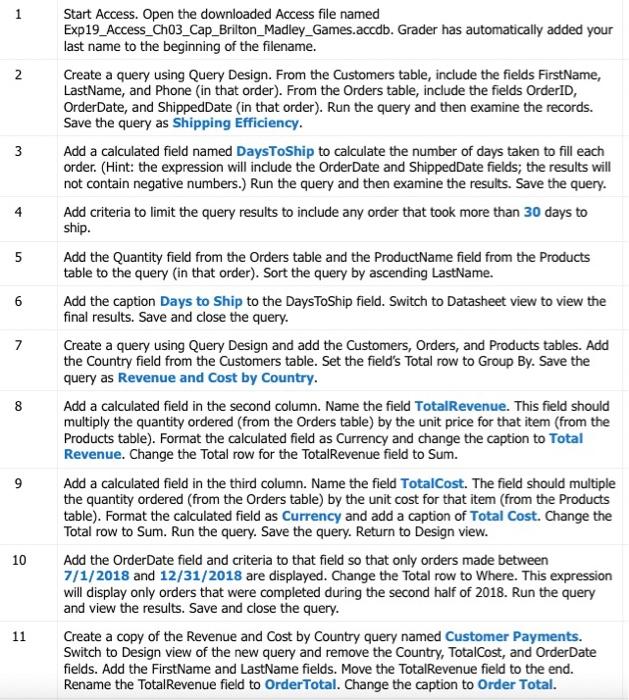
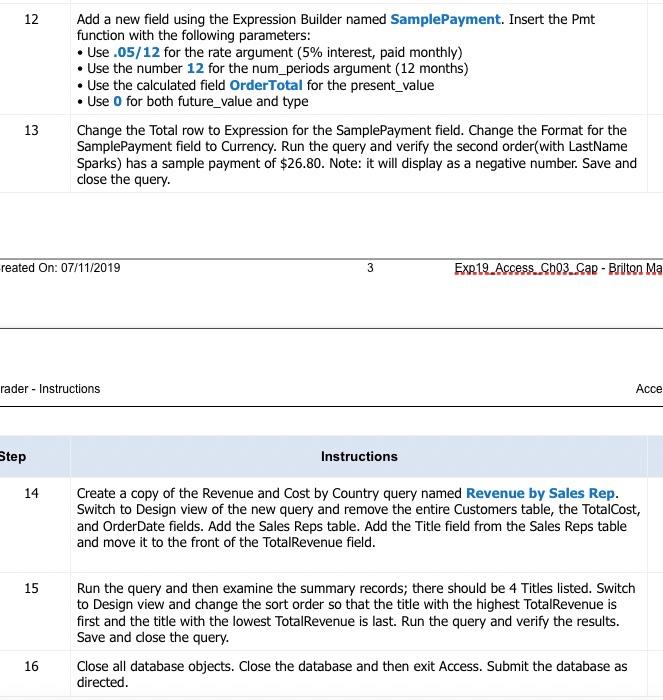
1 N 2 3 4 5 6 7 Start Access. Open the downloaded Access file named Exp19_Access_Ch03_Cap_Brilton_Madley_Games.accdb. Grader has automatically added your last name to the beginning of the filename. Create a query using Query Design. From the Customers table, include the fields FirstName, LastName, and Phone (in that order). From the Orders table, include the fields OrderID, OrderDate, and ShippedDate in that order). Run the query and then examine the records. Save the query as Shipping Efficiency. Add a calculated field named DaysToShip to calculate the number of days taken to fill each order. (Hint: the expression will include the Order Date and shipped Date fields; the results will not contain negative numbers.) Run the query and then examine the results. Save the query. Add criteria to limit the query results to include any order that took more than 30 days to ship. Add the Quantity field from the Orders table and the ProductName field from the Products table to the query (in that order). Sort the query by ascending LastName. Add the caption Days to Ship to the DaysToShip field. Switch to Datasheet view to view the final results. Save and close the query. Create a query using Query Design and add the Customers, Orders, and Products tables. Add the Country field from the Customers table. Set the field's Total row to Group By. Save the query as Revenue and Cost by Country. Add a calculated field in the second column. Name the field Total Revenue. This field should multiply the quantity ordered (from the Orders table) by the unit price for that item (from the Products table). Format the calculated field as Currency and change the caption to Total Revenue. Change the Total row for the Total Revenue field to Sum. Add a calculated field in the third column. Name the field TotalCost. The field should multiple the quantity ordered (from the Orders table) by the unit cost for that item (from the Products table). Format the calculated field as Currency and add a caption of Total Cost. Change the Total row to Sum. Run the query. Save the query. Return to Design view. Add the Order Date field and criteria to that field so that only orders made between 7/1/2018 and 12/31/2018 are displayed. Change the Total row to Where. This expression will display only orders that were completed during the second half of 2018. Run the query and view the results. Save and close the query. Create a copy of the Revenue and cost by Country query named Customer Payments. Switch to Design view of the new query and remove the Country, TotalCost, and Order Date fields. Add the FirstName and LastName fields. Move the Total Revenue field to the end. Rename the Total Revenue field to Order Total. Change the caption to Order Total. 8 9 10 11 12 Add a new field using the Expression Builder named SamplePayment. Insert the Pmt function with the following parameters: Use .05/12 for the rate argument (5% interest, paid monthly) Use the number 12 for the num_periods argument (12 months) Use the calculated field Order Total for the present_value Use o for both future_value and type Change the Total row to Expression for the Sample Payment field. Change the Format for the Sample Payment field to Currency. Run the query and verify the second order(with LastName Sparks) has a sample payment of $26.80. Note: it will display as a negative number. Save and close the query. 13 reated On: 07/11/2019 3 ExR19 Access. Cb03.Cap - Brilton Ma rader - Instructions Acce Step Instructions 14 Create a copy of the Revenue and Cost by Country query named Revenue by Sales Rep. Switch to Design view of the new query and remove the entire Customers table, the TotalCost, and Order Date fields. Add the Sales Reps table. Add the Title field from the Sales Reps table and move it to the front of the Total Revenue field. 15 Run the query and then examine the summary records; there should be 4 Titles listed. Switch to Design view and change the sort order so that the title with the highest Total Revenue is first and the title with the lowest Total Revenue is last. Run the query and verify the results. Save and close the query. Close all database objects. Close the database and then exit Access. Submit the database as directed. 16 1 N 2 3 4 5 6 7 Start Access. Open the downloaded Access file named Exp19_Access_Ch03_Cap_Brilton_Madley_Games.accdb. Grader has automatically added your last name to the beginning of the filename. Create a query using Query Design. From the Customers table, include the fields FirstName, LastName, and Phone (in that order). From the Orders table, include the fields OrderID, OrderDate, and ShippedDate in that order). Run the query and then examine the records. Save the query as Shipping Efficiency. Add a calculated field named DaysToShip to calculate the number of days taken to fill each order. (Hint: the expression will include the Order Date and shipped Date fields; the results will not contain negative numbers.) Run the query and then examine the results. Save the query. Add criteria to limit the query results to include any order that took more than 30 days to ship. Add the Quantity field from the Orders table and the ProductName field from the Products table to the query (in that order). Sort the query by ascending LastName. Add the caption Days to Ship to the DaysToShip field. Switch to Datasheet view to view the final results. Save and close the query. Create a query using Query Design and add the Customers, Orders, and Products tables. Add the Country field from the Customers table. Set the field's Total row to Group By. Save the query as Revenue and Cost by Country. Add a calculated field in the second column. Name the field Total Revenue. This field should multiply the quantity ordered (from the Orders table) by the unit price for that item (from the Products table). Format the calculated field as Currency and change the caption to Total Revenue. Change the Total row for the Total Revenue field to Sum. Add a calculated field in the third column. Name the field TotalCost. The field should multiple the quantity ordered (from the Orders table) by the unit cost for that item (from the Products table). Format the calculated field as Currency and add a caption of Total Cost. Change the Total row to Sum. Run the query. Save the query. Return to Design view. Add the Order Date field and criteria to that field so that only orders made between 7/1/2018 and 12/31/2018 are displayed. Change the Total row to Where. This expression will display only orders that were completed during the second half of 2018. Run the query and view the results. Save and close the query. Create a copy of the Revenue and cost by Country query named Customer Payments. Switch to Design view of the new query and remove the Country, TotalCost, and Order Date fields. Add the FirstName and LastName fields. Move the Total Revenue field to the end. Rename the Total Revenue field to Order Total. Change the caption to Order Total. 8 9 10 11 12 Add a new field using the Expression Builder named SamplePayment. Insert the Pmt function with the following parameters: Use .05/12 for the rate argument (5% interest, paid monthly) Use the number 12 for the num_periods argument (12 months) Use the calculated field Order Total for the present_value Use o for both future_value and type Change the Total row to Expression for the Sample Payment field. Change the Format for the Sample Payment field to Currency. Run the query and verify the second order(with LastName Sparks) has a sample payment of $26.80. Note: it will display as a negative number. Save and close the query. 13 reated On: 07/11/2019 3 ExR19 Access. Cb03.Cap - Brilton Ma rader - Instructions Acce Step Instructions 14 Create a copy of the Revenue and Cost by Country query named Revenue by Sales Rep. Switch to Design view of the new query and remove the entire Customers table, the TotalCost, and Order Date fields. Add the Sales Reps table. Add the Title field from the Sales Reps table and move it to the front of the Total Revenue field. 15 Run the query and then examine the summary records; there should be 4 Titles listed. Switch to Design view and change the sort order so that the title with the highest Total Revenue is first and the title with the lowest Total Revenue is last. Run the query and verify the results. Save and close the query. Close all database objects. Close the database and then exit Access. Submit the database as directed. 16
Step by Step Solution
There are 3 Steps involved in it

Get step-by-step solutions from verified subject matter experts
 Study Help