







Question: Please help me out on this problem I am very stuck. It's in VBA on excel. Thank you! This screen shot is what the finished
Please help me out on this problem I am very stuck. It's in VBA on excel. Thank you!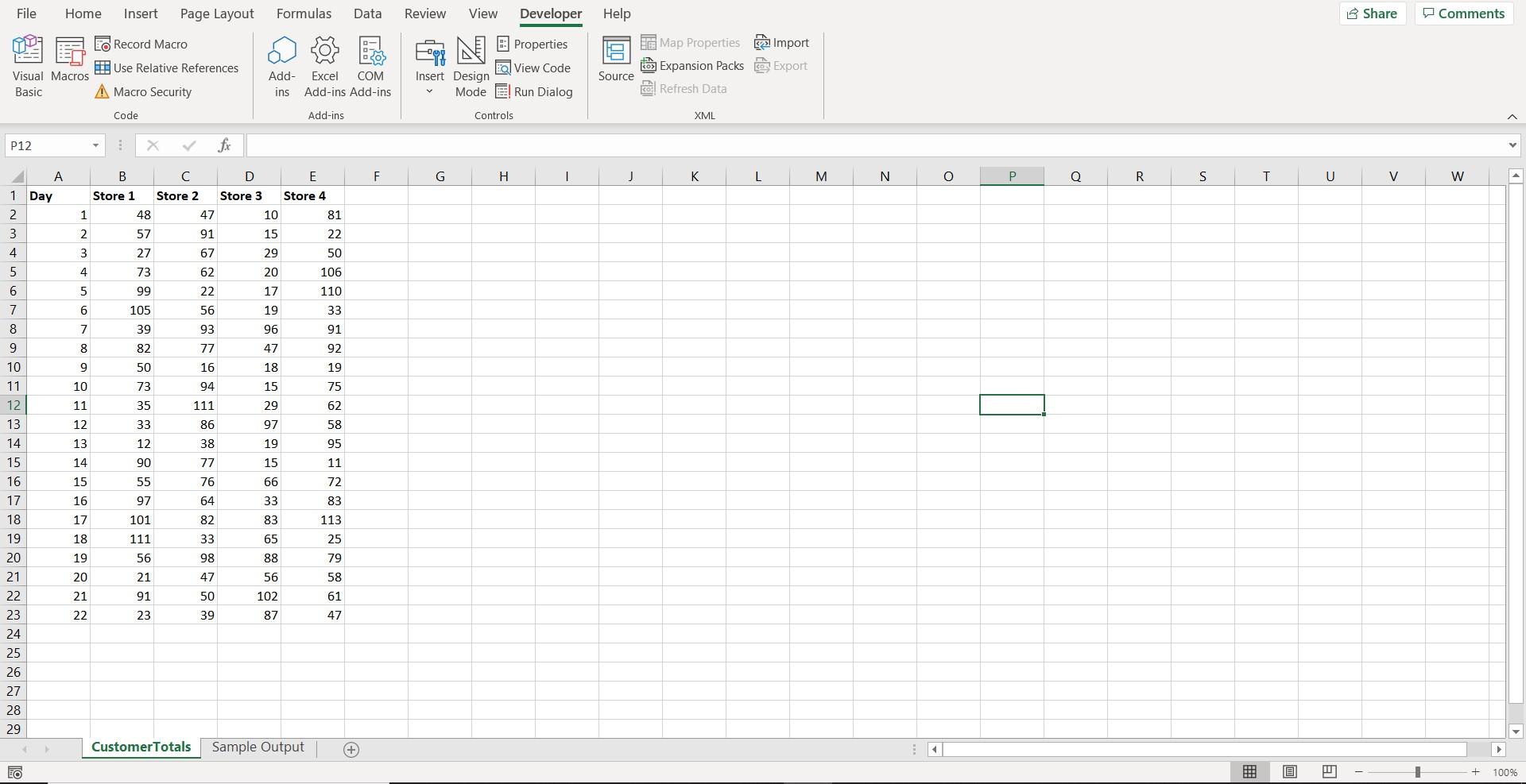
This screen shot is what the finished product should look like 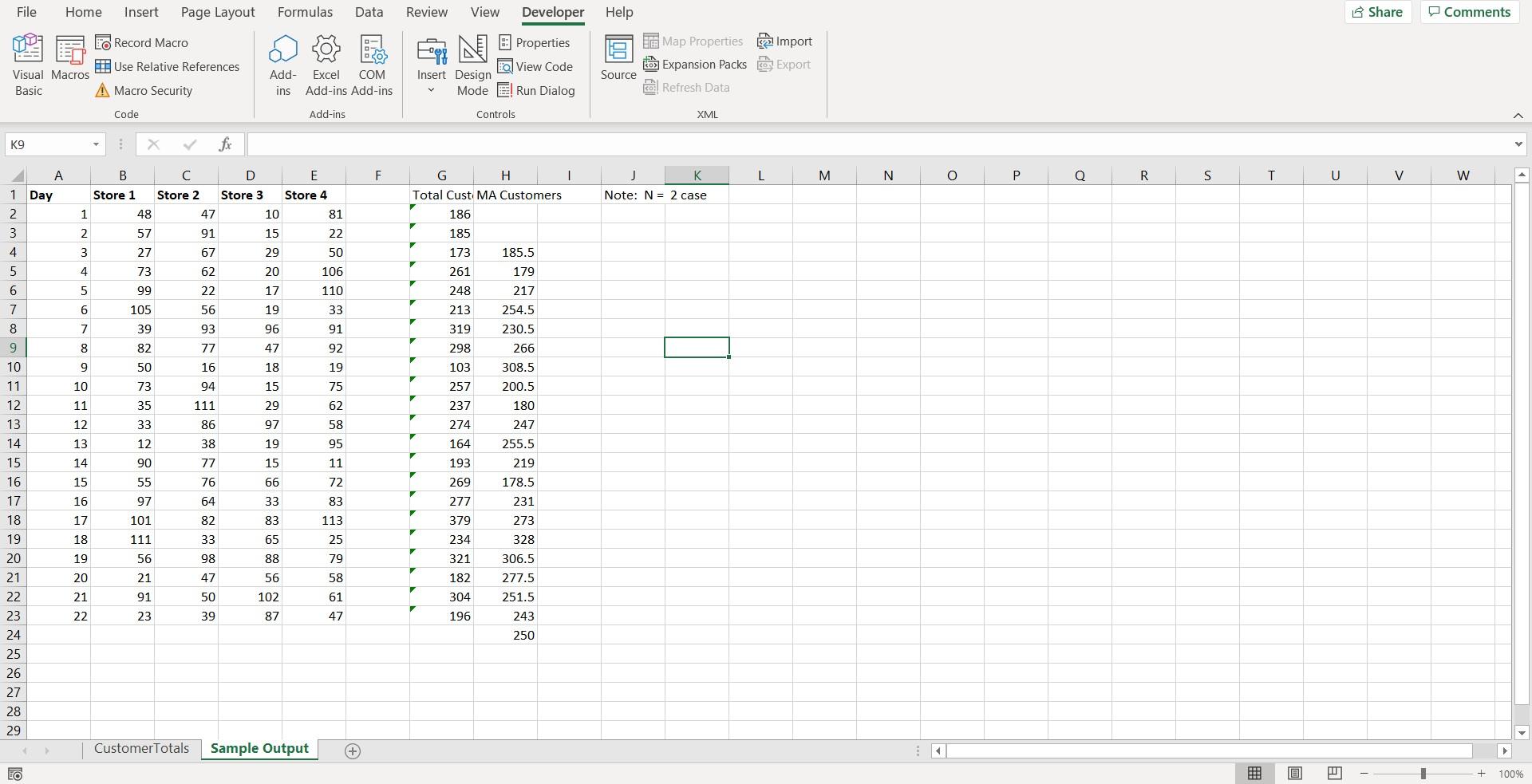
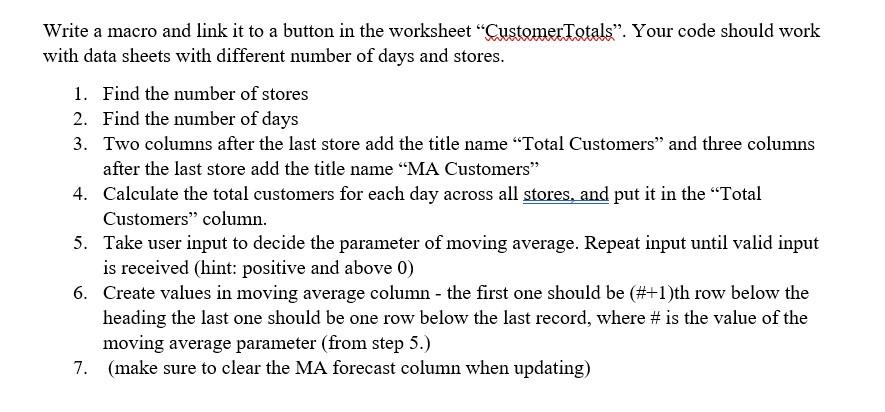
Write a macro and link it to a button in the worksheet CustomerTotals. Your code should work with data sheets with different number of days and stores. 1. Find the number of stores 2. Find the number of days 3. Two columns after the last store add the title name "Total Customers and three columns after the last store add the title name MA Customers 4. Calculate the total customers for each day across all stores, and put it in the "Total Customers column. 5. Take user input to decide the parameter of moving average. Repeat input until valid input is received (hint: positive and above 0) 6. Create values in moving average column - the first one should be (#+1)th row below the heading the last one should be one row below the last record, where # is the value of the moving average parameter (from step 5.) 7. (make sure to clear the MA forecast column when updating) File Home Insert Page Layout Formulas Data Review View Developer Share Comments Record Macro N Properties Help e Map Properties Import Expansion Packs Export Source col Refresh Data HI! Use Relative References Visual Macros Basic A Macro Security Add- Excel COM Add-ins Add-ins To View Code Insert Design Mode E! Run Dialog ins Code Add-ins Controls XML P12 fic D F G H 1 J L M N o Q R S T U V W E Store 4 B C Store 1 Store 2 48 47 1 Day 2. 3 Store 3 1 10 81 2 57 91 15 22 4 3 27 67 29 50 4 73 62 20 106 5 6 7 5 99 22 17 110 6 105 56 19 33 39 93 96 91 8 9 7 8 82 47 92 77 16 9 50 18 10 73 94 15 75 11 35 111 29 62 12 33 86 97 58 13 12 38 19 95 14 90 77 15 11 15 55 76 66 72 16 97 64 33 83 17 101 82 83 113 18 111 33 65 25 10 11 12 13 14 15 16 17 18 19 20 21 22 23 24 25 26 27 28 29 19 56 98 88 79 20 21 47 56 58 21 91 50 102 61 22 23 39 87 47 Customer Totals Sample Output + Eo 19 w 100% File Home Insert Page Layout Formulas Data Review View Developer Help Share Comments O Record Macro NJ Properties Use Relative References e Map Properties Import co Expansion Packs Export Source co: Refresh Data Visual Macros Basic Add- ins Q View Code Insert Design Mode El Run Dialog Excel COM Add-ins Add-ins Macro Security Code Add-ins Controls XML K9 B D E F I K L M N O Q R S T U V W Store 2 Store 1 Store 3 Store 4 G H Total Cust: MA Customers 186 Note: N = 2 case 1 48 47 10 81 A 1 Day 2 3 4 5 6 2 57 91 15 22 185 3 27 67 29 50 173 261 4 73 62 20 106 5 99 22 17 110 7 6 105 19 33 56 93 7 39 96 91 8 82 77 47 92 185.5 179 217 254.5 230.5 266 308.5 200.5 180 247 255.5 9 50 16 18 19 10 73 94 15 248 213 319 298 103 257 237 274 164 193 269 75 11 35 111 29 62 12 33 86 97 58 13 12 38 19 95 14 90 77 15 11 219 15 66 72 178.5 55 97 76 64 33 231 16 17 83 113 277 379 83 273 8 9 10 11 12 13 14 15 16 17 18 19 20 21 22 23 24 25 26 27 28 29 101 111 82 33 18 25 234 328 65 88 19 56 98 79 321 20 21 47 58 21 91 56 102 87 50 39 61 182 304 196 306.5 277.5 251.5 243 250 22 23 47 CustomerTotals Sample Output + E FO H 100
Step by Step Solution
There are 3 Steps involved in it

Get step-by-step solutions from verified subject matter experts
 Study Help