







Question: Please help me with this question: Need FORMULA: Calculating Select Financial Ratios using Excel's ROUND and Basic Math Functions ZImmer, Inc. has provided its recent
Please help me with this question:
Need FORMULA:
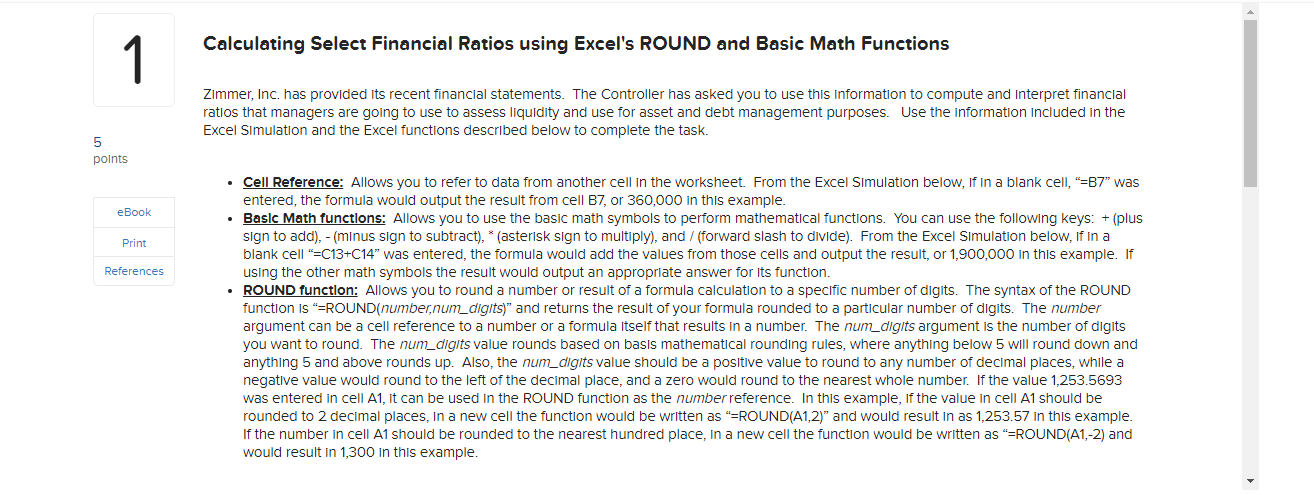
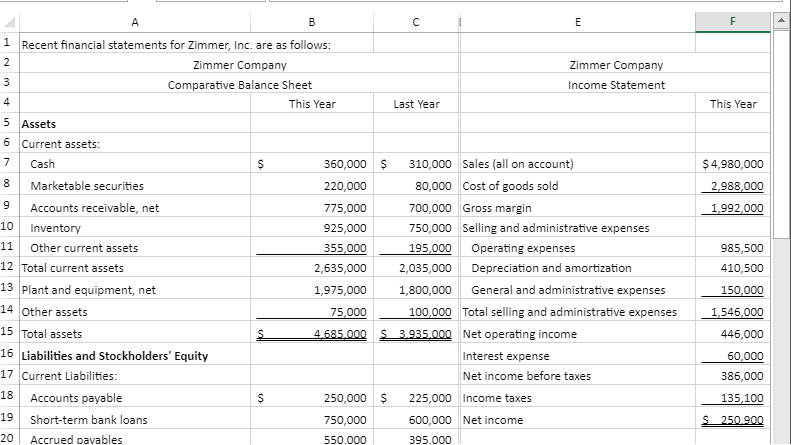
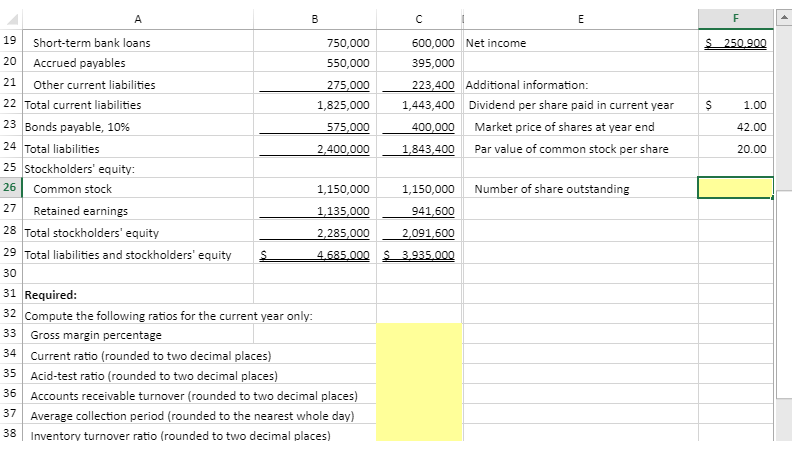
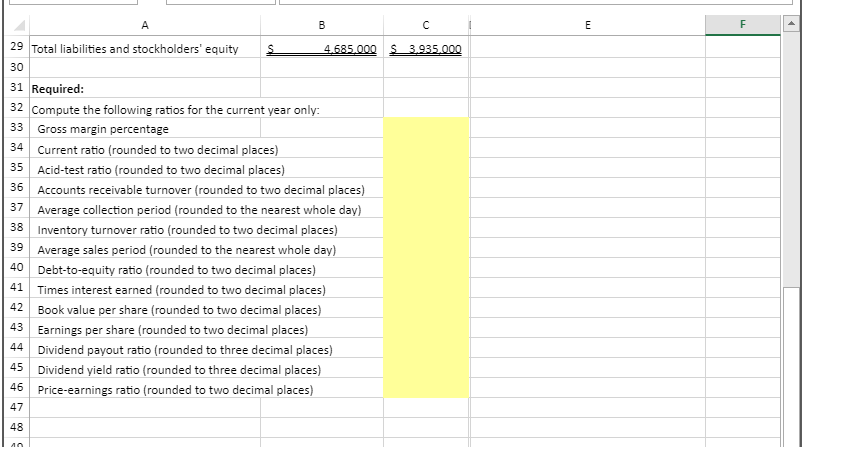
Calculating Select Financial Ratios using Excel's ROUND and Basic Math Functions ZImmer, Inc. has provided its recent financlal statements. The Controller has asked you to use this information to compute and Interpret financlal ratios that managers are going to use to assess liquidity and use for asset and debt management purposes. Use the information included in the Excel Simulation and the Excel functions described below to complete the task. - Cell Reference: Allows you to refer to data from another cell in the worksheet. From the Excel Simulation below, if in a blank cell, "=B7" was entered, the formula would output the result from cell B7, or 360,000 in this example. - Basic Math functions: Allows you to use the basic math symbols to perform mathematical functions. You can use the following keys: + (plus sign to add), - (minus sign to subtract), ( asterisk sign to multiply), and / (forward slash to divide). From the Excel Simulation below, If in a blank cell " =C13+C14 " was entered, the formula would add the values from those cells and output the result, or 1,900,000 in this example. If using the other math symbols the result would output an approprlate answer for Its function. - ROUND function: Allows you to round a number or result of a formula calculation to a specific number of digits. The syntax of the ROUND function is "=ROUND(number,num_digits)" and returns the result of your formula rounded to a particular number of digits. The number argument can be a cell reference to a number or a formula itself that results in a number. The num_diglts argument is the number of digits you want to round. The num_digits value rounds based on basis mathematical rounding rules, where anything below 5 will round down and anything 5 and above rounds up. Also, the num_diglts value should be a positive value to round to any number of decimal places, while a negative value would round to the left of the decimal place, and a zero would round to the nearest whole number. If the value 1,253.5693 was entered in cell A1, It can be used in the ROUND function as the number reference. In this example, if the value in cell A1 should be rounded to 2 decimal places, In a new cell the function would be written as "=ROUND(A1,2)" and would result in as 1,253.57 in this example. If the number in cell A1 should be rounded to the nearest hundred place, in a new cell the function would be written as "=ROUND(A1,-2) and would result in 1,300 in this example
Step by Step Solution
There are 3 Steps involved in it

Get step-by-step solutions from verified subject matter experts
 Study Help